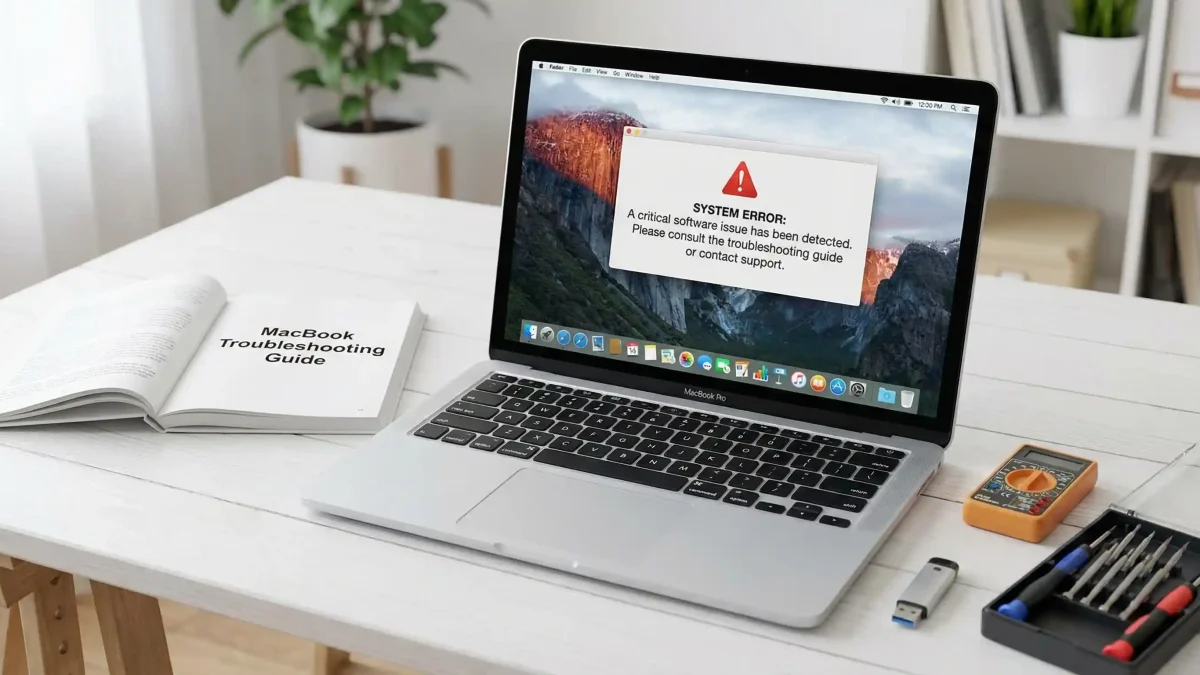
Mac computers are renowned for their reliability, elegant design, and seamless performance. However, even the best hardware encounters issues over time. In 2026, with macOS evolving rapidly and new hardware like the MacBook Neo entering the market, users continue to face a range of Mac errors that can disrupt workflows, from sluggish performance to unexpected restarts.
This guide covers the most frequent Mac errors, their causes, and practical, quick fixes. Whether you’re a beginner or a power user, these solutions will help you troubleshoot effectively. We’ll explore real-world scenarios, expert tips, and maintenance strategies to minimize future problems.
Why Do Mac Errors Happen in 2026?
Mac errors often stem from software updates, hardware wear, insufficient storage, or conflicting applications. Newer macOS versions introduce features that sometimes strain older systems or introduce temporary bugs, such as performance lags in certain apps.
Common triggers include:
- Outdated macOS or apps
- Low storage space
- Overheating or dust buildup
- Third-party software conflicts
- Hardware degradation (e.g., aging batteries)
Understanding these helps you address issues proactively.
1. Slow Performance and Freezing
One of the most reported Mac errors is a noticeable slowdown, where apps lag, the spinning beachball appears frequently, or the system feels unresponsive.
Causes
- Cluttered storage and cache buildup
- Too many background processes
- Outdated software
- Insufficient RAM for demanding tasks
Quick Fixes
- Restart your Mac — Often resolves temporary glitches.
- Check storage: Go to System Settings > General > Storage. Delete unnecessary files or use the built-in optimizer.
- Update everything: Ensure macOS and apps are current via System Settings > General > Software Update.
- Activity Monitor: Open it from Spotlight, sort by CPU or Memory, and quit resource-heavy processes.
- Safe Mode boot: Restart while holding Shift to isolate issues.
Expert Tip: For persistent slowdowns, reset SMC (System Management Controller) and NVRAM/PRAM. Instructions vary by Mac model — check Apple’s support site.
In real-world scenarios, professionals editing videos or running multiple apps often see improvements after clearing 20-30% of storage.
2. Kernel Panics and Unexpected Restarts
A kernel panic displays a message like “Your computer restarted because of a problem” and is one of the more alarming Mac errors.
Common Triggers
- Hardware faults (RAM, GPU)
- Corrupted system files
- Incompatible kernel extensions
- Overheating
Step-by-Step Resolution
- Review logs: Check /Library/Logs/DiagnosticReports/ for details.
- Boot in Safe Mode and test stability.
- Run Disk Utility First Aid in Recovery Mode (Command + R at startup).
- Reinstall macOS without erasing data via Recovery.
- For hardware suspects, run Apple Diagnostics (hold D at startup).
Pro Advice: If panics occur frequently, disconnect peripherals and test. Third-party RAM or SSDs can sometimes trigger this.
3. Battery Drain and Charging Issues
Battery problems rank high among Mac errors, especially on MacBooks, with rapid drain even when idle.
Why It Happens
- Background apps and processes
- High screen brightness
- Outdated macOS
- Degraded battery health (below 80% capacity)
Fixes
- Check battery health in System Settings > Battery.
- Enable Low Power Mode.
- Manage login items: System Settings > General > Login Items.
- Calibrate by charging to 100%, using until 20%, then recharging.
- Update to the latest macOS for battery optimizations.
Comparison: Software tweaks offer quick wins with no cost, while battery replacement provides long-term benefits but involves service.
4. Startup and Boot Errors
Issues like the question mark folder, prohibitory symbol, or failure to boot past the Apple logo are frustrating Mac errors.
Solutions
- Question mark folder: Indicates missing startup disk. Boot to Recovery and select the correct volume.
- Prohibitory symbol: Incompatible software or drive issues. Try Recovery Mode reinstall.
- Use Time Machine backups for restoration.
- For persistent problems, create a bootable installer.
Always back up data first using Time Machine.
5. Wi-Fi, Bluetooth, and Connectivity Problems
Frequent disconnects or failure to connect are common in newer macOS releases.
Quick Troubleshooting
- Forget the network and reconnect.
- Reset Network Settings via Terminal or System Settings.
- Update router firmware.
- Toggle Bluetooth off/on or reset the module.
Real-World Example: After a macOS update, many users resolve Wi-Fi issues by restarting the router and Mac simultaneously.
6. App Crashes and Compatibility Issues
Apps quitting unexpectedly, especially after updates.
Fixes
- Update the specific app.
- Reinstall via App Store or the developer’s site.
- Check for Rosetta compatibility on Apple silicon Macs.
- Clear app caches manually or with tools.
7. macOS Update Errors
Errors during installation of new macOS versions, like “An error occurred while preparing the installation.”
Steps to Resolve
- Ensure sufficient storage (at least 30-40 GB free).
- Stable internet connection.
- Boot to Recovery and install from there.
- Turn off Find My Mac temporarily if needed.
Expert Tip: Create a full backup before major updates.
Additional Subtopics for Better Troubleshooting
Managing Overheating and Fan Noise
Overheating contributes to many Mac errors like throttling and shutdowns. Clean vents, use on hard surfaces, and monitor with apps like iStat Menus. Reset SMC for fan control issues.
Disk and Storage Errors
Use Disk Utility’s First Aid regularly. For advanced users, consider third-party tools (from trusted sources) for deeper scans, but rely primarily on Apple’s utilities.
Keyboard, Trackpad, and Display Glitches
- Missed keystrokes: Clean hardware or reset NVRAM.
- Screen issues: Adjust resolution or update graphics drivers via macOS updates.
Security and Permission Errors
macOS privacy prompts can block apps. Grant necessary permissions in System Settings > Privacy & Security.
Preventive Maintenance in 2026
- Regular backups
- Keep macOS and apps updated
- Monitor storage
- Avoid overloading with too many extensions
- Consider AppleCare for hardware coverage
Benefits vs Drawbacks of DIY Fixes: Quick and free for minor issues, but complex hardware problems risk further damage — know when to visit an Apple Store.
Expert Tips for Long-Term Mac Health
- Use Activity Monitor and Console apps for diagnostics.
- Schedule monthly maintenance: clear caches, update software.
- For power users, explore Terminal commands cautiously (e.g., for performance tweaks).
- Join communities like Reddit’s r/MacOS for user experiences, but verify advice.
When issues persist, Apple’s official support provides model-specific guidance.
For hardware upgrades, research compatible accessories carefully. A well-maintained Mac can last years beyond expectations.
Conclusion
Mac errors are a normal part of owning a computer, but most can be resolved quickly with the right approach. From slow performance and kernel panics to battery issues and update failures, the solutions outlined here empower you to troubleshoot confidently in 2026.
Key takeaways:
- Start simple: restart, update, check storage.
- Use built-in tools like Recovery Mode, Disk Utility, and Safe Mode.
- Maintain regular backups and updates.
- Seek professional help for suspected hardware faults.
By following these steps, you’ll minimize downtime and keep your Mac performing at its best. Stay informed with Apple’s support resources and enjoy a smoother computing experience. If a specific error persists, provide more details in Apple’s forums for tailored help. Your Mac is a powerful tool — with proactive care, it will serve you reliably for years to come.
Additional Informative Links (integrated naturally):
- Learn more about Apple’s official troubleshooting for startup issues from trusted sources.
- Explore community discussions on platforms like Reddit for real-user fixes.
- For in-depth hardware diagnostics, refer to Apple Support.
- Check compatibility and updates via official Apple channels.
- Resources from tech publications like Wired for the latest on new Mac models.
Note: Always verify links and steps for your specific macOS version, as interfaces may evolve.
Related posts:
![Display Backlight Service Program]()
How to Check If Your Device Qualifies for the Display Backlight Service Program?
![MacBook Pro Screen Heat Damage ifixit.org.uk]()
What Is Everything You Need to Know About MacBook Pro Screen Heat Damage?
![How to Find Reliable Computer Repair]()
How to Find Reliable Computer Repair: A Comprehensive Guide to Troubleshooting and Professional Supp...
![How to Fix an HP Notebook Computer Battery That Is Not Charging]()
How to Fix an HP Notebook Computer Battery That Is Not Charging?
![How to Fix Overheating Issues on HP Omen and Victus Gaming Laptops]()
How to Fix Overheating Issues on HP Omen and Victus Gaming Laptops?
![How to Fix Screen Problems on a MacBook Pro]()
How to Fix Screen Problems on a MacBook Pro and Restore Normal Display Performance
![How to Fix MacBook Pro Screen Burn Marks and Restore Display Quality?]()
How to Fix MacBook Pro Screen Burn Marks and Restore Display Quality?
![Microsoft Surface Laptop 3 Screen Crack: ifixit.org.uk]()
Microsoft Surface Laptop 3 Screen Crack: Comprehensive Guide to Causes, Repair Options, and Preventi...