A laptop running slow can bring productivity to a grinding halt. Whether you’re working on documents, browsing the web, or streaming videos, sluggish performance leads to frustration and lost time. If you’ve ever asked, “Why is my laptop running slow?” you’re not alone. Many users face this issue as their devices age or accumulate digital clutter.
This comprehensive guide explores the common reasons behind a slow laptop and provides actionable, beginner-friendly solutions. We’ll cover diagnostics, quick fixes, advanced optimizations, and long-term maintenance strategies to help you restore peak performance.
Common Causes of a Laptop Running Slow
Understanding why your laptop is lagging is the first step toward fixing it. Here are the primary culprits:
1. Insufficient RAM and Memory Overload
Modern applications and browser tabs are memory-hungry. If your laptop has only 4GB or 8GB of RAM, it may struggle with multitasking, leading to frequent swapping to slower storage.
Real-world scenario: You open Chrome with 15 tabs, Microsoft Word, and Spotify—suddenly everything freezes.
2. Full or Fragmented Hard Drive
When your storage fills up (especially over 80% capacity), the system lacks space for temporary files and virtual memory. Traditional HDDs also slow down due to fragmentation.
3. Too Many Startup Programs and Background Processes
Numerous apps launch automatically at boot, consuming CPU and RAM resources from the start.
4. Outdated Software and Operating System
Old drivers, OS versions, and apps miss performance optimizations and security patches.
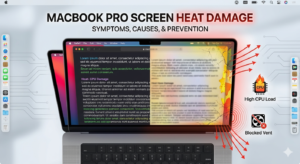
5. Overheating and Dust Buildup
Dust-clogged vents cause thermal throttling, where the CPU and GPU slow down to prevent damage.
6. Malware or Bloatware
Unwanted software runs silently in the background.
7. Aging Hardware
After 3–5 years, components like HDDs and batteries degrade naturally.
Quick Wins: Simple Fixes to Speed Up Your Laptop Immediately
Start with these easy steps before diving deeper.
Restart Your Laptop Regularly
A simple reboot clears temporary files and refreshes system resources. Many users notice instant improvements.
Tip: Make it a habit to restart at least once a day.
Close Unnecessary Programs and Tabs
Use Task Manager (Ctrl + Shift + Esc on Windows) to identify and end high-resource processes.
- Sort by CPU or Memory usage.
- End tasks for non-essential apps.
Update Your Operating System and Drivers
- Windows: Go to Settings > Update & Security > Windows Update.
- macOS: System Settings > General > Software Update.
Updates often include performance enhancements.
Diagnosing the Problem: Tools and Techniques
Before major changes, diagnose accurately.
Using Task Manager and Resource Monitor
On Windows:
- Open Task Manager.
- Check the Performance tab for CPU, Memory, Disk, and GPU usage.
- High disk usage (over 90%) often points to storage issues.
Expert tip: For deeper insights, use built-in Resource Monitor.
Check Storage Space
Keep at least 20% of your drive free. Use built-in cleanup tools:
- Windows: Search for “Storage Sense” or “Disk Cleanup.”
- macOS: About This Mac > Storage > Manage.
Monitor Temperatures
Download free tools like HWMonitor or Core Temp to check if overheating is an issue.
Optimizing Software for Better Performance
Software tweaks yield big gains without spending money.
Disable Startup Programs
In Task Manager > Startup tab, disable non-essential items like Spotify or OneDrive if not needed immediately.
Free Up Disk Space
- Delete temporary files.
- Uninstall unused programs via Settings > Apps.
- Empty Recycle Bin and clear browser cache.
Numbered list for Windows Disk Cleanup:
- Search for “Disk Cleanup” in the Start menu.
- Select your main drive (usually C:).
- Check categories like Temporary files and System files.
- Click OK to clean.
Manage Browser Performance
Limit extensions and tabs. Use extensions like The Great Suspender (or alternatives) to pause inactive tabs.
Hardware Upgrades: When and What to Consider
Sometimes software isn’t enough—hardware upgrades deliver dramatic results.
Upgrade Your RAM
Adding RAM is often the most cost-effective boost.
Comparison Table:
| RAM Amount | Typical Use Case | Performance Impact |
|---|---|---|
| 8GB | Basic browsing, office work | Adequate for light tasks |
| 16GB | Multitasking, light editing | Significant improvement |
| 32GB+ | Video editing, gaming | Future-proof |
Actionable advice: Check compatibility via your laptop model’s manual or Crucial.com scanner.
Switch from HDD to SSD
This upgrade can make your laptop feel 5–10x faster for boot times and app loading.
Benefits vs Drawbacks:
- Benefits: Blazing fast read/write speeds, quieter, more durable, lower power use.
- Drawbacks: Higher cost per GB, but prices have dropped significantly.
Clean Dust and Improve Cooling
Use compressed air to clean vents (laptop powered off). Elevate your laptop with a cooling pad for better airflow.
Advanced Optimization Techniques
Power Settings Adjustment
Switch to “High Performance” mode in Power Options (Windows) for better responsiveness, though it uses more battery.
Defragment HDDs (If Applicable)
For traditional hard drives, run Disk Defragmenter. Skip for SSDs—use “Optimize Drives” instead.
Virtual Memory and Pagefile Tuning
Increase virtual memory if RAM is low, but this is a temporary workaround.
Maintenance Tips to Prevent Future Slowdowns
Longevity requires consistent care.
- Regular Cleaning: Wipe exterior and clean internals annually.
- Battery Care: Avoid full discharges; keep between 20–80% when possible.
- Backup Data: Use external drives or cloud services to avoid clutter.
- Antivirus and Security: Stick to reputable free options like Windows Defender.
- Physical Protection: Use a case and avoid extreme temperatures.
Expert tip: Schedule monthly “maintenance days” for updates and cleanups.
When to Upgrade Your Laptop Entirely
If your device is over 5 years old or repairs cost more than half its value, consider a new one. Look for models with at least 16GB RAM and SSD storage.
For enthusiasts exploring advanced setups like a mobile triple screen setup simracing, a performant laptop is essential. Check resources on Forbes for tech buying guides or Wikipedia for performance basics.
Additional trusted insights: Explore discussions on Reddit communities, hardware options on Amazon, or official troubleshooting from Google support pages.
Comparing DIY Fixes vs Professional Help
DIY Pros: Free or low-cost, educational. Cons: Risk of voiding warranty or causing damage.
Professional Help: Ideal for hardware upgrades or complex issues. Weigh costs carefully.
Conclusion
A laptop running slow doesn’t have to be a permanent problem. By identifying causes like insufficient RAM, cluttered storage, or overheating, and applying the fixes outlined— from simple restarts and cleanups to strategic upgrades—you can significantly improve performance and extend your device’s life.
Key Takeaways:
- Restart and update regularly.
- Keep storage under 80% full.
- Upgrade RAM or switch to SSD for major gains.
- Maintain hardware cleanliness.
- Monitor resources with Task Manager.
Take action today: Start with a restart and disk cleanup, then tackle one area at a time. Your future self (and your productivity) will thank you. For more tailored advice, consult manufacturer support or tech forums. With these strategies, you’ll enjoy a faster, more responsive laptop for years to come.
Related posts:
![Display Backlight Service Program]()
How to Check If Your Device Qualifies for the Display Backlight Service Program?
![MacBook Pro Screen Heat Damage ifixit.org.uk]()
What Is Everything You Need to Know About MacBook Pro Screen Heat Damage?
![How to Find Reliable Computer Repair]()
How to Find Reliable Computer Repair: A Comprehensive Guide to Troubleshooting and Professional Supp...
![How to Fix an HP Notebook Computer Battery That Is Not Charging]()
How to Fix an HP Notebook Computer Battery That Is Not Charging?
![How to Fix Overheating Issues on HP Omen and Victus Gaming Laptops]()
How to Fix Overheating Issues on HP Omen and Victus Gaming Laptops?
![How to Fix Screen Problems on a MacBook Pro]()
How to Fix Screen Problems on a MacBook Pro and Restore Normal Display Performance
![How to Fix MacBook Pro Screen Burn Marks and Restore Display Quality?]()
How to Fix MacBook Pro Screen Burn Marks and Restore Display Quality?
![Microsoft Surface Laptop 3 Screen Crack: ifixit.org.uk]()
Microsoft Surface Laptop 3 Screen Crack: Comprehensive Guide to Causes, Repair Options, and Preventi...