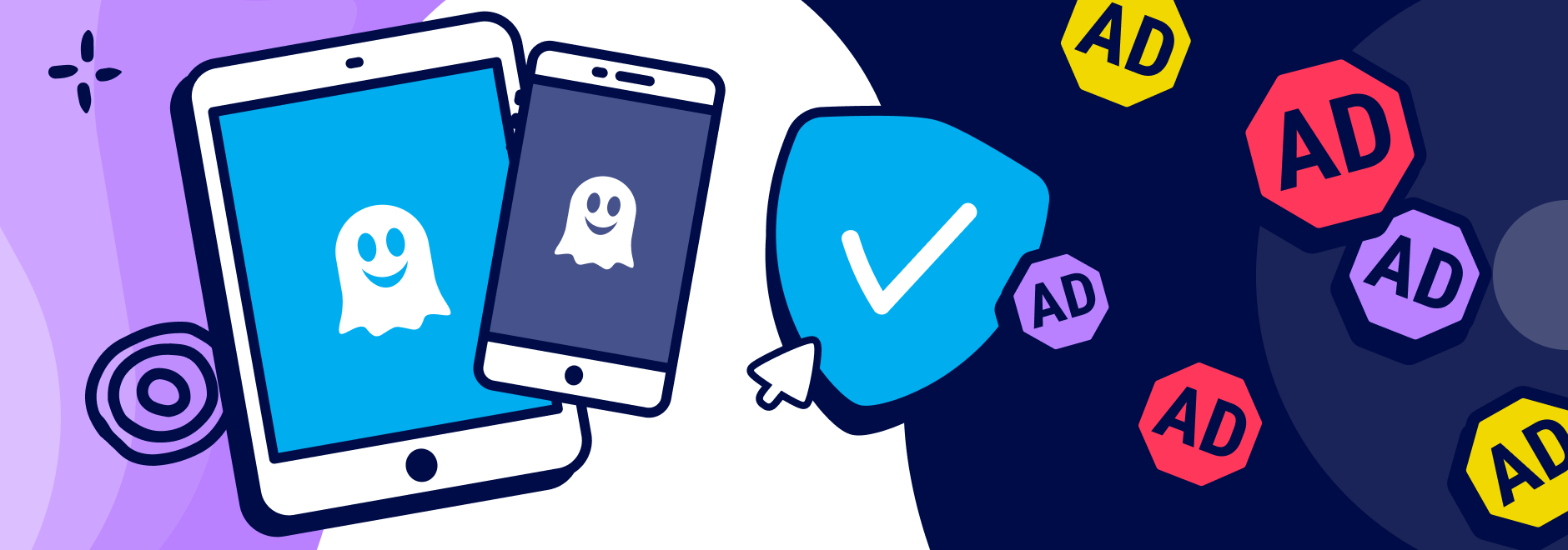
In today’s digital world, ads are everywhere—popping up on websites, interrupting videos, and cluttering your apps. Learning how to block ads on PC, Android, and iPhone can transform your online experience, making it faster, less distracting, and more private. Whether you’re tired of banner ads slowing down your browser or in-app advertisements draining your battery, effective ad-blocking solutions exist for every device.
This in-depth guide explores practical methods, top tools, step-by-step instructions, comparisons, and expert advice. By the end, you’ll have actionable strategies to enjoy an ad-light internet across all your devices.
Why You Should Block Ads: Benefits for Users
Blocking ads isn’t just about removing annoyances. It offers tangible improvements:
- Faster Browsing and Reduced Data Usage: Ads can account for a significant portion of page load times and bandwidth. Studies show ad blockers can reduce data consumption and speed up pages dramatically.
- Improved Privacy: Many ads track your behavior across sites. Effective blockers prevent this surveillance.
- Better Security: Ads sometimes carry malware (malvertising). Blocking them adds a layer of protection.
- Enhanced Battery Life and Performance: Fewer elements to load means less strain on your device’s CPU and battery.
- Cleaner, More Focused Experience: Enjoy content without distractions, especially useful during work or streaming.
Drawbacks to Consider: Some free sites rely on ad revenue, so blocking might affect creators (consider whitelisting or supporting via subscriptions). Overly aggressive blockers can occasionally break site functionality, requiring tweaks.
Block Ads on PC: Comprehensive Methods for Windows and Mac
Block Ads on PC is one of the most requested solutions, as desktops handle heavy browsing. Modern tools make it straightforward and highly effective.
Browser Extensions: The Easiest Starting Point
The most popular way to block ads on PC is through browser extensions. These work across Chrome, Firefox, Edge, and others.
- uBlock Origin — Widely regarded as one of the best free options. It’s lightweight, highly customizable, and excels at blocking ads, trackers, and more. Available on Firefox and as uBlock Origin Lite for Chrome compatibility.
- AdGuard — Offers strong filtering and a desktop app for system-wide blocking.
- Total Adblock and Surfshark CleanWeb — Premium options praised for reliability against YouTube and complex ads.
Installation Steps for Chrome/Edge:
- Go to the Chrome Web Store or Edge Add-ons.
- Search for “uBlock Origin” or your chosen blocker.
- Click “Add to Browser” and enable it.
For Firefox users, full uBlock Origin remains powerful.
System-Wide Ad Blocking on PC
For blocking ads beyond the browser (e.g., in apps or system notifications):
- AdGuard for Windows/Mac: Runs as a background service, filtering all traffic.
- VPN-Based Solutions: Services like NordVPN Threat Protection or Surfshark CleanWeb block ads at the network level.
- Hosts File Editing: Advanced users can modify the system’s hosts file to redirect ad domains to nowhere (requires caution).
- Pi-hole or AdGuard Home: Self-hosted network-level blockers for entire home networks (great for multiple PCs).
Expert Tip: Combine a good extension with a VPN’s ad-blocking feature for layered protection.
Disabling Built-in Ads in Windows
Windows 11 shows promotional content in the Start menu, File Explorer, and apps. To minimize these:
- Go to Settings > Privacy & security > General and toggle off relevant options.
- Use registry tweaks or tools like ShutUp10++ for deeper control (research carefully).
Comparison Table: Top PC Ad Blockers
| Tool | Free/Paid | Best For | System-Wide | YouTube Blocking | Ease of Use |
|---|---|---|---|---|---|
| uBlock Origin | Free | Customizable filtering | No (browser) | Excellent | High |
| AdGuard | Freemium | Full desktop app | Yes | Strong | High |
| Total Adblock | Paid | Streaming/YouTube | Via app | Top-tier | Very High |
| Surfshark CleanWeb | Subscription | VPN + Ad block | Yes | Excellent | High |
| Brave Browser | Free | Built-in Shields | Browser | Good | Very High |
Block Ads on Android Devices
Android offers flexible options, from simple DNS tweaks to dedicated apps.
Private DNS for Quick System-Wide Blocking
No app needed:
- Go to Settings > Network & Internet > Private DNS.
- Select “Private DNS provider hostname” and enter dns.adguard.com or similar.
This blocks many ads in apps and browsers without root.
Best Ad Blocker Apps for Android
- AdGuard for Android: Powerful, no-root VPN mode for system-wide blocking, including apps.
- Total Adblock or Blokada: Effective for broad coverage.
- Browser-Specific: Firefox with uBlock Origin or Brave browser.
For YouTube: Use browser versions or premium services, as official app ads are harder to block.
Real-World Scenario: Commuters using public Wi-Fi benefit hugely from these, reducing data costs and distractions.
Block Ads on iPhone and iOS Devices
iOS is more restricted but has strong Safari integration.
Safari Content Blockers
- Install apps like AdGuard for Safari, 1Blocker, or AdBlock from the App Store.
- Go to Settings > Safari > Extensions (or Content Blockers) and enable them.
System-Wide and App Blocking
- DNS Configurations: Similar to Android, use profiles or apps for network-level filtering.
- Magic Lasso or AdGuard Pro: Offer app-level blocking via local VPN.
- Built-in: Enable “Block Pop-ups” in Safari settings and Fraudulent Website Warning.
Note: Full system blocking often uses VPN configurations, which may affect other network features.
Additional Tips for Effective Ad Blocking Across Devices
Advanced Customization and Filters
Most blockers allow custom filter lists (e.g., EasyList). Update regularly for best results.
Whitelisting Trusted Sites
Support favorite sites by allowing ads on them via blocker settings.
Combining Tools
Use browser extensions + DNS/VPN for maximum coverage. For example, block ads on PC with uBlock Origin and pair with a VPN.
Handling YouTube and Streaming Ads
- Browser + strong blocker.
- YouTube Premium as a paid alternative.
- Alternatives like NewPipe (Android) or browser tricks.
Maintaining and Updating Blockers
Regular updates are crucial as ad networks evolve. Check for new filter lists.
Performance and Troubleshooting
If a site breaks, pause the blocker temporarily or whitelist. Test speed improvements with tools like browser dev tools.
Privacy-Focused Browsers
Consider switching to Brave or Firefox for built-in protections.
Common Challenges and Expert Solutions
- Evolving Ad Techniques: Use tools with frequent updates like uBlock Origin.
- Mobile Data Savings: DNS changes shine here.
- Family Safety: Many blockers include parental controls.
- Legal/Ethical Note: Respect site owners; many offer ad-free subscriptions.
Comparing Benefits vs. Drawbacks of Different Approaches
Browser Extensions:
- Pros: Easy, free options, highly effective for web.
- Cons: Limited to browser; may need per-browser setup.
VPN/DNS Methods:
- Pros: System-wide, device-agnostic.
- Cons: Potential speed impact; some cost money.
Dedicated Apps:
- Pros: Feature-rich.
- Cons: May require permissions.
Overall, a hybrid approach yields the best results for most users.
Expert Tips for Beginners and Power Users
- Start simple: Install uBlock Origin on your main browser.
- Test on popular sites like news portals or YouTube.
- Monitor battery/data usage pre- and post-blocking.
- For block ads on PC power users, explore self-hosted solutions like Pi-hole.
- Stay informed via communities like Reddit’s r/Adblock or official forums.
Future of Ad Blocking
With browsers like Chrome moving to Manifest V3, tools are adapting. Open-source options and privacy-focused developments continue to thrive.
Conclusion
Effectively learning how to block ads on PC, Android, and iPhone empowers you with a smoother, safer, and more enjoyable internet experience. From lightweight extensions like uBlock Origin for quick wins on desktop to DNS tweaks and dedicated apps on mobile, the tools are accessible and powerful.
Key Takeaways:
- Prioritize reputable tools and combine methods for best coverage.
- Focus on privacy and performance gains.
- Customize and whitelist thoughtfully to support content creators.
- Regularly update your blockers.
Take action today: Pick one method for your primary device, measure the improvement, and expand from there. An ad-free digital life is within reach—cleaner pages, faster loads, and better peace of mind await. For ongoing advice, explore resources from trusted tech sites like PCMag.
- Learn more about content blocking on Wikipedia’s Ad Blocking page.
- For reviews, check PCMag’s Best Ad Blockers.
- Privacy insights from [Forbes or similar tech analyses] (contextual).
- Browser recommendations via official sources.
- Community discussions on Reddit Adblocking.
Related posts:
![newborn baby clothes]()
How to Choose the Best Newborn Baby Clothes:
![facebook video downloader facebook video downloader]()
How to Change Name on Facebook: The Complete 2026 Guide
![Fix Orange Discoloration on MacBook Pro Screen]()
How to Fix Orange Discoloration on MacBook Pro Screen: Complete Guide to Causes & Solutions
![FIFA Club World Cup]()
Top 10 Biggest Mistakes Teams Make in the FIFA Club World Cup
![Why Does Google Deindex Website Pages and How Can You Get Them Reindexed]()
Why Does Google Deindex Website Pages and How Can You Get Them Reindexed?
![Display Backlight Service Program]()
How to Check If Your Device Qualifies for the Display Backlight Service Program?
![MacBook Pro Screen Heat Damage ifixit.org.uk]()
What Is Everything You Need to Know About MacBook Pro Screen Heat Damage?
![Google Gemini in 2026]()
What Is Everything You Need to Know About Google Gemini in 2026?