
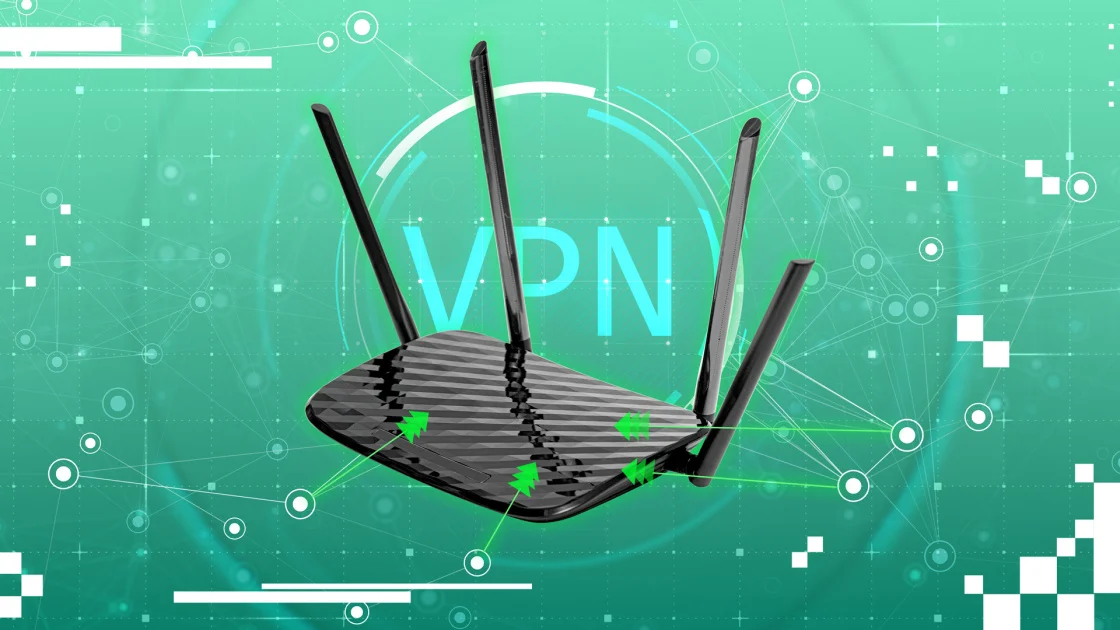
Let’s face it: managing security for every single gadget in your home can feel like a full-time job. Smart TVs, gaming consoles, Wi-Fi-enabled thermostats, and even your children’s tablets all need protection. Installing individual apps on each device is not only tedious but often impossible for certain hardware. Fortunately, there is a smarter approach that provides seamless protection across your entire household without the constant manual oversight.
When you learn how to set up a VPN on your router, you effectively put a security blanket over your whole home network. A router-level VPN encrypts every byte of data leaving your home, acting as a permanent digital shield for everything connected to your Wi-Fi. Whether you are a remote worker handling sensitive documents or a parent concerned about family privacy, this guide will walk you through the process, highlight the benefits, and help you decide if this approach is right for you.
What Is a Router VPN and Why Does It Matter?
A router VPN is a Virtual Private Network configured directly on your home or office router, rather than on individual devices. Instead of installing a VPN app on your laptop or phone, the router itself handles all encryption and routing. This means every device that connects to your Wi-Fi is automatically protected, with zero additional configuration required on your part.
Think of it this way: a device-level VPN is like an umbrella you have to remember to open every time it rains. A router VPN, in contrast, is like a permanent roof—always there, always working, no action required from you or anyone in your household.
The modern home is more connected than ever before. The average household now contains over 17 internet-enabled devices, including smart speakers, streaming sticks, security cameras, and gaming consoles. Most of these gadgets cannot install VPN apps at all. A router-level solution is the only practical way to extend privacy protection to these devices, which often ship with weak security protocols and are vulnerable to attacks.
In 2026, with data-sharing laws expanding in several major markets and smart home adoption at an all-time high, securing your entire network at the router level is not paranoia—it is basic digital hygiene.
Do You Need a VPN on Your Router? Knowing When It’s the Right Choice
Before diving into the technical steps, it is worth considering whether a router-based VPN is the right solution for your specific situation. A router VPN is ideal if you have multiple devices that need constant protection, including smart home gadgets that cannot run native VPN apps. It is also an excellent choice if you want to eliminate the hassle of manually connecting each device every time you go online.
However, a router VPN might not suit everyone. If you frequently switch server locations—for example, to access different streaming libraries—you would need to log into your router settings each time you want to make a change, which can be inconvenient compared to clicking a button in a device app. A router VPN is also less ideal if you only need protection for a single device or if you prefer to have granular control over which devices use the VPN and which do not.
Router VPN vs. Device VPN: A Quick Comparison
| Feature | Router VPN | Device VPN App |
|---|---|---|
| Number of devices protected | Unlimited (every device on your network) | Limited by subscription plan |
| Protects smart TVs and IoT devices | Yes (automatically) | No (most devices lack app support) |
| Manual connection required | No (always-on) | Yes (must turn on for each session) |
| Easy server switching | No (requires logging into router) | Yes (one-click in app) |
| Best for travel | No | Yes (takes security on the go) |
Sources: PrivateVPN and Privacy Affairs
The Best of Both Worlds
You do not have to choose one or the other exclusively. Many users find that running a VPN on their router for whole-home protection, combined with a VPN app on their laptop or phone for travel and location switching, offers the most comprehensive security coverage.
How to Know If Your Router Is VPN Compatible
Not every router can run a VPN client. Before you begin, you need to confirm whether your existing hardware supports this functionality. Routers generally fall into three categories:
Type 1: Natively VPN-Ready Routers
These routers come with a built-in VPN client in their stock firmware. Popular brands such as ASUS, TP-Link, Netgear, and GL.iNet offer models with native VPN support. Many ASUS routers, for example, run ASUSWRT or ASUSWRT-Merlin firmware, which includes robust VPN client features.
Type 2: Routers That Can Be Flashed with Custom Firmware
If your current router does not natively support VPNs, you might be able to install alternative firmware such as DD-WRT, OpenWrt, or Tomato. These open-source operating systems can unlock VPN capabilities on many older or budget routers. However, flashing custom firmware is an advanced process that carries a risk of bricking your device if done incorrectly.
Type 3: Routers That Do Not Support VPNs
Some routers, particularly those provided by internet service providers (ISPs) and certain consumer mesh systems like Eero and Google Nest, do not allow VPN installation. If you own one of these devices, your best option is to purchase a new router specifically designed for VPN use.
How to Check Your Router
To find out if your router supports VPN connections, you can take the following steps:
-
Check the user manual. Look for sections detailing connection configuration options or VPN compatibility.
-
Log into your router’s admin panel. Enter your router’s IP address (usually
192.168.1.1or192.168.0.1) into a web browser and look for a “VPN” or “OpenVPN” section. -
Search online. Use your router’s make and model number in a web search along with the term “VPN support.”
Step-by-Step Guide: How to Set Up a VPN on Your Router
Setting up a VPN on your router is much simpler than most people assume. In many cases, the entire process takes between ten and twenty minutes from start to finish. Below is a general guide that applies to most modern routers.
Step 1: Choose a VPN Provider That Supports Routers
Not every VPN service works well at the router level. Look for providers that offer OpenVPN or WireGuard protocol support and provide downloadable configuration files. For 2026, top-rated options include NordVPN, ExpressVPN, Surfshark, and Private Internet Access, all of which offer detailed router setup guides and strong compatibility.
Step 2: Update Your Router Firmware
Before making any changes, ensure your router is running the latest firmware. Log into your router’s admin dashboard, navigate to the administration or firmware upgrade section, and check for any available updates. Running the latest firmware ensures you have access to current security patches and the most recent protocol support.
Step 3: Download Your VPN Configuration Files
Log into your chosen VPN provider’s website and navigate to the manual setup section. Select “Router” as your device type and choose your preferred protocol—either OpenVPN or WireGuard. Download the configuration file for your desired server location. If you plan to use WireGuard, you may also need to generate a key pair at this stage.
Step 4: Access Your Router’s VPN Client Settings
Log back into your router’s admin panel and locate the VPN client section. On ASUS routers, this is typically found under “Advanced Settings” then “VPN Client.” On TP-Link routers, navigate to “Advanced” then “VPN Client”. On GL.iNet routers, the VPN dashboard is usually prominently displayed on the main settings page.
Step 5: Import the Configuration File
Upload the configuration file you downloaded earlier. Enter your VPN service credentials when prompted—these are often separate from your main account login and can be generated in your provider’s manual setup section. For OpenVPN connections, you will typically need a username and password. For WireGuard, the configuration file will contain the necessary keys automatically.
Step 6: Enable the VPN Connection and Verify
Activate the VPN connection in your router settings. Once it shows as “connected,” visit a site like whatismyip.com from any device on your network. The IP address displayed should match your chosen VPN server’s location, not your home address. If it does, every device on your network is now protected.
Step 7: Configure a Kill Switch
A kill switch is a critical security feature that automatically cuts your internet connection if the VPN tunnel drops unexpectedly, preventing your real IP address from being exposed. Many router firmware options enable the kill switch by default once a VPN connection is activated. Check your router’s VPN settings to ensure this feature is turned on for maximum protection.
Expert Tip: Configure split tunneling if your router supports it. This feature allows you to route specific devices through the VPN while sending others directly to the internet. This is particularly useful for smart home hubs that rely on local network discovery and may not function correctly through a VPN tunnel.
How a Router VPN Protects Your Entire Home
When you set up a VPN on your router, your internet traffic flows through an encrypted tunnel that shields your data from prying eyes. Here is exactly what happens every time a device in your home goes online:
-
Your device (laptop, phone, smart TV, or gaming console) sends a request to access a website or service.
-
Your router, acting as the VPN client, encrypts that request before it leaves your local network.
-
The encrypted data travels through your ISP’s network, but your ISP cannot see the contents of your traffic—they only see scrambled information heading toward the VPN server.
-
The VPN server decrypts your request and forwards it to its final destination on the internet. The website or service sees the VPN server’s IP address, not your home IP address.
This process masks the specific signatures of your smart devices, making it incredibly difficult for outside observers to identify what hardware you are running. Even if a smart security camera has weak built-in security, the VPN tunnel ensures its communications are encrypted before they ever reach the manufacturer’s servers.
Choosing the Best VPN Protocol for Your Router
The protocol you choose significantly affects both the security and speed of your connection. In 2026, two protocols dominate the landscape.
WireGuard
WireGuard is the modern, lightweight champion. It operates in the operating system kernel, processing traffic at a lower level with less overhead. In independent tests, WireGuard consistently delivers speeds roughly three to four times higher than OpenVPN on the same connection. On a 1 Gbps home connection, WireGuard can handle around 120 Mbps, while OpenVPN tops out near 45 Mbps on the same hardware. WireGuard is ideal if speed is your priority and your router has the processing power to handle it.
OpenVPN
OpenVPN has been the industry standard for over two decades. It is open source, widely audited, and supported on virtually every platform and router. While OpenVPN is slower than WireGuard, it has a longer security track record and handles awkward network conditions, such as restrictive firewalls, more effectively. OpenVPN is the safer choice if you prioritize proven reliability over raw speed or if your router is older and may not support WireGuard.
Which Protocol Should You Choose?
If your router and VPN provider support WireGuard, use it. The speed difference is dramatic and immediately noticeable for streaming, gaming, and large file transfers. If WireGuard is not available or you encounter compatibility issues, OpenVPN remains an excellent, battle-tested alternative.
The Benefits of a Router-Based VPN
A router VPN offers several compelling advantages that make it an attractive choice for home users.
Whole-Home Protection Without Effort
Once configured, a router VPN protects every single device in your home automatically. You never have to remember to turn it on, and you never have to install software on each individual device. This is especially valuable for seniors, children, and guests who connect to your Wi-Fi—they receive protection without needing to learn how to use a VPN app.
Protection for Devices That Cannot Run VPN Apps
Smart TVs, gaming consoles, and IoT devices represent some of the most vulnerable endpoints in your home network. Many of these devices ship with weak security, unencrypted communication channels, and default passwords that are rarely changed. A router VPN encrypts their traffic at the network level, closing a significant security gap.
Bypass Connection Limits
Most VPN providers limit the number of devices you can connect simultaneously based on your subscription plan. When you set up a router VPN, your entire household counts as a single device against that limit because all traffic flows through the router’s single connection. This effectively gives you unlimited device protection without upgrading to a more expensive plan.
Prevent ISP Throttling
Internet service providers often throttle bandwidth based on the type of traffic they detect—slowing down streaming services, gaming platforms, or file-sharing applications. A router VPN encrypts all your traffic, so your ISP cannot determine what you are doing online. This prevents them from selectively slowing down specific activities and often results in more consistent speeds.
Potential Drawbacks to Consider
While the benefits are substantial, a router VPN does come with certain limitations that you should understand before making the commitment.
Reduced Internet Speed
Encrypting and decrypting every packet of data leaving your home requires processing power. Some routers, particularly older or budget models, may struggle with this task, resulting in noticeably slower speeds. WireGuard is much more efficient than OpenVPN, but neither is completely free of performance impact.
Complex Initial Setup
While the process is not as difficult as many believe, it does require logging into your router’s admin panel and following technical steps. For users who are not comfortable navigating network settings, the initial configuration can feel intimidating. If done incorrectly, you could temporarily lose internet access until you revert the changes or reset your router.
Limited Server Switching
With individual VPN apps, switching from a server in the United States to one in Japan takes a single click. With a router VPN, you must log into your router’s admin panel and change the configuration manually every time you want to switch locations. This inconvenience can become frustrating if you frequently need to access content from different regions.
Real-World Scenarios: Is a Router VPN Right for You?
Let us explore three common household scenarios to illustrate when a router VPN makes the most sense.
Scenario 1: The Smart Home Enthusiast
Sarah has outfitted her home with smart lights, a video doorbell, a voice assistant, and a connected refrigerator. None of these devices can run VPN apps. She also has two teenagers who use laptops and phones for school and entertainment. A router VPN encrypts every communication from every device, protecting the family’s privacy without requiring anyone to install or manage anything. The smart devices continue to function normally, but their data is now shielded from prying eyes.
Scenario 2: The Remote Worker
Michael works from home and handles client financial data. He needs a secure connection at all times. With a device-based VPN app, there is always the risk that he might forget to turn it on after a reboot. A router VPN eliminates that human error entirely. As long as his router is on, his connection is encrypted. He can work with confidence knowing that client data is always protected.
Scenario 3: The Frequent Traveler
Priya travels internationally for work several times per year. At home, she uses a router VPN for whole-house protection. On the road, she relies on VPN apps on her laptop and phone, which allow her to connect securely to public Wi-Fi at airports and hotels. Using both approaches gives her the best of both worlds: comprehensive home coverage and flexible on-the-go protection.
Advanced Configuration Options for Power Users
Once you have mastered the basic setup, you can explore more advanced features that give you even greater control over your home network.
Split Tunneling for Selective Protection
Split tunneling allows you to choose which devices or types of traffic go through the VPN and which go directly to the internet. For example, you might route all of your web browsing and email through the VPN but keep your online banking traffic on a direct connection for lower latency. Some routers also let you create device groups, connecting each group to a different VPN server location.
Per-Device Routing Policies
Higher-end routers and custom firmware like ASUSWRT-Merlin allow you to specify exactly which devices use the VPN. You can keep your streaming devices on the VPN to access international content while directing your work computer through the standard connection to avoid potential compatibility issues with corporate systems.
Using a Raspberry Pi as a VPN Gateway
If your current router does not support VPNs and you are not ready to buy a new one, you can turn a low-cost Raspberry Pi or mini PC into a dedicated VPN gateway. This device sits between your router and your home network, handling all VPN encryption before traffic passes through to your existing router. This approach is more technical but offers a flexible alternative for DIY enthusiasts.
Recommended Routers for VPN in 2026
If you are in the market for a new router specifically for VPN use, the following models have earned strong reviews from experts and users.
| Router Model | Best For | Approximate Price | VPN Speed |
|---|---|---|---|
| ASUS RT-BE88U | Most homes (overall best) | $250–$300 | Excellent with Wi-Fi 7 |
| GL.iNet Flint 2 (GL-MT6000) | Home users wanting high speeds | $90–$110 | 800+ Mbps with WireGuard |
| GL.iNet Beryl AX (GL-MT3000) | Travel and small apartments | $65–$80 | 450+ Mbps, pocket-sized |
| FlashRouters Privacy Hero 2 | Pre-configured simplicity | $150–$200 | Good, supports NordVPN |
| Vilfo VPN Router | Power users with multiple VPNs | $300–$380 | High, supports 5 simultaneous VPNs |
Sources: Dev.to and Position Is Everything
Privacy Limitations Every User Should Understand
A router VPN provides powerful protection for data in transit, but it is not a silver bullet. It cannot fix underlying firmware vulnerabilities in your IoT devices or stop manufacturers from collecting data once that information reaches their proprietary cloud servers. Additionally, if you connect to websites that do not use HTTPS encryption, your traffic could still be vulnerable at the final destination. For complete privacy, combine your router VPN with strong passwords, regular firmware updates, and careful management of app privacy settings.
Troubleshooting Common Router VPN Issues
Even with careful setup, you may encounter occasional problems. Here are the most common issues and their solutions.
VPN Connection Drops Frequently
If your VPN disconnects regularly, try switching to a different protocol. OpenVPN TCP is generally more stable than UDP in networks with high latency or packet loss. Also check that your kill switch is enabled to prevent data leaks during reconnection attempts.
Speeds Are Slower Than Expected
First, confirm that you are using WireGuard rather than OpenVPN. The speed difference is substantial. If speeds remain slow, try connecting to a VPN server geographically closer to your physical location. The farther the data has to travel, the higher the latency and the slower the effective speed.
Certain Websites or Apps Do Not Work
Some banking websites and streaming platforms actively block known VPN server IP addresses. If you encounter this issue, try switching to a different server location or using split tunneling to exclude that specific device or application from the VPN tunnel.
Cannot Access Local Network Devices
If devices on your local network, such as printers or network-attached storage (NAS), become inaccessible, disable the VPN temporarily to confirm the issue. Some routers require additional firewall rules or specific routing configurations to allow local traffic while routing internet traffic through the VPN.
Conclusion: Taking the Next Step Toward Whole-Home Security
Setting up a VPN on your router is one of the most effective ways to secure your entire home network. By encrypting traffic at the source, you protect every device that connects to your Wi-Fi—including smart gadgets that cannot run native VPN apps. You eliminate the risk of forgetting to turn on your VPN and bypass frustrating device connection limits.
However, a router VPN is not a one-size-fits-all solution. If you frequently switch server locations or only need protection for a single device, device-based VPN apps may serve you better. For most households juggling multiple devices, smart home gadgets, and family members of varying technical skill levels, the convenience, coverage, and peace of mind offered by a router VPN are hard to beat.
Your Actionable Takeaways
-
Check your router’s compatibility before you begin. Log into your router’s admin panel and look for a VPN section.
-
Choose a reputable VPN provider that supports router configuration and offers both OpenVPN and WireGuard protocols.
-
Follow the step-by-step setup guide for your specific router model—most take under 20 minutes.
-
Enable the kill switch to ensure your real IP address is never exposed if the VPN connection drops.
-
Test your connection from multiple devices to confirm that all traffic is routing through the VPN tunnel.
Securing your home network does not have to be complicated. With a router-level VPN in place, you can browse, stream, and work online with the confidence that your entire household is protected by a single, elegantly simple solution.
Related posts:
![facebook video downloader facebook video downloader]()
How to Change Name on Facebook: The Complete 2026 Guide
![Fix Orange Discoloration on MacBook Pro Screen]()
How to Fix Orange Discoloration on MacBook Pro Screen: Complete Guide to Causes & Solutions
![Google Gemini in 2026]()
What Is Everything You Need to Know About Google Gemini in 2026?
![fbi warns iphone android scams]()
Why the FBI Warns iPhone Android Scams Are Increasing
![What Should You Know About the iPhone 17 in 2026]()
What Should You Know About the iPhone 17 in 2026, Including Features, Specs, Price, Release Date, an...
![Best Free Password Managers ifixit]()
Best Free Password Managers: Secure Your Digital Life in 2026
![Snapchat Planets - ifixit]()
How Do Snapchat Planets Work and What Does Each Planet Mean in the Friend Solar System?
![What Causes Black Lines on Laptop Screen]()
What Causes Black Lines on Laptop Screen? A Complete Troubleshooting Guide







