
If your Android tablet suddenly displays the message “entering dnx mode waiting for fastboot command” and refuses to boot normally, you’re not alone. This screen appears frequently on Intel-powered devices and can feel alarming for everyday users. However, understanding this mode empowers you to recover your device safely and effectively.
DNX mode serves as a specialized recovery environment designed for low-level system repairs. In this detailed article, we’ll explore everything you need to know—from basic explanations suitable for beginners to advanced troubleshooting steps.
What Is DNX Mode and Why Does “Entering DNX Mode Waiting for Fastboot Command” Appear?
DNX stands for Download and eXecute. It is a boot mode primarily found on Android devices using Intel Atom processors (such as Bay Trail or Cherry Trail chipsets). Unlike standard Fastboot mode on Qualcomm or MediaTek devices, DNX provides a direct interface for downloading and executing firmware images from a connected computer.
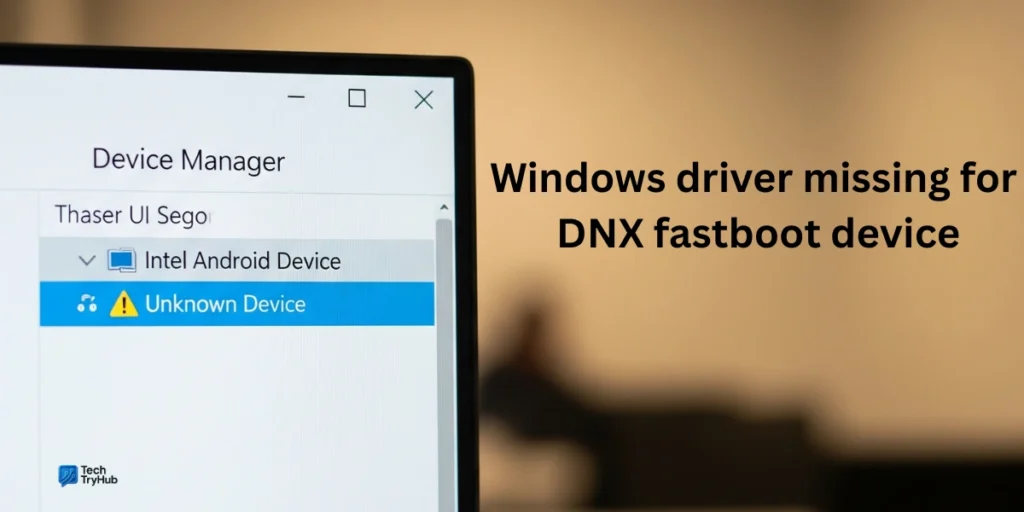
When you see “entering dnx mode waiting for fastboot command”, the device has entered this low-level state and is paused, awaiting instructions from a PC via the Fastboot protocol. It does not indicate a complete hardware failure but signals that the normal boot process has been interrupted.
Common Triggers for Entering DNX Mode
- Accidental or incorrect button combinations during hard reset attempts
- Corrupted firmware or failed software updates
- Issues with the bootloader or BIOS/UEFI partition
- SD card problems or improper removal during boot
- Power interruptions during critical system operations
Many budget tablets from brands like Nextbook (NuVision), Acer Iconia, Chuwi, and Lenovo experience this due to their Intel architecture.
How DNX Mode Differs from Standard Fastboot Mode
It’s important to distinguish between regular Fastboot and DNX:
| Feature | Standard Fastboot | DNX Fastboot Mode |
|---|---|---|
| Processor | Mostly Qualcomm/MediaTek | Primarily Intel Atom |
| Primary Use | Flashing ROMs, unlocking bootloader | Low-level firmware recovery & BIOS flash |
| Detection | fastboot devices | Same, but often requires specific drivers |
| Risk Level | Moderate | Higher (can involve full firmware) |
| Exit Method | Reboot command | Specific key combos or flash |
Standard Fastboot is more common for custom ROM enthusiasts, while DNX often appears when something has gone wrong at a deeper system level.
Step-by-Step: How to Exit “Entering DNX Mode Waiting for Fastboot Command”
Basic Exit Methods for Beginners
- Simple Power Cycle Hold the Power button for 15–30 seconds until the device fully shuts down. Then attempt a normal boot.
- Volume Button Combination (Most Common Fix)
- Ensure the device is off.
- Press and hold Volume Up for about 15 seconds.
- While still holding Volume Up, press and hold the Power button until it turns off.
- Release both and try powering on normally.
- Remove SD Card Many users report that an inserted or faulty SD card triggers DNX. Remove it completely before attempting to boot.
Advanced Recovery Using a Computer
For stubborn cases:
- Install Android SDK Platform-Tools (includes Fastboot) on your Windows PC.
- Connect the tablet via USB (use a good cable; some devices need specific drivers for Intel devices).
- Open a command prompt in the platform-tools folder.
- Type fastboot devices to verify detection.
- Try fastboot reboot to exit the mode.
If that fails, you may need manufacturer-specific flashing tools.
Preparing Your PC for DNX Recovery: Tools and Drivers
Successful recovery often requires proper setup:
- USB Drivers: Intel Android USB drivers or generic ADB/Fastboot drivers.
- Fastboot Commands: Basic ones like fastboot reboot, fastboot flash, or fastboot boot [image].
- Firmware Files: Download official stock firmware for your exact model from the manufacturer’s support site.
Expert Tip: Always verify your tablet model number (usually on the back or in Settings > About) before downloading files. Mismatched firmware can cause permanent issues.
Real-World Scenarios: When Users Encounter This Issue
- Scenario 1: Failed Factory Reset – A user tries Volume + Power combo for reset but hits the wrong timing, landing in DNX.
- Scenario 2: After Custom ROM Attempt – Partial flash leaves the bootloader in an inconsistent state.
- Scenario 3: Battery Drain or Sudden Power Loss during update.
In most cases, these are recoverable with patience and the right steps.
Benefits and Drawbacks of Using DNX Mode
Benefits:
- Allows deep recovery when normal boot or recovery mode fails.
- Enables flashing complete firmware images to restore a “bricked” device.
- Useful for advanced users performing bootloader unlocks or BIOS updates.
Drawbacks:
- Risk of further damage if incorrect files are used.
- Requires a computer and technical comfort.
- Potential data loss during full reflash.
- Not all commands work reliably on every device.
For most users, the mode is a safety net rather than a daily tool.
Preventive Measures to Avoid Entering DNX Mode
- Avoid interrupting updates or resets.
- Keep your device charged above 50% during system changes.
- Use official firmware and tools.
- Regularly back up important data.
- Remove SD cards before performing resets.
When to Seek Professional Help or Consider Replacement
If basic exits and standard fastboot commands fail after multiple attempts, the firmware (IFWI) might be severely corrupted. At this point:
- Contact manufacturer support.
- Visit a reputable repair shop familiar with Intel tablets.
- Evaluate whether repairing an older budget device is cost-effective compared to a new tablet.
Related Topics: Understanding Broader Android Boot Modes
Familiarizing yourself with other modes like Recovery, Bootloader, and EDL (Emergency Download) helps build troubleshooting confidence. Each serves specific purposes in the Android ecosystem.
Expert Tips for Safe Device Management
- Document your exact model and current software version.
- Join device-specific forums like XDA Developers for tailored advice.
- Test USB connections on different ports and computers.
- Keep a backup of working firmware files.
Conclusion
Seeing the “entering dnx mode waiting for fastboot command” screen can be frustrating, but it is usually a fixable state rather than the end of your device. By understanding DNX as a specialized recovery tool for Intel Android tablets, following careful exit procedures, and preparing your PC properly, you can often restore normal operation.
Key Takeaways:
- Start with simple button combinations before connecting to a PC.
- Always use model-specific files and verified drivers.
- Prioritize data backup whenever possible.
- Patience and proper research prevent most permanent issues.
Take action today: Try the Volume Up + Power method first. If you need more help, search your exact tablet model alongside “DNX fix” for community-tested solutions. With the right approach, you’ll have your device back up and running smoothly.
This guide is for educational purposes. Proceed with caution when flashing firmware, as incorrect actions carry risks.
External Resources: For more on Android boot processes, check this Android Fastboot explanation on Wikipedia. Community discussions often provide model-specific insights on Reddit’s Android forums.
Related posts:
![facebook video downloader facebook video downloader]()
How to Change Name on Facebook: The Complete 2026 Guide
![Fix Orange Discoloration on MacBook Pro Screen]()
How to Fix Orange Discoloration on MacBook Pro Screen: Complete Guide to Causes & Solutions
![Google Gemini in 2026]()
What Is Everything You Need to Know About Google Gemini in 2026?
![fbi warns iphone android scams]()
Why the FBI Warns iPhone Android Scams Are Increasing
![What Should You Know About the iPhone 17 in 2026]()
What Should You Know About the iPhone 17 in 2026, Including Features, Specs, Price, Release Date, an...
![Best Free Password Managers ifixit]()
Best Free Password Managers: Secure Your Digital Life in 2026
![Snapchat Planets - ifixit]()
How Do Snapchat Planets Work and What Does Each Planet Mean in the Friend Solar System?
![What Causes Black Lines on Laptop Screen]()
What Causes Black Lines on Laptop Screen? A Complete Troubleshooting Guide







