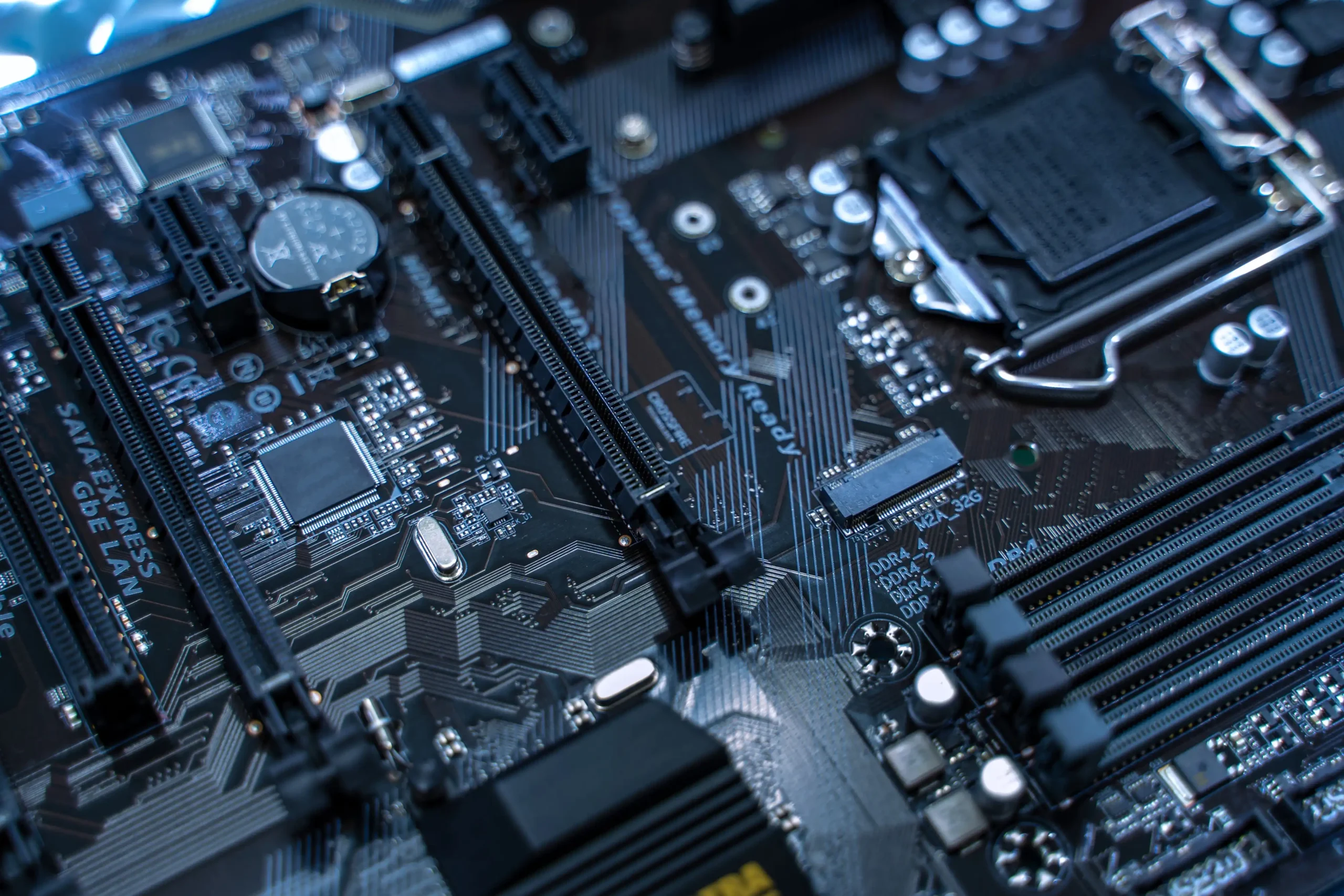
The motherboard is the central nervous system of your PC, but its complex, multi-layered design makes it surprisingly vulnerable. Common errors during a motherboard repair can range from subtle physical damage to catastrophic electrical shorts. Here’s a detailed breakdown of the most frequent and costly pitfalls to avoid.
Physical Damage: The Hidden Danger of “Gentle” Force
Physical mistakes are the most common during a motherboard repair. Even with careful hands, simple errors can permanently damage the board.
Over-Torquing Screws and Misaligned Mounting
Applying excessive force when securing screws can compress the delicate layers of the PCB (Printed Circuit Board), potentially creating internal short circuits. This can lead to system instability or complete failure. Conversely, loose screws can allow the board to shift, causing dangerous shorts against the metal chassis. Always use the correct screw size and apply firm, gentle pressure until the screw is snug—never force it.
Furthermore, “standoffs” are small brass spacers that keep the motherboard elevated and prevent it from shorting on the case. A misplaced or extra standoff can press against the back of the board and short the circuitry. Before installing a motherboard, carefully count the holes and standoffs to ensure they align perfectly.
Bent Pins in the CPU Socket and Connectors
One of the most frequent fatal DIY errors is bending pins in the CPU socket. The pins on a modern motherboard (or the CPU itself) are incredibly fragile. Touching them or removing the CPU incorrectly is a primary cause of bent pins. If you’re performing a motherboard repair that requires removing the CPU, handle it by its edges, and never force it back into the socket. Similarly, forcing 24-pin power connectors or front-panel headers can bend or break the delicate pins inside the sockets.
Electrical and Power-Related Disasters
Many motherboard failures originate from power issues, but incorrect DIY repairs can exacerbate the problem.
Using the Wrong Power Supply Cables
A common mistake is mixing modular power supply (PSU) cables from different manufacturers or generations. The pinouts on the PSU side can vary, and using an incorrect cable can send 12V down a 5V line, instantly frying components like hard drives, SSDs, or the motherboard itself. Always use only the cables that came with your specific PSU for any motherboard repair or upgrade.
Neglecting Electrostatic Discharge (ESD)
Electrostatic discharge can damage components without any visible signs. A shock you don’t even feel can be enough to kill a motherboard. Always wear an anti-static wrist strap connected to a grounded metal part of the PC case. If you don’t have a strap, frequently touch an unpainted metal surface of the case to discharge static electricity before handling any components.
Diagnostic and Software Errors
Before opening your case, assume the problem is simpler than a motherboard failure. A staggering 19 out of 20 motherboards returned as defective are actually perfectly functional.
Misdiagnosing the Culprit
Before concluding you need a motherboard repair, check the basics:
-
Is the power switch on the PSU turned on?
-
Is the wall outlet functioning?
-
Is the power cord securely connected?
-
Have you cleared the CMOS? A corrupted BIOS often mimics a dead motherboard.
A “dead” system is more often caused by a faulty power supply than the motherboard itself. Always test with a known-good PSU first.
Soldering and Rework Catastrophes
Soldering on a motherboard is an advanced skill with extremely low tolerance for error.
The “Garden Hose” Approach: Using Too Much Heat
The most dangerous soldering mistake is overheating the board. A standard soldering iron applied for too long can lift the copper pad off the board, permanently destroying the connection point. Modern motherboards are multi-layer PCBs that act as heat sinks, wicking heat away from your iron. This can lead to applying heat for too long, damaging internal layers.
BGA Rework and Reballing
The most complex soldering is Ball Grid Array (BGA) rework (repairing the connection for the chipset or GPU). Common mistakes include:
-
Misalignment: Placing a chip even slightly off will cause all connections to fail.
-
Unstable Temperature Control: Causing the PCB to warp or internal layers to delaminate.
-
Poor Fluxing: Not using enough flux leads to “cold” or weak solder joints.
Unless you have a professional BGA rework station and extensive training, attempting a motherboard repair at this level is virtually guaranteed to destroy the board.
The Repair-or-Replace Dilemma
The decision to repair or replace often comes down to cost. High-end boards over $200 are often worth repairing for specific component failures. Budget boards under $80 are usually more economical to replace.
-
If the board is 3+ years old and repair costs exceed 50-60% of a new one, replacing it makes more financial sense.
-
Attempting a motherboard repair almost always voids your manufacturer’s warranty.
Essential Troubleshooting First Steps
Here’s a structured approach to diagnose your problem without causing damage:
-
Visual Inspection: Shut down, unplug the PC, and remove the side panel. Check for bulging or leaking capacitors, burnt spots, or cracked traces.
-
Minimal Boot Test: Remove all non-essential components (extra RAM, all expansion cards, disconnect storage drives). Leave only the CPU, one stick of RAM, and the power supply connected.
-
CMOS Reset: Remove the coin-cell battery for 5-10 minutes or use the “Clear CMOS” jumper to reset BIOS settings to default.
-
Check the Power Supply: The most common “motherboard failure” is actually a failing PSU. Swap in a known-good unit.
-
Listen for Beep Codes: If the motherboard has a built-in speaker, listen for beep patterns. These codes are your first diagnostic clue.
When to Call a Professional
Some repairs require skills beyond what tutorials can provide. Complex motherboard repair often requires BGA rework, chip-level soldering, and advanced diagnostic tools.
-
The motherboard shows signs of liquid damage or a burnt smell.
-
You suspect a faulty chipset or cracked BGA solder joint.
-
You need to replace surface-mounted components smaller than a grain of rice.
Best Practices for a Successful Motherboard Repair
If you’ve diagnosed the issue and have the skills and tools, follow these best practices:
-
Work in a clean, well-lit area: Use an ESD mat and wrist strap.
-
Use high-quality tools: Invest in a temperature-controlled soldering station with fine tips.
-
Consult the manual: Always refer to the motherboard’s manual for cable headers, screw holes, and specifications.
-
Take photos: Document your disassembly process so you can reassemble everything correctly.
-
Use a multimeter: Essential for testing voltages, checking for shorts, and verifying continuity across traces.
-
Keep components organized: Store screws in labeled containers to avoid confusion during reassembly.
When Replacement Is the Smarter Choice
Replacing the motherboard is the better long-term solution in these scenarios:
-
The board has widespread component damage (multiple burnt capacitors, cracked PCB layers)
-
It’s an older system with proprietary form factors (common in Dell, HP, Lenovo prebuilts)
-
The cost of repair exceeds $150 or is more than half the price of a comparable new motherboard
Conclusion: Knowledge Is Your Best Tool
Attempting a motherboard repair is a rewarding challenge for enthusiasts, but it’s a path paved with potential pitfalls. From bent CPU pins and ESD damage to misdiagnosed power supplies and catastrophic soldering mistakes, the margin for error is razor-thin.
If you’re unsure about any step of the process, don’t take the risk. A motherboard repair is often not just a fix—it’s a science that blends precision, patience, and the right tools. If you lack one of these elements, your best bet is to consult a professional or invest in a replacement. Your system’s health and your wallet will thank you.