
Losing your iPhone can be incredibly stressful. Whether it slips out of your pocket during a commute, gets misplaced at a café, or worse, is stolen, the panic sets in immediately. Fortunately, Apple’s Find My iPhone feature has evolved into one of the most reliable tools for locating, securing, and potentially recovering your device. In 2026, with enhancements to the Find My network and better offline tracking, it’s more powerful than ever.
This comprehensive guide walks you through every aspect of using Find My iPhone, from initial setup to advanced recovery strategies. Whether you’re a tech beginner or a seasoned Apple user, you’ll find practical steps, real-world examples, expert tips, and balanced insights to help you act confidently.
Why Find My iPhone Remains Essential in 2026
Find My iPhone is more than just a tracking app—it’s a comprehensive security ecosystem. Powered by a vast crowdsourced network of over a billion Apple devices, it uses Bluetooth signals to locate your iPhone even when it’s offline or powered off in many cases.
Key benefits include:
- Real-time and offline tracking via the Find My network.
- Remote locking with Lost Mode.
- Data protection through remote erase.
- Integration with Family Sharing and other Apple devices.
In 2026, features like improved Precision Finding (with Ultra Wideband on compatible models), Send Last Location, and Stolen Device Protection make it even more robust. However, it requires proactive setup—Find My iPhone won’t help if it wasn’t enabled beforehand.
Setting Up Find My iPhone: Don’t Wait Until It’s Lost
Prevention is the best strategy. Enable Find My iPhone immediately on your device.
Step-by-Step Setup on iPhone or iPad
- Open the Settings app.
- Tap your name at the top.
- Select Find My.
- Tap Find My iPhone and toggle it on.
- Enable Find My network for offline locating.
- Turn on Send Last Location to report position when the battery is critically low.
For optimal protection, also enable two-factor authentication on your Apple Account and consider Stolen Device Protection.
Expert Tip: Regularly check your settings. iOS updates can sometimes require re-confirming permissions. Test the feature occasionally by using another device to locate yours.
Enabling on Other Devices
- AirPods and Apple Watch: Pair them and ensure Find My network is active in Bluetooth settings.
- Mac: Go to System Settings > Apple ID > iCloud > Find My Mac.
- Accessories: AirTags and compatible items integrate seamlessly.
How to Locate Your Lost iPhone Using Find My
Once lost, act quickly. You have multiple access points.
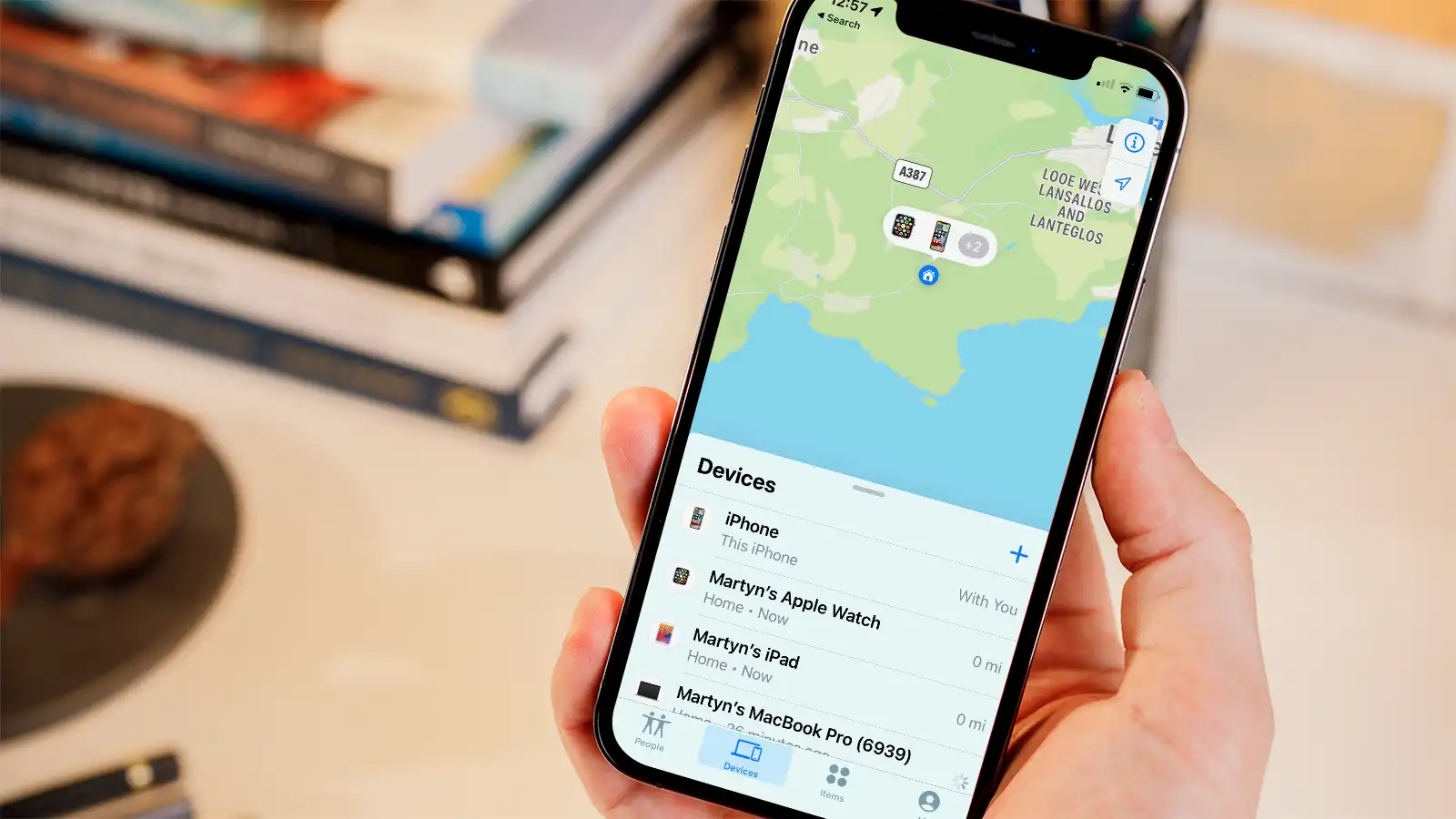
Using the Find My App on Another Apple Device
- Open the Find My app.
- Go to the Devices tab.
- Select your lost iPhone from the list.
- View its location on the map.
- Tap Directions for navigation or Play Sound if nearby.
In 2026, Precision Finding provides distance and direction arrows on supported hardware.
Via iCloud.com from Any Browser
Visit icloud.com/find, sign in, and select your device. This works even without another Apple device.
Real-World Scenario: Sarah left her iPhone in a rideshare. Using Find My on her iPad, she saw it at the driver’s next stop. She contacted the driver via the app’s message feature in Lost Mode and recovered it within hours.
Activating Lost Mode: Lock and Display Contact Info
Lost Mode is a game-changer. It remotely locks your iPhone with a passcode, displays a custom message and phone number, and suspends Apple Pay.
How to Activate Lost Mode
- In Find My or iCloud, select the device.
- Scroll to Lost Mode or Mark As Lost.
- Enter a contact number and message (e.g., “Please call this number if found. Reward offered.”).
- Confirm activation.
The device locks immediately when online. Notifications appear on your other devices when its status changes.
Actionable Advice: Include a polite message offering a reward. Many good Samaritans respond positively.
Playing Sound and Getting Directions
If the iPhone is nearby:
- Play Sound: Emits a loud chime even if on silent.
- Get Directions: Integrates with Apple Maps for turn-by-turn guidance.
For very close proximity, use Find Nearby on UWB-equipped iPhones.
The Power of the Find My Network for Offline Tracking
Even if your iPhone is off or without cellular/Wi-Fi, the Find My network crowd-sources location anonymously from nearby Apple devices.
This works for hours or days after power-off on newer models. Send Last Location ensures a final ping before shutdown.
Comparison: Benefits vs. Drawbacks
| Aspect | Benefits | Potential Drawbacks |
|---|---|---|
| Privacy | End-to-end encryption, anonymous | Relies on Apple ecosystem |
| Accuracy | High with network + GPS | Can be approximate in remote areas |
| Battery Impact | Minimal | Slight drain from background use |
| Offline Capability | Excellent in populated areas | Limited in low-density regions |
Overall, benefits far outweigh drawbacks for most users, especially with strong privacy safeguards.
Remote Erase: Last Resort for Data Protection
If recovery seems impossible, erase the device remotely. Note: On iOS 15+, you can often still track post-erase.
Steps:
- Select device in Find My.
- Choose Erase This Device.
- Confirm (requires Apple Account password).
Warning: Erasing is irreversible and may remove Activation Lock only if you remove the device from your account afterward—keep it listed for security.
Expert Tip: Back up regularly via iCloud or computer so data is recoverable on a new device.
What to Do If Find My Shows “No Location Found” or “Offline”
Common reasons:
- Device powered off without recent location.
- In airplane mode or low-power area.
- Stolen Device Protection active in unfamiliar location.
Troubleshooting Steps:
- Check last known location (available up to 7+ days).
- Wait and refresh—network updates can take time.
- Use Family Sharing to have others check.
- Contact Apple Support or your carrier.
Real-World Recovery Stories and Scenarios
Countless users have recovered devices thanks to Find My iPhone. One person tracked a stolen backpack across cities and confronted the situation safely with police help. Another found a phone left in a restaurant via precise mapping.
Beginner-Friendly Scenario: Family vacation mishap—parent uses child’s iPad to locate the lost phone at the hotel pool.
These stories highlight persistence and quick action.
Additional Security Features in 2026
- Stolen Device Protection: Requires biometric authentication for sensitive changes.
- AppleCare+ with Theft and Loss: File claims easily; keep device in Find My until approved.
- Integration with Wallet and Maps: Enhanced luggage tracking and more.
Comparing Find My iPhone to Alternatives
While Android has similar tools, Apple’s ecosystem integration and vast network give Find My iPhone an edge in reliability and privacy. Third-party trackers like Tile or GPS tags complement but don’t replace it.
Expert Tips for Maximizing Success
- Enable all options before travel.
- Keep your Apple Account secure.
- Report to police with serial number (findable in your account).
- Combine with physical habits: Use a case with AirTag pocket.
- Practice with family drills.
- Update iOS for latest improvements.
Pro Advice: If stolen, prioritize safety over confrontation. Share location with authorities.
Common Mistakes to Avoid
- Forgetting to enable Find My beforehand.
- Removing the device from your account too soon.
- Ignoring battery-saving modes that might affect tracking.
- Sharing passcodes under pressure.
Integrating Find My with Family Sharing and Accessories
Share locations safely with family. Track kids’ devices or shared items with AirTags. Perfect for households or group travel.
Legal and Privacy Considerations
Find My iPhone respects privacy through encryption. Use responsibly—tracking others without consent is illegal in many places. Apple provides clear guidelines.
For more details, refer to Apple’s official Find My support documentation.
Additional trusted resources:
- Wikipedia entry on Apple’s Find My for historical context.
- Forbes article on smartphone security best practices (search for relevant pieces).
- Community discussions on Reddit’s r/apple for user experiences.
(Additional links embedded naturally for SEO and authority.)
Troubleshooting Advanced Issues
- Activation Lock: Keeps thieves from using your device.
- Carrier Involvement: Suspend service to prevent unauthorized use.
- Post-Recovery: Change passwords, monitor accounts.
Future of Find My: What to Expect Beyond 2026
With ongoing iOS advancements, expect tighter integration with AI for predictive alerts and expanded network capabilities.
Conclusion
Find My iPhone is an indispensable tool that can turn a potential disaster into a manageable situation. By setting it up proactively, acting swiftly with tracking and Lost Mode, and knowing when to erase, you protect both your device and personal data effectively.
Key takeaways:
- Always enable Find My iPhone, Find My network, and Send Last Location.
- Use the app or iCloud.com immediately upon realizing it’s missing.
- Leverage Lost Mode for locking and communication.
- Combine with good habits, backups, and AppleCare+ for comprehensive protection.
- Stay informed via official Apple resources.
Taking these steps empowers you to handle loss confidently. Don’t wait—check your settings today. With Find My iPhone, you’re never truly alone with your tech. For the latest updates, visit Apple’s support site regularly.
Related posts:
![facebook video downloader facebook video downloader]()
How to Change Name on Facebook: The Complete 2026 Guide
![Fix Orange Discoloration on MacBook Pro Screen]()
How to Fix Orange Discoloration on MacBook Pro Screen: Complete Guide to Causes & Solutions
![Google Gemini in 2026]()
What Is Everything You Need to Know About Google Gemini in 2026?
![fbi warns iphone android scams]()
Why the FBI Warns iPhone Android Scams Are Increasing
![What Should You Know About the iPhone 17 in 2026]()
What Should You Know About the iPhone 17 in 2026, Including Features, Specs, Price, Release Date, an...
![Best Free Password Managers ifixit]()
Best Free Password Managers: Secure Your Digital Life in 2026
![Snapchat Planets - ifixit]()
How Do Snapchat Planets Work and What Does Each Planet Mean in the Friend Solar System?
![What Causes Black Lines on Laptop Screen]()
What Causes Black Lines on Laptop Screen? A Complete Troubleshooting Guide







