Caterpillar Electronic Technician (CAT ET) is an essential diagnostic software for heavy equipment operators, mechanics, and fleet managers. It allows direct communication with Electronic Control Modules (ECMs) in Caterpillar engines and machines to read codes, monitor parameters, perform calibrations, and more.
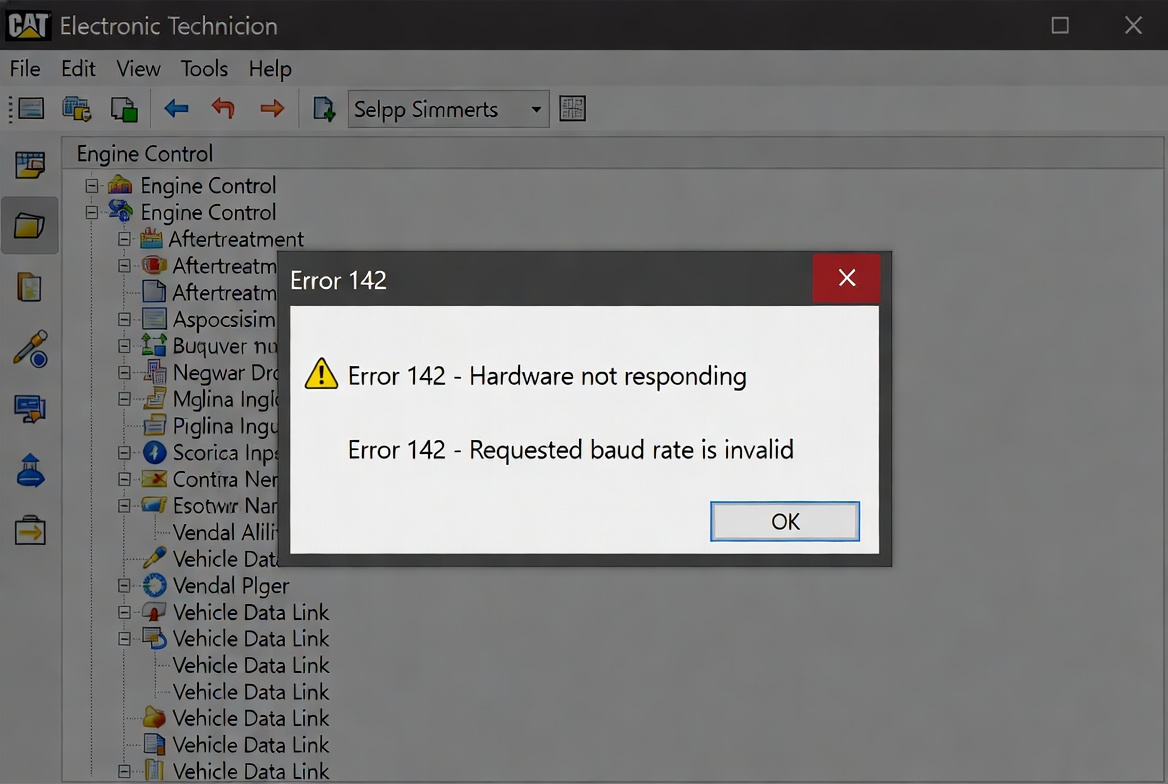
However, one of the most common frustrations is CAT Electronic Technician Error 142. This error typically indicates a communication failure between the software, your computer, and the diagnostic hardware—often the Caterpillar Communications Adapter 3 (CA3 or Comm 3).
Whether you’re facing “Hardware not responding,” invalid baud rate messages, or no connection to the ECM, this in-depth article provides practical, step-by-step solutions. We’ll cover causes, fixes, prevention, and best practices to get your diagnostics back on track quickly.
What Is CAT Electronic Technician Error 142?
CAT Electronic Technician Error 142 usually appears during connection attempts to an ECM. Common variations include:
- “Hardware not responding”
- “Requested baud rate is invalid”
- Communication initialization failures
This error means the CAT ET software cannot properly interface with the communication adapter or the machine’s data link.
It affects both genuine Caterpillar adapters and compatible third-party tools. Understanding it helps minimize equipment downtime in construction, mining, agriculture, and transportation.
Image Suggestion: Insert a screenshot or diagram of the CAT ET error 142 message dialog here for visual reference.
Common Causes of CAT Electronic Technician Error 142
Several factors can trigger this issue. Here are the primary culprits:
- Incorrect Communication Settings in CAT ET: Wrong adapter type or COM port selected.
- Driver Installation Problems: Missing, outdated, or corrupted drivers for the CA3 adapter.
- Hardware Connection Issues: Loose cables, faulty adapters, insufficient power, or damaged ports.
- Software Conflicts: Antivirus/firewall interference, outdated CAT ET version, or running toolkit processes.
- Machine-Side Problems: Issues with the diagnostic port, key switch position, or ECM power.
- USB/Port Conflicts: Adapter not recognized by Windows Device Manager.
Real-world scenario: A technician on a job site with a Cat excavator connects their laptop but gets Error 142 because the adapter isn’t receiving power from the machine’s diagnostic connector.
Step-by-Step Guide to Fix CAT Electronic Technician Error 142
Follow these steps systematically. Many users resolve the issue in the first few.
Step 1: Verify Basic Hardware Connections
- Ensure the Communication Adapter (CA3) is securely plugged into the machine’s diagnostic port (usually a 9-pin or 16-pin connector).
- Turn the machine’s key to ON (do not start the engine unless required).
- Check for power lights on the adapter.
- Confirm the USB cable is firmly connected to your laptop.
Pro Tip: Inspect cables for damage or corrosion. Clean connectors if needed.
Image: Photo of proper CA3 connection to a machine diagnostic port and laptop USB.
Step 2: Configure CAT ET Preferences Correctly
- Open CAT ET.
- Go to Utilities > Preferences > Communications.
- Select Caterpillar Communication Adapter 3 (or II if applicable).
- Choose the correct COM port (check Device Manager for the adapter’s port, often COM3–COM10).
- Set Protocol to Auto or appropriate setting.
- Click OK, then restart CAT ET and your computer.
This simple change fixes many baud rate-related Error 142 instances.
Step 3: Install and Verify CA3 Drivers
- Download the latest CAT CA3 drivers from official or trusted sources.
- Plug in the adapter before installing.
- Use Device Manager to confirm no yellow exclamation marks under Ports or Universal Serial Bus devices.
- Reboot after installation.
Image: Step-by-step screenshots of Device Manager showing a healthy CA3 adapter.
Step 4: Use the CAT Comm Adapter Toolkit
Launch the Comm Adapter 3 Toolkit (usually installed with drivers) to test the hardware independently. It can diagnose power, firmware, and connection issues before involving CAT ET.
Step 5: Advanced Troubleshooting
- Power Cycle: Disconnect battery on the machine briefly (consult manual for safety).
- Update CAT ET: Ensure you’re running a compatible version.
- Disable Conflicting Software: Temporarily turn off antivirus or close other diagnostic tools.
- Test with Another Adapter/Laptop: Isolate if the issue is hardware-specific.
- Check for tightened DB15 connectors and proper jackscrews on the adapter.
Numbered List Summary of Quick Fixes:
- Correct COM port and adapter selection.
- Reinstall drivers.
- Verify power and connections.
- Restart everything.
- Test toolkit.
Related Diagnostic Tools and Setup for Caterpillar Equipment
Understanding CAT ET Software Capabilities
Beyond fixing errors, CAT ET excels at:
- Reading/clearing diagnostic and event codes.
- Real-time parameter monitoring.
- ECM flashing and configuration.
- Data logging for performance analysis.
Image: Dashboard view of CAT ET showing connected ECM parameters.
Choosing the Right Communication Adapter
Genuine Caterpillar Comm Adapter 3 (part 317-7485 or 538-5051) is recommended for reliability. Clones can work but may require extra driver tweaks.
Compare:
- Genuine CA3: Best compatibility, official support.
- Compatible Tools (e.g., Nexiq): More affordable but potential limitations.
Benefits vs. Drawbacks of Troubleshooting CAT ET Issues Yourself
Benefits:
- Reduced downtime and service costs.
- Faster diagnostics on-site.
- Better equipment understanding and preventative maintenance.
Drawbacks:
- Initial learning curve.
- Need for proper hardware/software licenses.
- Risk of misconfiguration if not careful (always back up ECM settings).
For beginners, starting with official guides or dealer training is advisable.
Expert Tips for Reliable CAT Diagnostics
- Always use a dedicated diagnostic laptop with stable Windows version (10/11 recommended).
- Keep CAT ET and drivers updated.
- Maintain clean diagnostic ports on machines.
- Document successful connection settings for each piece of equipment.
- Consider a wireless adapter for added convenience in tight spaces.
- Join forums like Reddit’s r/caterpillar for community insights.
Actionable Advice: Create a checklist for every diagnostic session to avoid common pitfalls.
Preventing Future CAT Electronic Technician Error 142 Occurrences
- Store adapters and cables properly to prevent physical damage.
- Regularly check Windows updates and driver compatibility.
- Use surge-protected power for laptops on job sites.
- Train team members on standard connection procedures.
- Invest in quality tools rather than the cheapest options.
Table: Common Error Codes Comparison
| Error Code | Description | Typical Fix |
|---|---|---|
| 142 | Hardware not responding | Drivers/COM port/Connections |
| 131/443 | Protocol/Init issues | Adapter selection |
| Others | Varies | Specific to software/hardware |
Additional Resources and Best Practices
For deeper learning, explore Caterpillar’s official training or third-party manuals. Reliable external sources include Caterpillar dealer support pages and diagnostic tool providers.
Internal Linking Suggestion: Link to related articles on Cat engine maintenance or other ET features.
SEO Note on Anchor Text: For broader equipment setups, consider resources on advanced configurations like mobile triple screen setup simracing for multi-monitor diagnostic workstations (adapted for tech workflows).
Conclusion
CAT Electronic Technician Error 142 is a frequent but usually solvable communication hiccup in Caterpillar diagnostics. By following the structured troubleshooting steps—verifying connections, configuring settings, updating drivers, and using the toolkit—you can quickly restore functionality and keep your machinery operating efficiently.
Key takeaways:
- Prioritize correct software preferences and driver setup.
- Invest in quality hardware and maintenance habits.
- Practice safety and documentation during diagnostics.
Whether you’re a seasoned technician or new to Cat equipment, mastering these processes empowers you to minimize downtime and maximize productivity. If issues persist after these steps, consult a Caterpillar dealer for advanced support.
Take action today: Review your current setup against this guide and test a connection. Proper management of your diagnostic tools is as important as maintaining the machines themselves. For ongoing tips, bookmark this guide and stay updated with the latest CAT ET developments.