
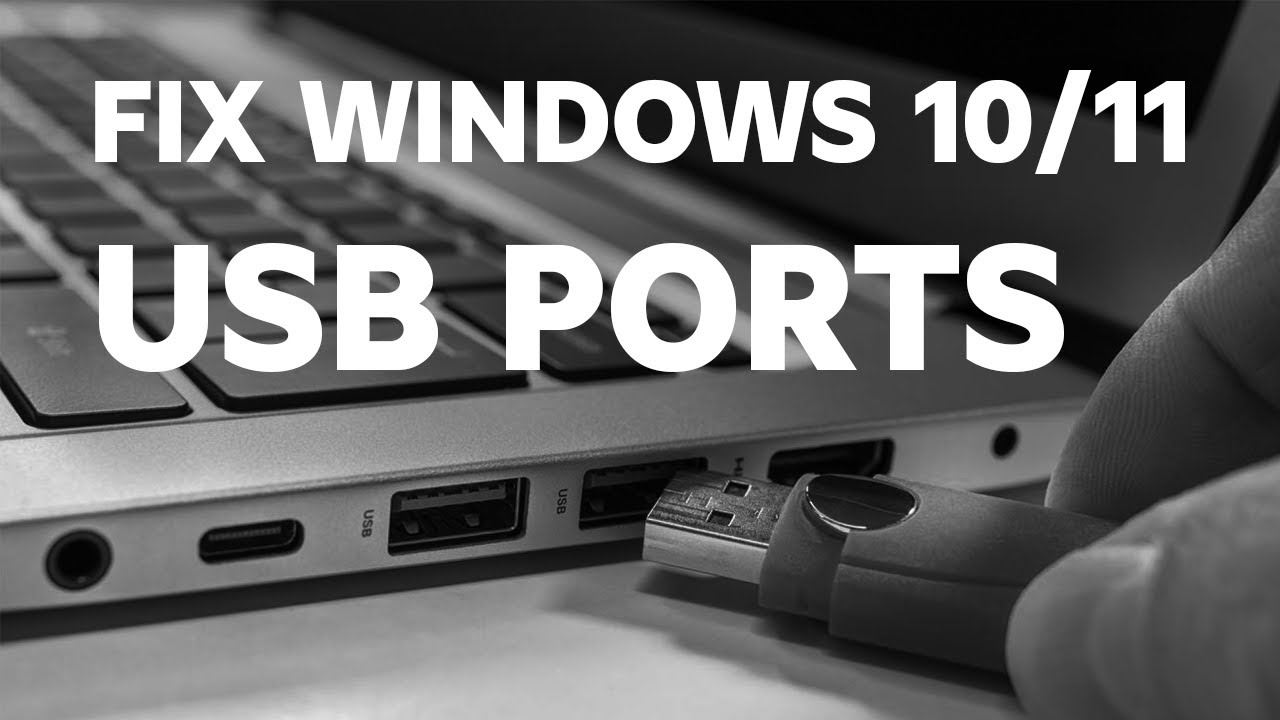
USB ports are essential gateways for connecting keyboards, mice, external drives, printers, smartphones, and countless other peripherals. When they stop functioning properly, it can bring productivity to a halt. Whether you’re dealing with a laptop that refuses to charge your phone or a desktop where your external hard drive vanishes from File Explorer, learning how to fix common USB problems can save you time, frustration, and potentially money on repairs.
In this detailed guide, we’ll explore the most frequent USB issues, their causes, and step-by-step solutions that work for both Windows laptops and desktop computers. With clear instructions suitable for beginners and advanced tips for power users, you’ll be equipped to resolve most problems yourself.
Understanding Common USB Port Problems
USB connectivity issues manifest in various ways. Some ports may provide no power at all, while others recognize devices intermittently or at reduced speeds. Common symptoms include:
- USB devices not recognized or showing “device malfunctioned” errors.
- Ports that work sporadically or require wiggling the cable.
- Slow data transfer rates on USB 3.0+ ports.
- Specific ports failing while others function normally.
- Power-related errors like “power surge on the USB port.”
These issues affect users across laptops and desktops, often appearing after Windows updates, physical wear, or software conflicts.
Fix common USB problems early to prevent data loss or further hardware damage.
Identifying the Causes of USB Port Problems
Pinpointing the root cause is the first step toward an effective fix. Problems generally fall into hardware or software categories.
Hardware-Related Causes
Physical issues are frequent culprits:
- Dust, debris, or lint buildup: Ports accumulate particles over time, disrupting connections.
- Bent or broken pins: Rough handling or forced insertions can damage internal contacts.
- Loose connections: On desktops, front-panel cables may detach from the motherboard.
- Physical wear: Repeated plugging and unplugging loosens the port over years of use.
- Power delivery limitations: Some ports struggle with high-power devices like external SSDs.
Laptops are particularly prone to these due to portability and compact design.
Software-Related Causes
Many issues stem from the operating system:
- Outdated, corrupted, or missing USB drivers.
- Power management settings that disable ports to save energy.
- Conflicts after Windows updates.
- Disabled ports in BIOS/UEFI.
- Fast Startup feature interfering with hardware initialization.
Understanding these helps you choose the right troubleshooting path.
USB Port Types and Their Impact on Connectivity
Knowing your port types aids in diagnosis and optimal use. USB standards have evolved significantly:
| USB Version | Max Speed | Common Color | Typical Use |
|---|---|---|---|
| USB 2.0 | 480 Mbps | Black/White | Basic peripherals |
| USB 3.0/3.1 Gen 1 | 5 Gbps | Blue | Fast storage, video |
| USB 3.1 Gen 2 / 3.2 | 10-20 Gbps | Blue/Teal | High-performance devices |
| USB 4.0 | 40 Gbps+ | Varies | Thunderbolt-compatible, USB-C |
| USB-C | Varies by protocol | Oval, reversible | Modern laptops, power delivery |
USB-C ports often support higher power and data speeds but may require specific cables. Mismatching versions or cables can lead to compatibility problems. For more details on standards, check [USB hardware information on Wikipedia](mobile triple screen setup simracing).
Step-by-Step Guide to Fix Common USB Problems
Follow these solutions in order, starting with the simplest.
1. Basic Hardware Troubleshooting
- Try a different port and cable: Test multiple ports and a known-good cable/device to isolate the issue.
- Clean the USB port: Power off your computer, unplug it, and use compressed air to remove dust. Gently remove stubborn debris with a wooden toothpick—never metal. For laptops, avoid excessive force.
- Inspect for damage: Look for bent pins or cracks with a flashlight. Test the device on another computer.
2. Restart and Basic Software Fixes
A simple restart often resolves temporary glitches. For deeper issues:
- Update Windows: Go to Settings > Windows Update > Check for updates.
- Run the Hardware Troubleshooter: Search for “Troubleshoot settings” and run the Hardware and Devices option.
3. Update or Reinstall USB Drivers
Outdated drivers are a top cause of fix common USB failures.
- Right-click Start > Device Manager.
- Expand “Universal Serial Bus controllers.”
- Right-click each USB Root Hub, Host Controller, and device > Update driver > Search automatically.
- For stubborn problems, right-click > Uninstall device, then restart your computer to reinstall.
Visit your laptop or motherboard manufacturer’s site (e.g., Dell, HP, ASUS) for chipset drivers.
4. Adjust Power Management Settings
Windows often turns off USB ports to conserve power.
- In Device Manager, right-click a USB Root Hub > Properties > Power Management tab.
- Uncheck “Allow the computer to turn off this device to save power.”
- Repeat for all relevant entries.
Additionally, disable USB Selective Suspend:
- Search for “Power Options” > Change plan settings > Change advanced power settings.
- Expand USB settings > Set USB selective suspend to Disabled.
5. Disable Fast Startup
This hybrid shutdown feature can cause recognition issues.
- Go to Power Options > Choose what the power buttons do > Change settings that are currently unavailable.
- Uncheck “Turn on fast startup” and save changes. Restart.
6. Check BIOS/UEFI Settings
Restart and enter BIOS (usually Del, F2, or F10). Look for USB-related options under Advanced or Integrated Peripherals and ensure they are enabled. Save and exit.
7. Advanced Troubleshooting
- Use System File Checker: Open Command Prompt as admin and run sfc /scannow.
- Reset USB controllers via registry or repeated uninstall/reinstall.
- For desktops, check internal front-panel connections if accessible.
Troubleshooting Specific Scenarios
USB Device Not Recognized
Test the device elsewhere. Update drivers and run Windows Update. For persistent cases, use the Microsoft USB troubleshooter or check for error codes in Device Manager.
Slow USB Transfer Speeds
Ensure you’re using a USB 3.0+ port and compatible cable. Close background apps and scan for malware. Test with large files to benchmark.
Intermittent or Loose Connections
This often indicates physical wear. Cleaning helps temporarily; replacement may be needed for permanent fixes.
No Power from USB Ports on Laptops
Check battery settings and power management. Some ports are charging-only—verify labels.
Preventive Maintenance for USB Ports
Prevention is better than cure. To avoid future fix common USB headaches:
- Clean ports monthly with compressed air.
- Use quality cables and avoid forcing connections.
- Eject drives safely before removal.
- Limit daisy-chaining unpowered hubs.
- Keep your system updated and consider surge protectors.
- For laptops, use docking stations to reduce wear on built-in ports.
Regular maintenance extends port lifespan significantly.
When to Seek Professional Help or Replace Ports
If basic steps fail and ports show physical damage:
- Loose or broken ports often require soldering or replacement, especially on laptops where the port is soldered to the motherboard.
- Desktops may allow easier front-panel or rear I/O swaps.
- Professional repair costs vary but are usually cheaper than a new system.
Signs it’s time for expert help include visible damage, burning smells, or issues persisting after full driver/BIOS resets. For guidance on repairs, see resources like [PCMag’s USB troubleshooting article](mobile triple screen setup simracing).
Compare options: DIY fixes are free but riskier; professional service ensures safety but incurs cost. For high-end gaming or work setups, investing in a USB hub or docking station provides redundancy.
Additional trusted resources for deeper dives include Dell’s support knowledge base and community discussions on Reddit.
Expert Tips and Real-World Scenarios
Sarah, a graphic designer, fixed her laptop’s USB issues by disabling power management after frequent external SSD disconnects during large file transfers. A gamer resolved desktop front-panel problems by reseating internal cables.
Pro Tip: Always back up data before major troubleshooting. Test with multiple simple devices (mouse, flash drive) to narrow down issues.
For users needing expanded connectivity, such as in complex setups, explore external solutions that complement fixed ports.
Conclusion
Fixing common USB port problems on laptops and desktops doesn’t have to be daunting. By starting with simple checks like cleaning and restarting, then moving to driver updates, power settings, and BIOS tweaks, most users can restore functionality quickly. Remember the key takeaways: maintain cleanliness, keep software updated, handle hardware gently, and understand your port types for best results.
This guide equips you with actionable steps to troubleshoot effectively and prevent recurrence. If issues persist despite these efforts, professional hardware repair may be the smartest path. Taking proactive care ensures your USB ports remain reliable companions for all your peripherals. Don’t let connectivity woes slow you down—apply these fixes today and enjoy seamless performance.
Related posts:
![facebook video downloader facebook video downloader]()
How to Change Name on Facebook: The Complete 2026 Guide
![Fix Orange Discoloration on MacBook Pro Screen]()
How to Fix Orange Discoloration on MacBook Pro Screen: Complete Guide to Causes & Solutions
![Google Gemini in 2026]()
What Is Everything You Need to Know About Google Gemini in 2026?
![fbi warns iphone android scams]()
Why the FBI Warns iPhone Android Scams Are Increasing
![What Should You Know About the iPhone 17 in 2026]()
What Should You Know About the iPhone 17 in 2026, Including Features, Specs, Price, Release Date, an...
![Best Free Password Managers ifixit]()
Best Free Password Managers: Secure Your Digital Life in 2026
![Snapchat Planets - ifixit]()
How Do Snapchat Planets Work and What Does Each Planet Mean in the Friend Solar System?
![What Causes Black Lines on Laptop Screen]()
What Causes Black Lines on Laptop Screen? A Complete Troubleshooting Guide







