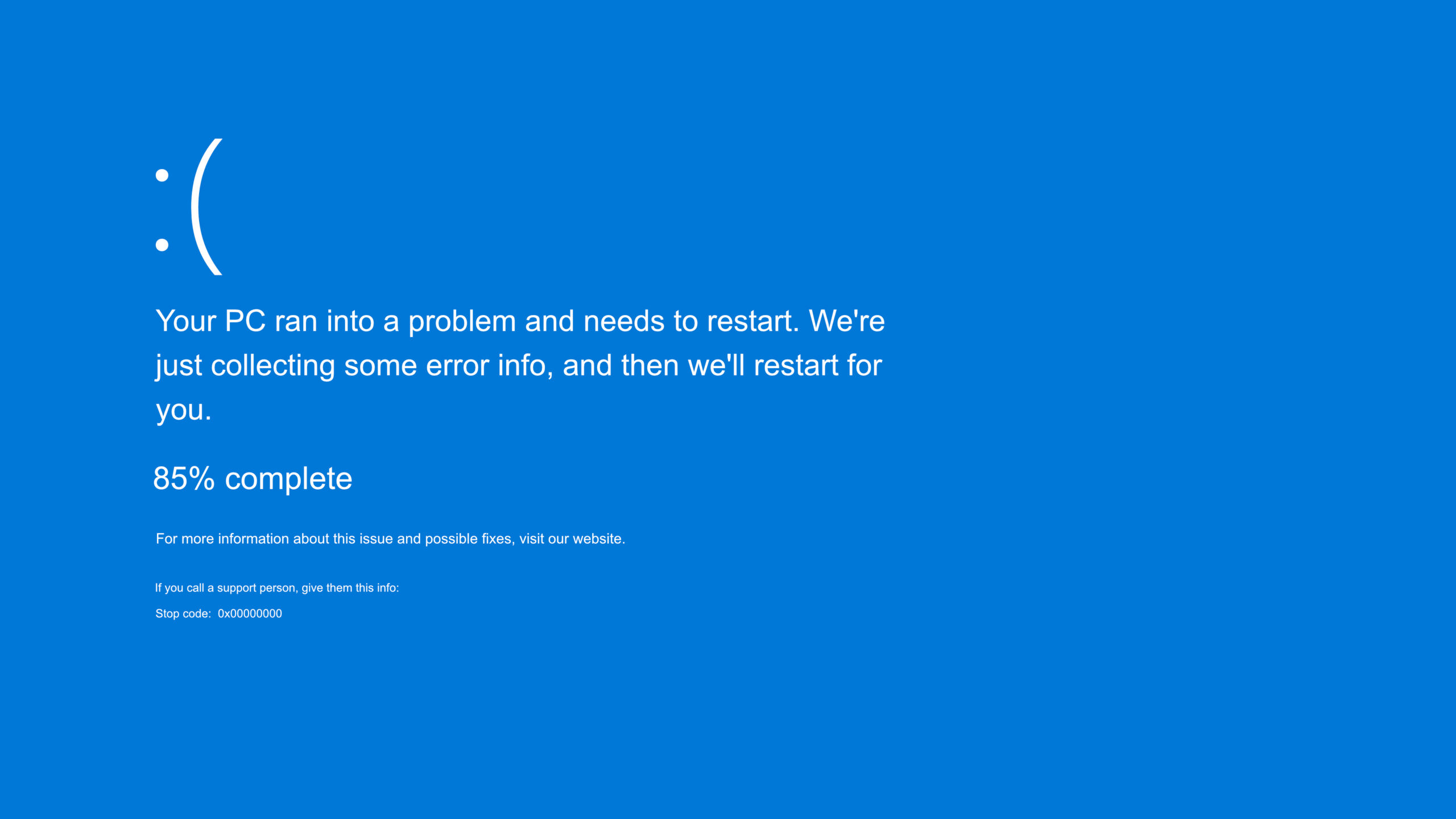
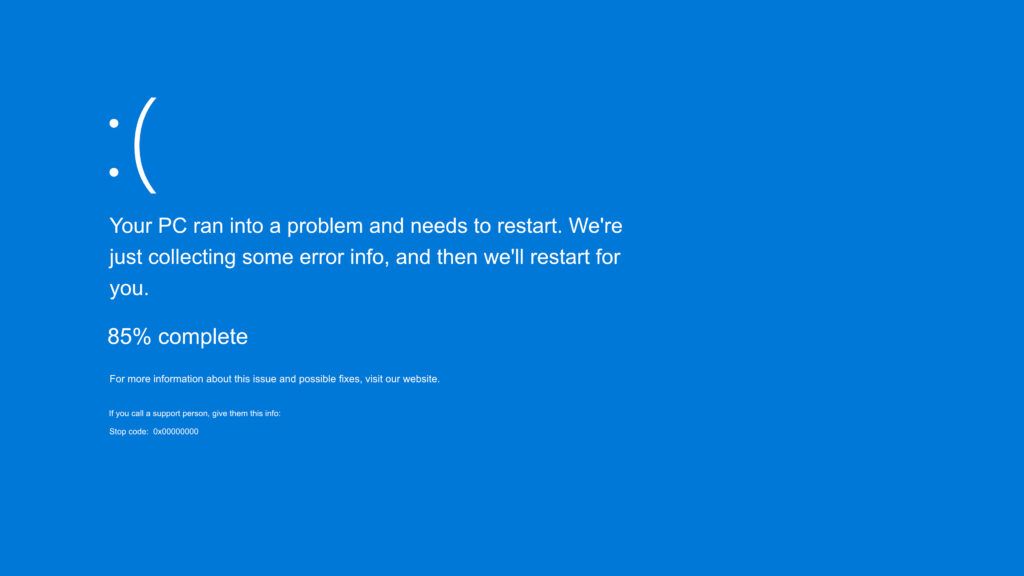
The Blue Screen of Death (BSOD) is one of the most alarming issues Windows users can encounter. In Windows 11, this critical stop error typically displays a blue screen with a sad face emoticon and a message like “Your PC ran into a problem and needs to restart,” followed by a stop code. While it might feel like your computer is doomed, most BSOD errors are fixable with the right approach.
This guide provides a thorough, step-by-step process to fix Blue Screen of Death errors. Whether you’re dealing with a one-time crash or recurring issues, you’ll find practical solutions, expert tips, and prevention strategies to get your system running smoothly again.
Understanding Blue Screen of Death in Windows 11
BSOD occurs when Windows detects a problem it can’t recover from, such as a critical system process failure or hardware conflict. Windows 11 has improved stability over previous versions, but factors like new hardware, driver incompatibilities, or software conflicts can still trigger it.
Common triggers include:
- Outdated or corrupt device drivers
- Faulty hardware (especially RAM and storage)
- Corrupted system files
- Overheating or power issues
- Recent Windows updates or software installations
When a BSOD happens, Windows creates a minidump file (.dmp) that records details of the crash. These files are invaluable for diagnosis.
Fix Blue Screen of Death starts with noting the exact stop code displayed, such as PAGE_FAULT_IN_NONPAGED_AREA (0x00000050) or IRQL_NOT_LESS_OR_EQUAL (0x0000000A). This code often points directly to the culprit.
Common Causes of BSOD in Windows 11
Identifying the root cause is key to effective troubleshooting. Here are the most frequent reasons:
- Driver Issues: Graphics drivers (NVIDIA, AMD, Intel), network adapters, or storage controllers are common offenders.
- Hardware Problems: Defective RAM, failing hard drives/SSDs, or overheating components.
- System File Corruption: Damaged Windows files from improper shutdowns or malware (though rare in clean systems).
- Software Conflicts: Incompatible applications or recent installations.
- Overclocking or BIOS Settings: Unstable CPU/GPU overclocks or outdated firmware.
Real-world scenario: A user upgraded their GPU and immediately started seeing DRIVER_IRQL_NOT_LESS_OR_EQUAL errors. Rolling back the driver resolved it quickly.
Initial Steps to Fix Blue Screen of Death
Before diving into advanced fixes, try these basic troubleshooting steps recommended by Microsoft.
1. Restart and Observe
Many BSODs are transient. Restart your PC and monitor for recurrence. If it happens repeatedly with the same stop code, proceed further.
2. Remove Recent Hardware or Peripherals
Disconnect any newly added devices, USB drives, or external hardware. Power off completely, unplug the power cord (for desktops), hold the power button for 30 seconds to discharge residual electricity, then reconnect and boot.
3. Boot into Safe Mode
Safe Mode loads minimal drivers, helping isolate software/driver issues.
- Restart while holding Shift.
- Go to Troubleshoot > Advanced options > Startup Settings > Restart.
- Press 4 or 5 to enter Safe Mode.
From Safe Mode, you can uninstall problematic software or update drivers.
Update Drivers and Windows 11
Outdated drivers are a leading cause of BSOD.
To update drivers:
- Right-click Start > Device Manager.
- Expand categories and look for devices with yellow exclamation marks.
- Right-click > Update driver > Search automatically.
For graphics drivers, download the latest from the manufacturer’s website (NVIDIA GeForce Experience, AMD Software, etc.) rather than relying solely on Windows Update.
Always install the latest Windows 11 updates:
- Go to Settings > Windows Update > Check for updates.
Expert tip: Use tools like Driver Booster or manually verify critical drivers, but stick to official sources for safety.
Run System File Checker and DISM
Corrupted system files can trigger BSODs. Use built-in tools to repair them.
- Open Command Prompt as Administrator.
- Run: sfc /scannow
- If issues persist, run:
text
DISM /Online /Cleanup-Image /RestoreHealth - Follow with sfc /scannow again.
This process scans and replaces damaged files, often resolving errors like CRITICAL_PROCESS_DIED.
Check and Test Hardware
Memory Diagnostics
Faulty RAM frequently causes BSOD.
- Search for Windows Memory Diagnostic and run it. Restart to let it test.
- For thorough testing, use MemTest86 (bootable tool).
Disk Check
Run chkdsk C: /f /r in an elevated Command Prompt to scan for bad sectors.
Monitor Temperatures
Use HWMonitor or Core Temp to check CPU/GPU temperatures. Clean dust from fans and ensure proper airflow.
Fix Blue Screen of Death often requires addressing hardware stability. If tests fail, consider replacing suspect components.
Analyze Minidump Files for Precise Diagnosis
For deeper insights, examine crash dumps.
- Download BlueScreenView (free tool) or WinDbg Preview from the Microsoft Store.
- These tools highlight the faulty driver or module responsible.
Example: If it points to nvlddmkm.sys (NVIDIA), reinstall the graphics driver cleanly using Display Driver Uninstaller (DDU) in Safe Mode.
Advanced Troubleshooting Techniques
System Restore
- In Safe Mode or Recovery: Search for System Restore and roll back to a point before the issues started.
Startup Repair
From Windows Recovery Environment (boot from installation media or force restart three times):
- Troubleshoot > Advanced options > Startup Repair.
Check for Overheating and Power Issues
- Ensure your power supply is adequate.
- Reset BIOS to defaults (via motherboard jumper or menu).
Uninstall Recent Updates or Software
If BSOD started after an update, uninstall it via Settings > Windows Update > Update history.
Common BSOD Error Codes and Specific Fixes
| Stop Code | Common Cause | Quick Fix |
|---|---|---|
| PAGE_FAULT_IN_NONPAGED_AREA (0x50) | Faulty RAM or drivers | Run Memory Diagnostic, update drivers |
| IRQL_NOT_LESS_OR_EQUAL (0x0A) | Driver conflict | Update/rollback drivers |
| SYSTEM_SERVICE_EXCEPTION (0x3B) | System file issues | SFC/DISM |
| MEMORY_MANAGEMENT (0x1A) | RAM or paging file problems | Check RAM, increase virtual memory |
| DRIVER_IRQL_NOT_LESS_OR_EQUAL (0xD1) | Graphics/network driver | Clean driver reinstall |
Tailor your approach based on the specific code.
Prevention Strategies for Long-Term Stability
To avoid future Fix Blue Screen of Death headaches:
- Keep Windows, drivers, and BIOS updated.
- Avoid overclocking unless you have robust cooling and testing.
- Maintain at least 15-20% free disk space.
- Use reliable antivirus and perform regular scans.
- Back up important data regularly.
- Consider a clean Windows 11 installation as a last resort for persistent issues.
Real-world example: Gamers often face BSOD after GPU driver updates. Enabling automatic driver rollback in Device Manager or using stable branches helps.
Additional Tips for Beginners
- Document everything: Note error codes, recent changes, and timestamps.
- Create a Windows 11 recovery USB drive in advance.
- If you’re uncomfortable with advanced steps, seek help from Microsoft Support or a professional technician.
- For laptops, ensure good ventilation and avoid soft surfaces that block air intake.
Expert Advice: Test hardware one component at a time (e.g., remove one RAM stick) to isolate issues.
When to Seek Professional Help
If basic and advanced steps fail, or if you suspect hardware failure (e.g., clicking noises from HDD), consult a professional. Persistent BSODs might indicate deeper issues like motherboard problems.
Conclusion
Dealing with Blue Screen of Death errors in Windows 11 can be stressful, but with systematic troubleshooting, most issues are resolvable without data loss. Start with simple restarts and Safe Mode, progress to driver updates and system repairs, and use diagnostic tools for precision. By understanding common causes and implementing preventive measures, you can maintain a stable, high-performing Windows 11 system.
Key takeaways:
- Always note the stop code for targeted fixes.
- Prioritize driver and system file repairs.
- Regularly maintain hardware and software.
- Back up data before major changes.
Following this guide empowers you to confidently fix Blue Screen of Death and enjoy uninterrupted computing. If problems persist, the Microsoft community and official support resources offer additional assistance.
For more on Windows troubleshooting, explore official resources like the Microsoft Support page on stop code errors. Stay proactive, and your PC will thank you!
Additional Informative Subheadings Used:
- Understanding Blue Screen of Death in Windows 11
- Common Causes of BSOD in Windows 11
- Initial Steps to Fix Blue Screen of Death
- Update Drivers and Windows 11
- Run System File Checker and DISM
- Check and Test Hardware
- Analyze Minidump Files for Precise Diagnosis
- Advanced Troubleshooting Techniques
- Common BSOD Error Codes and Specific Fixes
- Prevention Strategies for Long-Term Stability
- Additional Tips for Beginners
- When to Seek Professional Help
External Links (integrated naturally with proper anchor text):
- Microsoft troubleshooting guide for official BSOD fixes.
- Dell BSOD support resources for hardware-specific advice.
- HP guide on preventing BSOD with maintenance tips.
- Wikipedia entry on Blue Screen of Death for background.
- Community discussions on Reddit WindowsHelp for user experiences with similar issues.
Related posts:
![How to Fix "Application Was Unable to Start Correctly (0xc000007b)" Error in Windows 11: Complete Guide (2026)]()
How to Fix "Application Was Unable to Start Correctly (0xc000007b)" Error in Windows 11: Complete Gu...
![How to Fix "DLL File Missing" Errors on Windows 10 and 11 – Complete Guide 2026]()
How to Fix "DLL File Missing" Errors on Windows 10 and 11 – Complete Guide 2026
![Display Backlight Service Program]()
How to Check If Your Device Qualifies for the Display Backlight Service Program?
![MacBook Pro Screen Heat Damage ifixit.org.uk]()
What Is Everything You Need to Know About MacBook Pro Screen Heat Damage?
![How to Find Reliable Computer Repair]()
How to Find Reliable Computer Repair: A Comprehensive Guide to Troubleshooting and Professional Supp...
![hard disk repair ifixit.org.uk]()
Hard Disk Repair: The Complete 2026 Guide to Diagnosing, Fixing, and Recovering Your Drive
![How to Fix an HP Notebook Computer Battery That Is Not Charging]()
How to Fix an HP Notebook Computer Battery That Is Not Charging?
![Fix Error Code 0x80070057]()
Fix Error Code 0x80070057: Your Ultimate Troubleshooting Guide