In today’s digital world, laptops and desktops are essential tools for work, entertainment, and staying connected. When issues arise, many people immediately think of calling a technician, but the truth is that you can resolve numerous common problems yourself with basic knowledge, a bit of patience, and readily available tools. Learning to fix common laptop and desktop issues not only saves money but also empowers you to maintain your devices for longer performance.
This comprehensive guide covers the most frequent hardware and software glitches, providing actionable, step-by-step instructions suitable for beginners. Whether you’re dealing with a sluggish machine or unexpected shutdowns, these DIY approaches can restore functionality quickly. Remember, safety first: always power down and unplug devices before any internal work, and back up important data regularly.
Why DIY Troubleshooting Matters for Laptop and Desktop Maintenance
Before diving into specific fixes, understand that many problems stem from dust buildup, outdated software, or simple misconfigurations. Regular maintenance can prevent up to 70-80% of common issues. By learning these skills, you extend your device’s lifespan, reduce downtime, and gain confidence in handling technology.
Fix common laptop and desktop challenges effectively by starting with the simplest solutions and escalating only when necessary. This approach minimizes risk and often yields fast results.
1. Overheating: Causes, Symptoms, and Easy Cooling Solutions
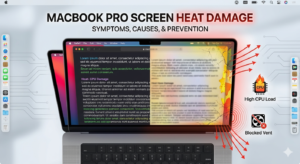
Overheating is one of the most prevalent problems, leading to thermal throttling, unexpected shutdowns, or reduced performance. Laptops are particularly susceptible due to compact designs, while desktops suffer from poor airflow or dust-clogged components.
Symptoms: Hot exterior, loud fan noise, slow performance under load, or automatic shutdowns.
DIY Fixes:
- Clean vents and fans: Power off your device, unplug it, and use compressed air to blow out dust from vents. For laptops, focus on side and bottom intakes; for desktops, remove the side panel for better access. Hold the can upright and use short bursts to avoid liquid propellant.
- Improve airflow: Use your laptop on a hard, flat surface—not beds or couches. Invest in a cooling pad with fans for laptops. For desktops, ensure the case has proper intake and exhaust fans positioned correctly.
- Adjust power settings: On Windows, go to Power Options and select a “Balanced” plan. Lower maximum processor state to 75-80% to reduce heat generation.
- Monitor temperatures: Use free tools like HWMonitor or Core Temp to check CPU/GPU temps. Aim to keep them under 80-85°C under load.
Expert tip: Clean internals every 6-12 months, or more frequently in dusty environments. If overheating persists after cleaning, reapply thermal paste (advanced users only—watch reliable tutorials).
Benefits vs. Drawbacks: DIY cleaning is cost-free and effective but requires care to avoid damaging components. Professional service might be needed for deep hardware faults.
2. Slow Performance and Lagging: Speed Up Your System
A once-snappy computer that now crawls can frustrate anyone. Common culprits include too many startup programs, full storage, fragmented drives (on HDDs), or malware.
Practical Steps to Fix:
- Disable startup programs: Open Task Manager (Ctrl + Shift + Esc), go to the Startup tab, and disable non-essential apps.
- Free up disk space: Use Disk Cleanup (Windows) or Storage Sense to remove temporary files. Uninstall unused programs.
- Update drivers and OS: Outdated software causes bottlenecks. Check Windows Update or use manufacturer tools (e.g., Dell SupportAssist).
- Scan for malware: Run Windows Defender or a reputable free scanner.
- Upgrade hardware affordably: Switching from HDD to SSD dramatically improves speed. Adding RAM (if supported) helps multitasking.
For desktops, opening the case to clean dust from components often revives performance. Real-world scenario: A user with a 5-year-old desktop noticed 50% faster boot times after an SSD upgrade and cleanup.
Fix common laptop and desktop slowdowns by combining software optimization with hardware hygiene for noticeable improvements.
3. Battery Drain and Charging Issues on Laptops
Laptop batteries degrade over time, but you can often extend their life or diagnose problems without replacement.
Common Fixes:
- Calibrate the battery: Charge to 100%, use until it shuts down, then charge uninterrupted for a few hours.
- Check power settings: Reduce screen brightness, disable unused peripherals, and switch to power-saving modes.
- Inspect the charger: Test with another compatible charger. Clean ports gently.
- Limit background processes: Close apps and use fewer browser tabs.
If the battery swells or won’t hold charge beyond 30-60 minutes, replacement might be necessary—but many users successfully swap batteries themselves using model-specific guides.
4. Slow Startup and Boot Problems
Long boot times waste valuable minutes. This often ties to software overload or failing storage.
Troubleshooting Steps:
- Enable Fast Startup in Power Options.
- Use MSCONFIG or Task Manager to manage startup items.
- Run chkdsk and SFC /scannow in Command Prompt (admin) to repair system files.
- For desktops, check connections to the boot drive.
Expert Advice: Upgrade to an SSD if using a traditional hard drive. This single change can cut boot times from minutes to seconds.
5. Screen and Display Issues (Black Screen, Flickering, Dead Pixels)
No display or flickering screens are alarming but often fixable.
Solutions:
- Hard reset: For laptops, remove battery (if possible), unplug, hold power button 30-60 seconds, then reconnect.
- External monitor test: Connect via HDMI to check if the issue is the screen or graphics.
- Update graphics drivers: Via Device Manager or manufacturer site.
- Brightness and key combos: Press Fn + brightness keys or Windows + P to cycle display modes.
- Dead pixels: Sometimes they resolve with software tools or gentle massage (not recommended for all screens).
For desktops, reseat the graphics card and monitor cables. A simple cable swap often solves “no signal” errors.
Additional Subheading: Keyboard, Touchpad, and Peripheral Problems
Unresponsive keys or erratic touchpads are common. Clean with isopropyl alcohol and compressed air. For touchpads, adjust settings in Control Panel or reinstall drivers. Peripherals like mice often work after USB port changes or driver updates.
Additional Subheading: No Power or Won’t Turn On
Check power cables, outlets, and power supply (desktops). For laptops, perform a power drain reset. Listen for beeps or look for LED patterns indicating specific errors.
Additional Subheading: Noise Issues (Fans, Clicking Sounds)
Loud fans signal dust or failing bearings—clean as described earlier. Clicking from hard drives may indicate impending failure; back up data immediately and consider replacement.
Additional Subheading: Wi-Fi and Connectivity Troubles
Restart router, forget and reconnect to network, update Wi-Fi drivers, or run the Windows Network Troubleshooter. Position devices closer to the router for better signal.
Additional Subheading: Software Crashes and Blue Screen of Death (BSOD)
Update Windows, check for driver conflicts in Event Viewer, and run Memory Diagnostic. BSODs often trace to faulty RAM or drivers—test RAM by removing one stick at a time in desktops.
Maintenance Best Practices to Prevent Future Issues
Prevention is better than cure. Create a routine:
- Monthly: Run disk cleanup, malware scans, and software updates.
- Quarterly: Deep clean hardware.
- Annually: Check for hardware upgrades like more RAM or SSDs.
Use tools like CCleaner (judiciously) and monitor with built-in utilities. For advanced setups, such as a mobile triple screen setup simracing, ensure proper cooling and cable management to avoid strain on components.
Fix common laptop and desktop reliability through consistent habits rather than reactive repairs.
Comparing DIY vs. Professional Repair: Benefits and Drawbacks
Benefits of DIY: Cost savings (repairs can run $100+), faster resolution, learning opportunity, and satisfaction. Many fixes take under 30 minutes.
Drawbacks: Risk of voiding warranty (check first), potential for further damage if inexperienced, and time investment. For complex issues like motherboard failure, professionals are safer.
Always weigh risks—start simple. Resources like iFixit offer excellent guides.
Expert Tips for Safe and Effective Troubleshooting
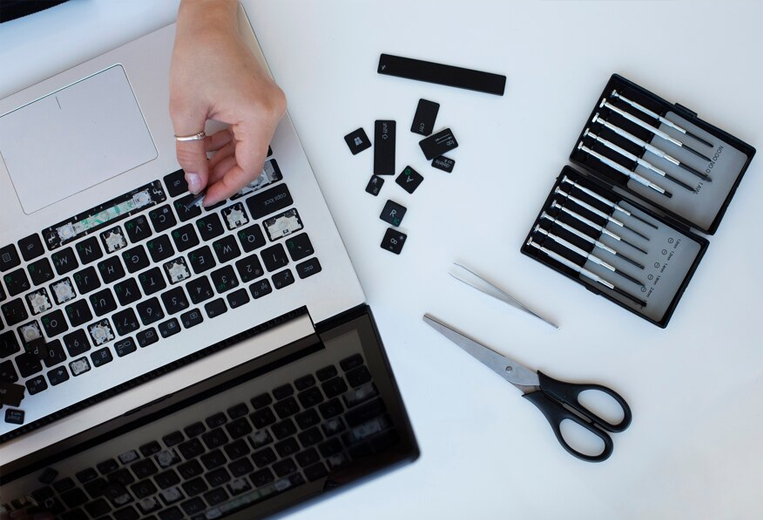
- Work in a static-free environment; use an anti-static wrist strap for internals.
- Document steps and take photos before disassembly.
- Keep screws organized.
- Test incrementally after each change.
- For beginners: Stick to external cleaning and software fixes initially.
Real-world example: Many users revive old desktops by thorough dusting and SSD upgrades, turning sluggish machines into responsive ones.
Fix common laptop and desktop problems confidently by building skills progressively.
When to Seek Professional Help
If basic steps fail, or you encounter liquid damage, strange smells, or physical cracks, consult a technician. Data recovery from failing drives also benefits from experts.
Conclusion
Mastering how to fix common laptop and desktop problems without professional repair equips you with valuable skills that enhance productivity and save significant costs over time. From tackling overheating through regular cleaning and proper ventilation to optimizing performance via software tweaks and hardware upgrades, the solutions outlined here cover the majority of everyday issues.
Key takeaways include prioritizing maintenance, starting with the easiest diagnostics, and knowing your limits. By implementing these practices, you’ll enjoy smoother operation, longer device life, and greater peace of mind. Take action today: Perform a quick cleanup and optimization on your current setup. Your future self—and your wallet—will thank you. For more in-depth hardware specifics, explore trusted resources like manufacturer support sites or community forums.
This proactive approach transforms tech frustrations into manageable tasks, making you the hero of your own digital workspace. Stay informed, stay prepared, and keep your devices performing at their best.
Additional External Links (integrated naturally):
- For detailed guides, see computer maintenance best practices on HP Tech Takes.
- Learn more about hardware troubleshooting from iFixit resources.
- Insights on performance optimization via Forbes technology articles or Wikipedia entries on computer hardware.
Related posts:
![Display Backlight Service Program]()
How to Check If Your Device Qualifies for the Display Backlight Service Program?
![MacBook Pro Screen Heat Damage ifixit.org.uk]()
What Is Everything You Need to Know About MacBook Pro Screen Heat Damage?
![How to Find Reliable Computer Repair]()
How to Find Reliable Computer Repair: A Comprehensive Guide to Troubleshooting and Professional Supp...
![How to Fix an HP Notebook Computer Battery That Is Not Charging]()
How to Fix an HP Notebook Computer Battery That Is Not Charging?
![How to Fix Overheating Issues on HP Omen and Victus Gaming Laptops]()
How to Fix Overheating Issues on HP Omen and Victus Gaming Laptops?
![How to Fix Screen Problems on a MacBook Pro]()
How to Fix Screen Problems on a MacBook Pro and Restore Normal Display Performance
![How to Fix MacBook Pro Screen Burn Marks and Restore Display Quality?]()
How to Fix MacBook Pro Screen Burn Marks and Restore Display Quality?
![Microsoft Surface Laptop 3 Screen Crack: ifixit.org.uk]()
Microsoft Surface Laptop 3 Screen Crack: Comprehensive Guide to Causes, Repair Options, and Preventi...