In today’s connected world, knowing how to connect to WiFi is essential for staying productive, entertained, and in touch. Whether you’re setting up a new device, traveling, or troubleshooting a spotty connection at home, reliable WiFi access makes all the difference. This guide walks you through the process for the most popular platforms—iPhone, Android, Windows, and Mac—providing detailed steps, practical examples, and expert tips to help you get online quickly and securely.
WiFi connectivity powers everything from video calls with family to streaming your favorite shows or working remotely. We’ll cover the basics for beginners while including advanced advice for smoother experiences across devices.
Why Learning How to Connect to WiFi Matters
Mastering how to connect to WiFi saves time and frustration. Public networks at cafes, airports, or hotels often require specific steps, while home setups benefit from automatic connections. Different operating systems handle connections slightly differently, so understanding each one empowers you to switch devices seamlessly.
Connecting to WiFi on iPhone: Simple Steps for iOS Users
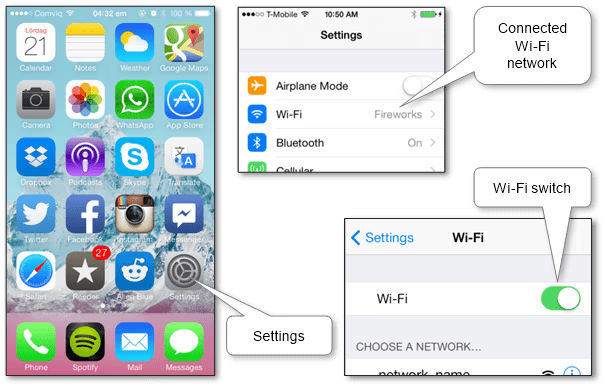
Apple’s iOS makes how to connect to WiFi straightforward. Here’s the process:
- Open the Settings app on your Home screen.
- Tap Wi-Fi.
- Toggle the Wi-Fi switch to the On position if it’s not already enabled. Your iPhone will scan for available networks.
- Tap the name of the desired network.
- Enter the password when prompted and tap Join.
A blue checkmark appears next to the network name once connected, and the WiFi icon shows in the status bar.
Real-world scenario: You’re at a coffee shop with your iPhone. You open Settings, select the shop’s network, enter the password provided at the counter, and instantly access maps or order online.
Quick Access via Control Center
For faster access, swipe down from the top-right corner (on iPhone X and later) to open Control Center. Press and hold the WiFi icon to expand options and connect directly. This is handy in public places or when switching networks quickly.
Automatic Connections and Known Networks
iPhones remember networks you’ve joined before. They reconnect automatically when in range, which is convenient at home or the office but requires caution on public networks.
How to Connect to WiFi on Android Devices
Android offers flexible options for how to connect to WiFi, varying slightly by manufacturer (Samsung, Google Pixel, etc.) but following similar principles.
- Open the Settings app.
- Tap Network & internet (or Connections on some devices) > Internet or Wi-Fi.
- Toggle Wi-Fi On.
- Select your network from the list.
- Enter the password and tap Connect.
Once connected, the network saves for future use.
Tip: Swipe down twice from the top of the screen to access Quick Settings. Tap the WiFi icon to toggle it or long-press for the full list of networks.
Adding Hidden or Enterprise Networks
For hidden networks, tap Add network or similar, enter the SSID (network name), security type, and password. This is common in office environments with enhanced security.
Expert advice: Keep your Android updated for better WiFi management and security features. Many devices now support easier QR code scanning for quick connections.
Step-by-Step Guide to Connect to WiFi on Windows
Windows users can connect via the taskbar or Settings for reliable access.
- Click the Network icon in the taskbar (bottom-right corner). It looks like a WiFi symbol or globe.
- Select Manage Wi-Fi connections or view the list of available networks.
- Choose your network and click Connect.
- Enter the password and select Next or Connect.
For Windows 11, the process is even more streamlined with quick settings.
Manual Connection for Hidden Networks
If the network doesn’t appear:
- Go to Settings > Network & Internet > Wi-Fi > Manage known networks > Add network.
- Enter the SSID, security type, and password.
Practical example: Working from a hotel room? Use the taskbar method to join the guest network quickly and get your virtual meetings started.
Windows also supports QR code scanning on devices with cameras for password-free connections.
Connecting to WiFi on Mac: Easy macOS Instructions
Mac computers integrate WiFi seamlessly into the menu bar.
- Click the WiFi icon in the top-right menu bar.
- Select Turn Wi-Fi On if needed.
- Choose the network from the list.
- Enter the password and click Join.
The icon changes to show signal strength once connected.
Using System Settings for More Control
For advanced options, go to System Settings > Network > Wi-Fi. Here you can manage preferred networks, turn auto-join on/off, and view details.
Real-world scenario: A student at a university library uses the menu bar to join the campus network, then uses System Settings to prioritize it over others.
macOS remembers networks across Apple devices via iCloud, making switching between iPhone and Mac effortless.
Troubleshooting Common WiFi Connection Issues
Even with clear steps, issues arise. Here’s how to resolve them across devices:
- Restart everything: Power cycle your device, router, and modem. This fixes most temporary glitches.
- Forget and reconnect: In WiFi settings, forget the network and join again. This clears corrupted data.
- Check password and range: Ensure you’re within range and using the correct credentials (case-sensitive).
- Update software: Outdated OS versions often cause compatibility problems. Check for updates regularly.
- Airplane Mode toggle: On mobile devices, enable then disable Airplane Mode to refresh connections.
- Router placement and channels: Position your router centrally and consider changing channels if interference is high.
Comparison of troubleshooting across platforms:
| Issue | iPhone Solution | Android Solution | Windows Solution | Mac Solution |
|---|---|---|---|---|
| Won’t connect | Reset Network Settings | Forget network & restart | Run Network Troubleshooter | Restart & check date/time |
| Weak signal | Move closer or use WiFi Assist | Check signal strength | Use WiFi analyzer tools | Check menu bar strength |
| Drops frequently | Disable VPNs | Update apps & OS | Update drivers | Update macOS |
Advanced Tips for Better WiFi Performance
To optimize your experience beyond basic how to connect to WiFi:
- Dual-band routers: Connect to 5GHz for speed or 2.4GHz for better range.
- Password management: Use a password manager to handle complex WiFi passwords securely.
- Guest networks: Set up separate guest WiFi for visitors to protect your main network.
- Mesh systems: For large homes, consider mesh WiFi to eliminate dead zones.
- Monitor data usage: On mobile plans, WiFi helps avoid cellular data overages.
Benefits vs. drawbacks: WiFi offers high speeds and convenience but can face interference. Wired Ethernet provides more stability for desktops but lacks mobility.
Security Best Practices When Connecting to WiFi
Always use strong, unique passwords for your home network. On public WiFi, avoid sensitive transactions or use a VPN for added protection. Enable automatic updates to patch security vulnerabilities.
Choosing the Right WiFi Setup for Your Needs
Whether for a single device or a smart home ecosystem, evaluate router capabilities. Modern routers support multiple devices simultaneously without slowdowns.
Conclusion
Mastering how to connect to WiFi on iPhone, Android, Windows, and Mac devices equips you with essential skills for a connected lifestyle. From quick menu bar access on Mac to detailed Settings navigation on Android and iPhone, these steps ensure you’re never far from reliable internet.
Key takeaways include keeping devices updated, restarting when issues arise, and using built-in tools for troubleshooting. By following these guides and tips, you’ll enjoy faster, more stable connections whether at home, work, or on the go.
Take action today: Open your device’s settings and practice connecting to your home network. For persistent issues, consult your device manufacturer’s support resources. A strong WiFi connection opens doors to endless possibilities—stay connected and productive!
Additional External Resources:
- Apple Support: Connect to Wi-Fi on iPhone – Official guidance for iOS users.
- Google Android Help: Connect to Wi-Fi – Detailed Android instructions.
- Microsoft Support: WiFi in Windows – Windows troubleshooting hub.
- Apple Mac WiFi Guide – macOS connectivity tips.
- General WiFi Best Practices – Broader technical overview.
Related posts:
![How to Fix "Application Was Unable to Start Correctly (0xc000007b)" Error in Windows 11: Complete Guide (2026)]()
How to Fix "Application Was Unable to Start Correctly (0xc000007b)" Error in Windows 11: Complete Gu...
![How to Fix "DLL File Missing" Errors on Windows 10 and 11 – Complete Guide 2026]()
How to Fix "DLL File Missing" Errors on Windows 10 and 11 – Complete Guide 2026
![Display Backlight Service Program]()
How to Check If Your Device Qualifies for the Display Backlight Service Program?
![MacBook Pro Screen Heat Damage ifixit.org.uk]()
What Is Everything You Need to Know About MacBook Pro Screen Heat Damage?
![How to Find Reliable Computer Repair]()
How to Find Reliable Computer Repair: A Comprehensive Guide to Troubleshooting and Professional Supp...
![hard disk repair ifixit.org.uk]()
Hard Disk Repair: The Complete 2026 Guide to Diagnosing, Fixing, and Recovering Your Drive
![How to Fix an HP Notebook Computer Battery That Is Not Charging]()
How to Fix an HP Notebook Computer Battery That Is Not Charging?
![Fix Error Code 0x80070057]()
Fix Error Code 0x80070057: Your Ultimate Troubleshooting Guide