
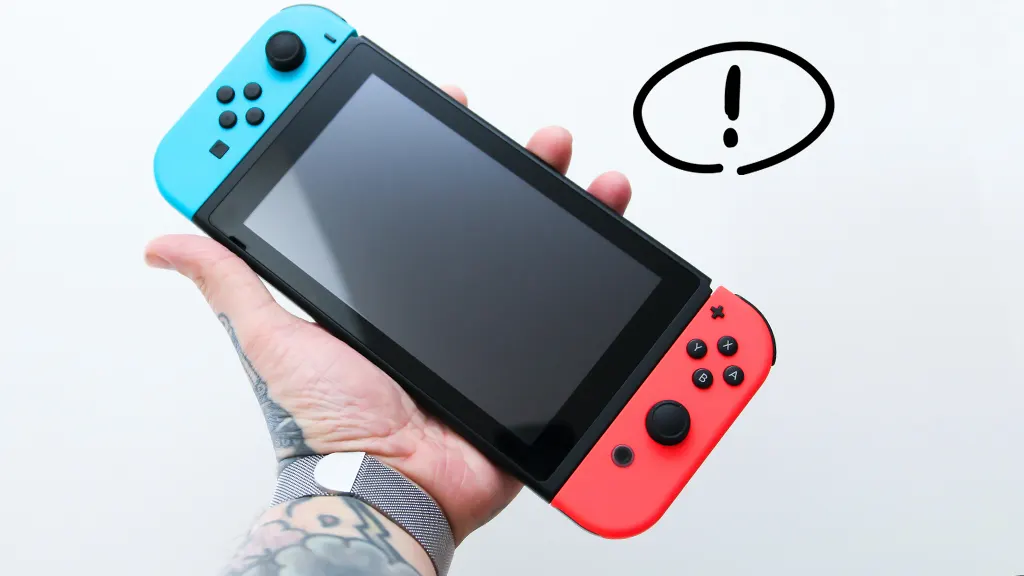
Few things match the frustration of picking up your Nintendo Switch, expecting to dive straight into your favorite game, only to be met with a completely black, unresponsive screen. It is an issue that trips up thousands of gamers: you left the console plugged in for hours, yet it acts completely dead.
When your Nintendo Switch won’t turn on after charging, it doesn’t automatically mean your hardware is permanently broken. More often than not, the culprit is a deep software freeze, a confused battery calibration, or an inadequate power delivery system.
This detailed guide outlines the core reasons behind this frustrating issue and provides step-by-step instructions to isolate, diagnose, and resolve the problem so you can get back to your gaming sessions.
1. Perform a Hard Reset to Break a Software Freeze
The single most common reason a Nintendo Switch appears dead after charging is a critical operating system crash. When the console’s software freezes while the screen is off, the backlight remains unlit, making it look as though the device has no power. Because it is frozen, tapping the power button normally does absolutely nothing.
To force the system to cut power and reboot, you must perform a hard reset:
-
Unplug the console entirely from the charging cable or the official dock.
-
Locate the circular Power Button on the top-left edge of the console.
-
Press and firmly hold the Power Button down for a full 15 to 20 seconds. Do not let go early, even if nothing seems to happen.
-
Release the button, wait roughly 5 seconds, and then tap the power button once normally.
If a software crash was freezing the console, the crisp white Nintendo logo should appear on the screen.
2. Inspect and Verify Your Power Setup
If a hard reset fails, you need to verify that power is actually making its way into the console’s internal cell. The Nintendo Switch features highly specific power requirements that standard phone chargers cannot always fulfill.
Direct Wall Charging vs. Dock Charging
When a console’s battery drops to an absolute 0% state, the official Nintendo Switch Dock often cannot deliver the initial burst of communication required to kickstart the charging process.
Take the official USB-C AC adapter directly out of the back of the dock. Plug it directly into a standard wall outlet, and insert the other end straight into the USB-C port at the bottom of your handheld console. Leave it alone for at least 30 minutes before attempting another hard reset.
The Problem with Third-Party Chargers
The Nintendo Switch utilizes a custom Power Delivery (PD) profile over its USB-C architecture. While a standard smartphone block or a third-party USB cable might fit perfectly into the port, it may only supply 5 volts. The system requires a dedicated 15-volt supply at 2.6 amps to charge efficiently while powering its internal systems. Utilizing low-output blocks can cause the battery to slowly drain even while plugged in, eventually locking it in an unbootable state. Always prioritize the official Nintendo brick for testing.
3. Understand Battery Calibration and Deep Discharge States
Lithium-ion batteries possess integrated protection circuits designed to keep them stable. However, if a console sits idle in a drawer for months, or if a game completely drains the cell to absolute empty, the battery enters a state known as deep discharge.
[Battery Drops to 0%] ---> [Enters Deep Discharge State] ---> [Protection Circuit Locks Booting]
                                                                        |
                                                                        v
                                                   [Requires Direct 15V Slow-Charge to Wake]
When a battery enters a deep discharge state, the onboard microcontrollers cannot accurately read the remaining percentage, resulting in a black screen.
-
The Trickle-Charge Cure: To wake a deeply discharged battery, connect the official power brick directly to the console and leave it undisturbed for 12 to 24 hours. Avoid touching the device or checking the screen. This allows a low-amperage “trickle charge” to slowly rebuild the chemistry inside the cell until it reaches a safe threshold to boot.
4. Diagnose Hardware Faults: Pins, Ports, and Motherboards
When software fixes and prolonged charging yield no results, the issue likely shifts from basic troubleshooting to physical hardware failure.
Inspecting the USB-C Port
Grab a flashlight or a smartphone light and look directly into the charging port on the bottom of your console. Look closely for:
-
Bent, warped, or missing gold contact pins.
-
Accumulated pocket lint, dust, or pet hair compressing at the bottom of the port.
-
Corrosion or green-black oxidation caused by moisture exposure.
If lint is visible, gently scrape it out using a non-conductive tool like a wooden toothpick or a plastic dental pick. Never stick safety pins, needles, or metal tweezers inside the port, as you risk permanently shorting out the primary power management chip.
The Infamous M92T36 Power IC Failure
If your console stopped turning on immediately after using a cheap, uncertified third-party dock, the issue is almost certainly a blown integrated circuit on the motherboard. The Nintendo Switch relies on a specific chip called the M92T36 to handle Power Delivery negotiations.
Poorly constructed third-party docks can accidentally send high voltage down the wrong communication pins, instantly frying this chip. When the M92T36 chip short-circuits, it blocks all power from entering the system, preventing the device from charging or booting. Fixing this requires professional micro-soldering to swap out the damaged chip.
5. Maintenance Checklist and DIY Component Changes
For those comfortable working with precision electronics, hardware deterioration can be handled at home with the right tools. Over years of heavy use, lithium-ion packs naturally degrade, losing their capability to hold a charge or sustain stable voltages.
Before opening up your system, always review open-source documentation and visual teardowns. You can explore step-by-step physical teardowns and look into toolkits by reviewing the resources over at iFixit’s dedicated repair guides.
Inside the Console: Essential Diagnostics
When tackling these internal issues or seeking advice on alternative home setups—such as managing a mobile triple screen setup simracing layout or dealing with delicate console ribbon cables—having the proper precision drivers (like a Tri-point Y00 bit) is essential to avoid stripping screws.
6. Pros vs. Cons of DIY Repair Versus Manufacturer Mail-In
If basic troubleshooting fails to resolve the issue, you must decide whether to crack open the console yourself or hand it over to professional technicians.
DIY Internal Repair
-
Pros: Significantly cheaper; zero wait time for cross-country shipping; you retain absolute ownership over your exact hardware and saved data.
-
Cons: Instantly voids any remaining manufacturer warranty; risk of stripping delicate internal structural screws; high risk of causing electro-static discharge (ESD) damage to sensitive motherboard tracks.
Official Nintendo Service or Certified Tech Shops
-
Pros: Guaranteed fix using factory-fresh OEM components; repairs come backed by a dedicated secondary warranty window.
-
Cons: Pricey if outside the 1-year standard warranty; shipping takes anywhere from 2 to 4 weeks; high likelihood that the service center will wipe your system or ship back a refurbished replacement console, deleting your local offline save files.
Summary of Actionable Troubleshooting Steps
If your console is sitting dead right now, work your way through this prioritized checklist to get back up and running:
-
Step 1: Disconnect all accessories and hold down the top power button for a full 20 seconds to shatter any hidden software loops.
-
Step 2: Bypass your television dock. Connect the factory-provided AC adapter block directly into a known working wall outlet and plug it straight into the console.
-
Step 3: Leave the system completely alone on the charger for a minimum of 6 hours to pull the battery pack out of a deep discharge state.
-
Step 4: Look inside the lower port with a clear light source to ensure there are no bent pins or impacted debris blocking connection contacts.
-
Step 5: If the console screen remains pitch black but you can hear background audio menu ticks or feel the internal cooling fan spinning, look into replacing the LCD panel or re-seating internal video ribbons.
Conclusion
A Nintendo Switch that refuses to power up after an extended charging session can feel like a major setback, but it is rarely a terminal issue. By methodically ruling out software locks with a 20-second hard reset, ensuring your power delivery chain relies on clean official hardware, and checking the integrity of your USB-C dock connection, you can solve the majority of boot-related bugs at home.
Take the time to evaluate whether a quick home cleaning or a full battery replacement matches your comfort level, or if sending the device off to an expert is the safer choice for your game saves. Much like keeping your home devices running smoothly—whether optimizing computing rigs or organizing a smart printer subscription management workflow—proactive maintenance ensures your tech stays ready whenever you are. Keep your hardware clean, use certified power adapters, and you will protect your hybrid console for years of gaming to come.
Related posts:
![facebook video downloader facebook video downloader]()
How to Change Name on Facebook: The Complete 2026 Guide
![Fix Orange Discoloration on MacBook Pro Screen]()
How to Fix Orange Discoloration on MacBook Pro Screen: Complete Guide to Causes & Solutions
![Google Gemini in 2026]()
What Is Everything You Need to Know About Google Gemini in 2026?
![fbi warns iphone android scams]()
Why the FBI Warns iPhone Android Scams Are Increasing
![What Should You Know About the iPhone 17 in 2026]()
What Should You Know About the iPhone 17 in 2026, Including Features, Specs, Price, Release Date, an...
![Best Free Password Managers ifixit]()
Best Free Password Managers: Secure Your Digital Life in 2026
![Snapchat Planets - ifixit]()
How Do Snapchat Planets Work and What Does Each Planet Mean in the Friend Solar System?
![What Causes Black Lines on Laptop Screen]()
What Causes Black Lines on Laptop Screen? A Complete Troubleshooting Guide







