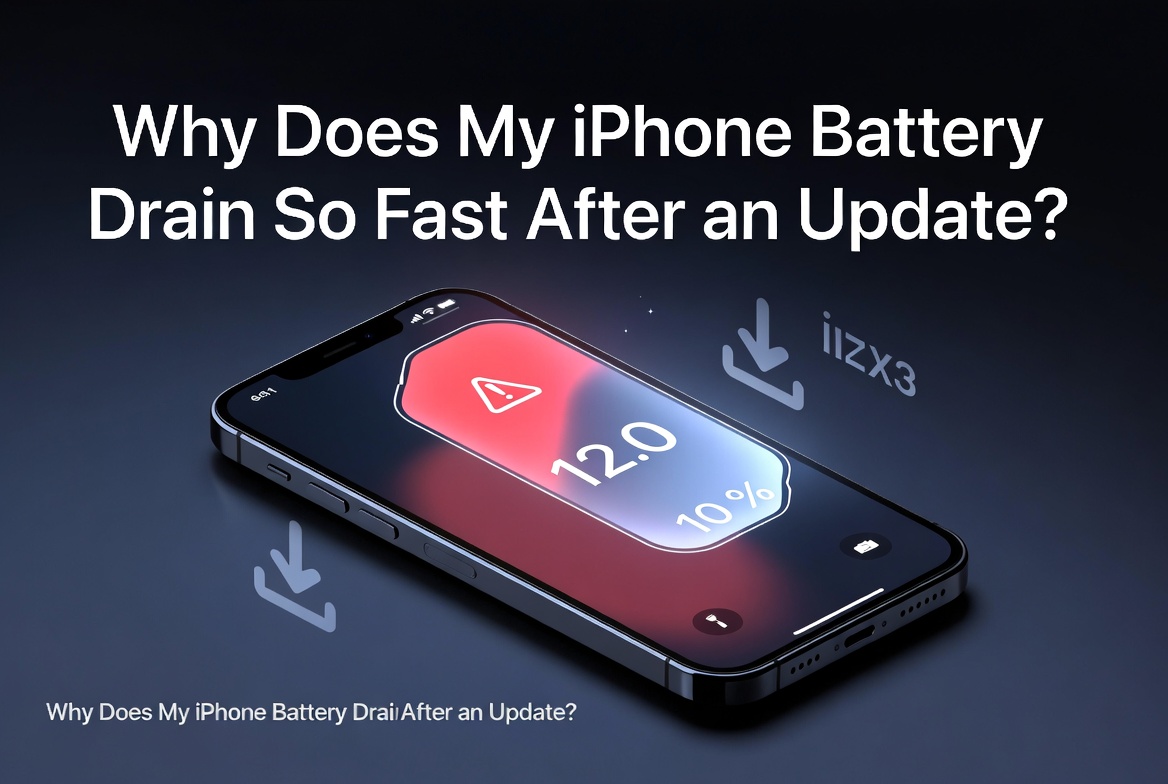
If you’ve recently updated your iPhone and noticed your battery percentage dropping faster than usual, you’re not alone. Many users report significant iPhone battery drain right after installing a new iOS version. This common frustration often stems from temporary background processes, but it can sometimes point to settings that need tweaking or deeper issues.

In this comprehensive guide, we’ll explore the reasons behind post-update iPhone battery drain, provide actionable solutions, and share long-term strategies to maximize your device’s battery life. Whether you’re a beginner or a tech-savvy user, you’ll find practical advice to get your iPhone running efficiently again.
Why iPhone Battery Drain Happens After an Update
Apple designs iOS updates to bring new features, security improvements, and performance enhancements. However, these updates often trigger intensive background activities that temporarily increase power consumption.
Right after an update, your iPhone needs to:
- Reindex photos, messages, files, and apps for Spotlight search.
- Download new assets, update app caches, and sync with iCloud.
- Optimize for new features like enhanced AI tools or messaging improvements.
Apple officially states that this iPhone battery drain is normal and usually resolves within a few days as these processes complete. You might even see an “Ongoing iOS Update” insight in the Battery settings.
Real-World Scenarios
Imagine installing a major iOS release on your iPhone 16 Pro. The first day, you notice the battery dropping 20% faster during normal use. By day three or four, after leaving it charging overnight, performance stabilizes. This pattern repeats across many models, from older iPhones to the latest ones.
Common Causes of Post-Update iPhone Battery Drain
Beyond indexing, several factors contribute to iPhone battery drain:
- New Features and Optimizations: Features like Apple Intelligence or improved background processing can be more resource-intensive initially.
- App Incompatibility: Some third-party apps aren’t fully optimized yet for the new iOS, leading to higher CPU usage.
- Settings Reset or Changes: Automatic re-enabling of features like Background App Refresh, Location Services, or push notifications.
- Network Activity: Increased data downloads or poor signal strength forcing the device to work harder.
- Battery Health Degradation: Older batteries struggle more with the extra demands of an update.
Understanding these helps you address the root cause rather than just the symptoms.
How Long Should You Wait Before Worrying?
Apple recommends waiting a few days to a week. During this period, avoid heavy usage if possible and keep your device charged to allow background tasks to finish uninterrupted.
If the iPhone battery drain persists beyond that, it’s time to investigate further.
Step-by-Step Fixes for iPhone Battery Drain
Here’s a practical, beginner-friendly troubleshooting guide:
1. Check Battery Usage Insights
Open Settings > Battery. Look for:
- Daily Usage chart comparing today to the past week.
- Top apps by battery consumption.
- Insights like “Ongoing iOS Update.”
This data pinpoints culprits quickly.
2. Restart Your iPhone
A simple restart clears temporary glitches. For most models, press and release Volume Up, then Volume Down, then hold the Side button until the Apple logo appears.
3. Update Apps and iOS
Ensure all apps are updated in the App Store, as developers often release patches for new iOS versions to improve efficiency.
4. Optimize Key Settings
- Enable Low Power Mode: Go to Settings > Battery and toggle it on for immediate relief.
- Adjust Screen Brightness: Use Auto-Brightness and lower manual levels.
- Manage Background App Refresh: Settings > General > Background App Refresh → Set to Wi-Fi or Off for non-essential apps.
- Location Services: Settings > Privacy & Security > Location Services → Set apps to “While Using” instead of “Always.”
5. Disable Unnecessary Features Temporarily
Turn off Hey Siri, automatic downloads, or widgets on your home screen if they’re not critical.
Advanced Tips to Improve Battery Life Long-Term
Monitor and Limit Background Activity
Many apps run in the background, sending notifications or refreshing content. Review them in Battery settings and restrict heavy users.
Use Wi-Fi Over Cellular When Possible
Wi-Fi is generally more power-efficient. Enable 5G Auto if available to balance speed and battery.
Check Battery Health
Go to Settings > Battery > Battery Health. If Maximum Capacity is below 80-85%, consider a replacement for optimal performance.
Expert Tip: Calibrate occasionally by charging to 100%, using until low, and charging again uninterrupted.
Comparing Battery Management Features
| Feature | Benefit | Drawback | Best For |
|---|---|---|---|
| Low Power Mode | Extends life significantly | Limits some background tasks | Daily use when low |
| Adaptive Power | Automatic adjustments | Available on newer models | Busy days |
| Background Refresh Off | Saves power | Slower app updates | Light users |
| Auto-Brightness | Balances visibility & efficiency | None major | Everyone |
This table highlights trade-offs to help you choose what works for your lifestyle.
Preventing Future iPhone Battery Drain Issues
- Update during downtime (e.g., overnight) to let indexing complete.
- Keep apps updated regularly.
- Avoid extreme temperatures, which stress the battery.
- Use Optimized Battery Charging to reduce wear.
By adopting these habits, you can minimize post-update surprises.
Additional Subtopics for Better Battery Management
Understanding Lithium-Ion Battery Basics
iPhone batteries use lithium-ion technology, which degrades over time through charge cycles and heat exposure. Regular updates help optimize but also demand more from aging cells.
The Role of Software Optimization
Apple continuously improves power management. Newer iOS versions include features like performance management to prevent shutdowns, but they require initial adaptation.
User Habits That Impact Battery
Heavy gaming, video streaming, or constant social media use amplifies drain. Tracking your patterns via the Battery app reveals insights.
When to Seek Professional Help
If basic fixes fail and Battery Health is poor, visit an Apple Authorized Service Provider. Genuine batteries restore full performance.
Comparing iPhone Models and Battery Performance
Newer models like iPhone 16 series generally handle updates better due to efficient chips, while older ones may need more careful management.
Expert Advice and Real-User Experiences
Many users on forums note improvement after 3-5 days of patience. Professionals recommend combining software tweaks with mindful usage for the best results. For more on official guidance, check Apple’s battery troubleshooting support page.
Additional resources include CNET’s coverage on post-update battery behavior and Apple’s maximizing performance tips.
For community insights, Reddit discussions on iPhone battery often share practical fixes, while tech sites like Forbes and ZDNet provide in-depth analysis on iOS updates.
Conclusion
iPhone battery drain after an update is usually a temporary phase caused by essential background processes like indexing and optimization. By understanding the causes—ranging from reindexing to app behaviors—and applying the fixes outlined here, you can quickly restore normal battery performance and even improve it long-term.
Key takeaways:
- Wait 3-7 days for background tasks to complete.
- Use Battery settings insights to identify and manage power hogs.
- Optimize settings like brightness, background refresh, and location services.
- Monitor Battery Health regularly and maintain good charging habits.
- Stay updated on apps and iOS for better efficiency.
With these strategies, you’ll enjoy more reliable battery life and make the most of your iPhone. If issues persist, Apple Support remains your best resource for personalized assistance. Take control of your device’s power today for a smoother experience tomorrow.
Related posts:
![Apple iPhone 17e Unlocked by RedPocket Mobile]()
Apple iPhone 17e Unlocked by RedPocket Mobile: Best Budget Deal in 2026?
![How to Reset Network Settings on iPhone: Ifixit]()
How to Reset Network Settings on iPhone: The Complete 2025 Troubleshooting Guide
![How Can You Find a Reliable Phone Repair Service Near You]()
How Can You Find a Reliable Phone Repair Service Near You?
![How to Fix Android Phone Not Charging Properly ifixit.org.uk]()
How to Fix Android Phone Not Charging Properly: 2026 Troubleshooting Guide
![How to Fix iPhone Stuck on Apple Logo Screen?]()
How to Fix iPhone Stuck on Apple Logo Screen?
![Can You Fix a Broken Screen Without Replacing the Entire Device?]()
How Can You Fix a Broken Screen Without Replacing the Entire Device?
![ifixit.org.uk]()
How to Fix Horizontal Lines on Android Phone: Ultimate Troubleshooting and Repair Guide
![how to unhide apps on iphone]()
How to Unhide Apps on iPhone: A Complete, Step-by-Step Guide