Group texting has revolutionized the way we communicate with friends, family, and colleagues. However, the convenience of a group text message can quickly turn into a headache when an unwanted participant is part of the conversation. Whether it is a noisy colleague, an ex-partner, or someone who was accidentally added, knowing how to remove someone from a group text message is an essential digital skill in 2026. The bad news is that this simple task is not always possible across all devices and platforms. The good news is that there are several workarounds, alternative solutions, and third‑party applications that can help you reclaim control of your inbox. This comprehensive guide explains exactly how to remove someone from a group text message on iPhones, Android devices, and popular third‑party chat apps, and it also covers what to do when direct removal is not an option.
Understanding Group Text Messages: Why Removing Someone Isn’t Always Simple
Before diving into the step‑by‑step instructions, it is helpful to understand why the ability to remove a participant varies so much from one conversation to another. Not all group messages are created equal.
| Type of Group Chat | Can You Remove Others? | Can You Leave? | What Happens When You Remove? |
|---|---|---|---|
| iMessage (all Apple devices) | Yes (4+ participants) | Yes (3+ others) | Removed person stops receiving new messages |
| Mixed SMS/MMS (Android + iPhone) | No | No | Everyone continues to receive all messages |
| RCS (Rich Communication Services) | Yes (if group admin) | Yes | Works like modern chat platforms |
| Third‑party apps (WhatsApp, etc.) | Yes (admin only) | Yes | Standard member management features |
The Core Difference: iMessage vs. SMS/MMS vs. RCS
Apple’s iMessage is a modern, internet‑based messaging service. When everyone in a group text message uses an iPhone, iPad, or Mac, iMessage treats the conversation as a managed group with a true member list. That is why iPhone users can seamlessly add or remove participants. By contrast, standard SMS and MMS messages rely on your mobile carrier’s older infrastructure. In an SMS/MMS group text message, your phone is simply broadcasting the same text to several numbers at once; there is no central “member list” to edit.
A newer technology called RCS (Rich Communication Services) is quickly becoming the standard on Android. RCS works much like iMessage or WhatsApp, offering proper group management features, including the ability to remove someone from a group text message.
How to Remove Someone From a Group Text Message on iPhone (iMessage)
For iPhone users, removing someone from a group text message is straightforward, but only if several conditions are met.
Requirements for Removing Someone From an iMessage Group
Before you can remove a participant, all of the following must be true:
-
Every single person in the group text message must be using an Apple device (iPhone, iPad, or Mac) with iMessage enabled (blue text bubbles).
-
The group must have at least four people before removal, so that at least three remain afterward.
-
You must be a participant in the conversation (any member can remove another, not only the group creator).
⚠️ Important: If anyone in the group is using an Android device, the conversation degrades to an SMS/MMS thread (green bubbles), and the removal option disappears.
Step‑by‑Step Instructions for iPhone
Once you have confirmed the requirements are met, follow these steps:
-
Open the Messages app on your iPhone.
-
Tap the group text message conversation you want to manage.
-
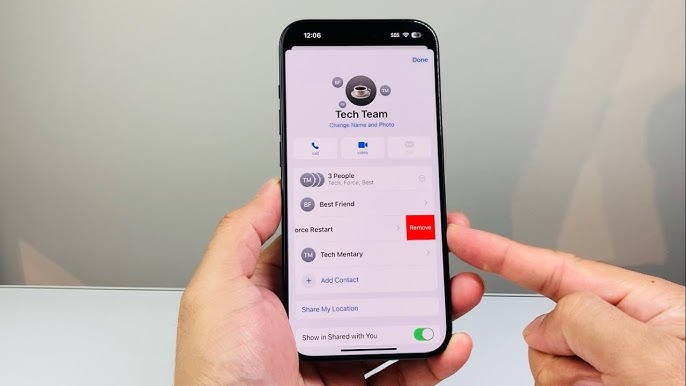
Tap the group icons or the group name at the top of the conversation thread.
-
Scroll to the list of participants.
-
Find the person you wish to remove.
-
Swipe left on that person’s name.
-
Tap Remove (or Remove from Group).
In some versions of iOS, you may need to tap an Info button (the letter “i” in a circle) first, then look for a Remove button next to the participant’s name. Once removed, that person will no longer receive any new messages sent to the group text message. However, they may still be able to see the conversation history that existed on their own device before removal.
What If You Don’t See the Remove Option?
If the Remove option is not available, it almost always means that at least one requirement has not been met. The most common culprit is that someone in the group text message is using a non‑Apple device, which forces the conversation to use SMS/MMS instead of iMessage. In that situation, direct removal is impossible, but you can mute the conversation or start a fresh group without the unwanted person.
How to Remove Someone From a Group Text Message on Android
Android users face a more fragmented landscape. The steps depend on whether the group text message uses traditional SMS/MMS or the newer RCS standard, and which messaging app you are using (Google Messages, Samsung Messages, etc.).
Removing Participants in RCS‑Enabled Group Chats
RCS groups work much like iMessage groups. If everyone in the group text message uses an RCS‑compatible app (such as Google Messages) and RCS is enabled, you can remove participants directly.
Google Messages (RCS group):
-
Open Google Messages and tap the RCS group conversation.
-
Tap the three‑dot More menu in the top‑right corner.
-
Select Group details.
-
Tap the participant you want to remove.
-
Choose Remove from group or Remove user.
Samsung Messages (RCS group): The process is very similar – open the group, tap the three‑dot menu, and look for a “Remove member” option.
The Reality of SMS/MMS Group Texts on Android
Unfortunately, most traditional SMS/MMS group chats on Android do not allow participants to remove others. Once a group text message is created using standard carrier messaging, there is no technical mechanism to kick anyone out. The conversation is simply a copy of each message sent to a list of phone numbers.
If you find yourself in this situation, you have several workarounds:
-
Create a new group without the unwanted person. This is the most reliable solution. Start a fresh group text message and carefully select only the desired recipients.
-
Mute notifications. While this does not remove anyone, it silences the constant alerts.
-
Ask the person to leave. If the unwanted participant is reasonable, you can send a polite private message requesting that they exit the group themselves.
Platform Comparison: Where You Can (and Cannot) Remove Participants
The following table summarises the removal capabilities of the most common messaging platforms.
| Platform | Remove Others? | Requirements | Best For |
|---|---|---|---|
| iMessage (iPhone) | ✅ Yes (any member) | All users on Apple devices; 4+ participants | Apple‑only friend or family groups |
| Google Messages (RCS) | ✅ Yes (any member) | RCS enabled; all users on RCS | Cross‑platform chats between Android devices |
| ✅ Yes (admins only) | Admin privileges | Large, organised groups (work, teams, events) | |
| Telegram | ✅ Yes (admins only) | Admin privileges; up to 200,000 members | Communities and channels |
| Facebook Messenger | ✅ Yes (admins only) | Admin privileges | Social groups on Facebook |
| SMS/MMS (any device) | ❌ No | N/A | Not recommended for long‑term group chats |
💡 Pro Tip: If you frequently need to manage group participants, consider migrating your conversation to a dedicated messaging app like WhatsApp or Telegram. These platforms give you full control over memberships regardless of the devices people use.
What to Do When You Can’t Remove Someone From a Group Text Message
Sometimes direct removal is not possible, whether because of technical limitations or because you are not the group administrator. In these cases, the best strategies focus on controlling your own experience rather than trying to edit the group.
1. Mute Notifications (The Silent Exit)
Muting is often the most practical solution. You stop hearing the constant pings, but you remain in the conversation in case anything important appears.
-
iPhone: Open the group text message, tap the group icons at the top, then toggle on Hide Alerts.
-
Android (Google Messages): Open the group, tap the three‑dot menu, then tap Mute notifications (you can choose a duration: 1 hour, 8 hours, 24 hours, or always).
-
Android (Samsung Messages): Open the group, tap the three‑dot menu, and select Mute.
2. Delete the Conversation Entirely
If you never want to see the group text message again, you can delete it from your device. Keep in mind that this only affects your own view; other participants will continue the conversation normally. If someone sends a new message to the group, the thread may reappear in your inbox.
-
iPhone: Swipe left on the conversation in the Messages list and tap Delete.
-
Android: Tap and hold the conversation in the messaging app, then tap the Trash or Delete icon.
3. Block the Unwanted Participant
Blocking is a more aggressive option, best reserved for persistent spam, harassment, or truly unwanted communication. When you block someone, you will no longer receive any messages from that person, whether sent directly or via a group.
-
iPhone: Go to the person’s contact info within the group, scroll down, and tap Block this Caller.
-
Android: In Google Messages, open the conversation, tap the three‑dot menu, then tap Details > Block & report spam.
⚠️ Warning: Blocking someone can be perceived as a strong statement, especially in friend or family groups. Use this option carefully.
4. Start a New Group Without the Unwanted Participant
When you simply cannot remove someone from an existing group text message, the cleanest solution is to start fresh. Create a new group, add only the people you want, and politely let the original group know that the conversation has moved. This avoids technical headaches while maintaining social harmony.
Removing Yourself vs. Removing Someone Else: Key Differences
It is important to distinguish between removing yourself from a group and removing someone else.
| Action | iPhone (iMessage) | Android (RCS) | Android (SMS/MMS) | Third‑party Apps |
|---|---|---|---|---|
| Remove yourself | ✅ Yes (3+ others) | ✅ Yes | ❌ No (mute only) | ✅ Yes |
| Remove someone else | ✅ Yes (4+ total) | ✅ Yes (admin only) | ❌ No | ✅ Yes (admin only) |
If your goal is simply to leave a group text message without the drama of kicking others out, the process is similar to removing someone but with a different button:
-
iPhone: Open the group > tap group icons > scroll down > tap Leave this Conversation.
-
Android (Google Messages RCS): Open the group > tap three‑dot menu > tap Leave group.
-
WhatsApp, Telegram, etc.: Open the group > tap the group name > scroll down > tap Exit group or Leave group.
Etiquette: How to Politely Remove Someone From a Group Text Message
Technical ability aside, removing someone from a group text message can be socially awkward. A sudden ejection can hurt feelings or create confusion. Experts suggest a few simple guidelines to handle the situation gracefully.
When You Are Removing Someone Else
-
Send a private message first. Before you tap “Remove,” consider sending the person a brief, kind explanation. For example: “Hey, we’re shifting this work group to a smaller team. Nothing personal – I’m going to remove you from this thread.”
-
Only remove when necessary. If the person is simply quiet or inactive, leaving them in the group causes no harm. Reserve removal for disruptive behaviour, privacy concerns, or when the conversation is no longer relevant to them.
-
Never remove someone without warning in a professional setting. At work, unexpected removal can be interpreted as exclusion or punishment. Always communicate first.
When You Are Leaving a Group Yourself
If you want to leave a group text message but worry about appearing rude, consider these graceful exit strategies:
-
Announce your departure. A simple message like “I’m going to step out of this group to reduce my notifications – feel free to keep me in the loop directly” is polite and clear.
-
Mute first, then leave later. Mute the conversation for a few days to see if you actually miss anything. If not, leave without any announcement – most people will not notice.
-
Use the “ghost” method only in low‑stakes groups. In large social groups or group chats with acquaintances, you can leave without a message. Most people will not take offence.
💡 Expert Insight: According to digital etiquette experts, “the most graceful exits are brief, non‑accusatory, and focused on your own needs—not the group’s behaviour”. Avoid saying “This group is too annoying” or pointing fingers at specific members.
Expert Tips for Managing Group Text Messages Like a Pro
Beyond basic removal, these advanced strategies will help you keep your group conversations organised and stress‑free.
1. Name Your Group Chat
A named group text message is much easier to find and manage. On iMessage, you can name a group by tapping the group icons at the top and entering a title. On Google Messages (RCS), tap Group details and then the pencil icon to edit the group name. Named groups also make it harder to accidentally send a message to the wrong conversation.
2. Use Reactions Instead of Replying
On both iMessage and RCS platforms, you can react to specific messages with a thumbs‑up, heart, or other emoji. This reduces clutter and lets you acknowledge a message without generating a new notification for everyone.
3. Schedule “Do Not Disturb” for Group Chats
If you cannot leave or remove someone from a group text message (for example, a mandatory work group), use your phone’s Do Not Disturb settings. On iPhone, go to Settings > Focus and create a custom Focus that allows notifications only from certain people or apps. On Android, use Digital Wellbeing or Do Not Disturb schedules to silence groups during specific hours.
4. Regularly Audit Your Active Groups
Once a month, scroll through your messaging app and ask yourself: “Do I still need to be in this group text message?” If the answer is no, leave or mute the conversation. This simple habit keeps your digital life clean and your notifications under control.
5. Know When to Switch Apps
If you are constantly fighting with SMS/MMS limitations (no removal, poor media sharing, no read receipts), consider moving your group text message to a dedicated app. WhatsApp offers admin‑only removal controls, Telegram supports groups of up to 200,000 members, and Signal provides end‑to‑end encryption for every conversation.
Troubleshooting Common Problems
“I see a green bubble instead of blue on my iPhone.”
This means at least one participant is not using iMessage (typically an Android user). You cannot remove anyone from a mixed group text message because the conversation has fallen back to SMS/MMS. Your best option is to create a new iMessage group without the Android user, or to move the conversation to a cross‑platform app like WhatsApp.
“The ‘Leave Group’ button is greyed out on my Android.”
This usually indicates that the group text message is an SMS/MMS thread, not an RCS group. You cannot leave or remove anyone from an SMS/MMS group. Mute notifications or delete the conversation instead.
“I removed someone, but they are still receiving messages.”
On iMessage and RCS, removal should be immediate. If the removed person continues to receive messages, it is likely because they were added to a second, separate group text message with the same participants. Double‑check the group details and ensure you are working with the correct thread.
“How do I remove someone if I didn’t start the group?”
On iMessage, any participant can remove another person. On third‑party apps (WhatsApp, Telegram, etc.), only administrators have removal privileges. If you are not an admin, you cannot remove anyone directly. Your options are to ask an admin to handle it, mute the conversation, or start your own group.
The Future of Group Text Messaging
The industry is moving toward more consistent, feature‑rich group messaging. Apple’s adoption of RCS (announced in 2024 and rolling out through 2025/2026) will eventually allow iPhone and Android users to share features like read receipts, typing indicators, and proper group member management in the same conversation. Until universal RCS adoption is complete, however, mixed‑device groups will still suffer from SMS/MMS limitations.
For now, the safest approach is to use cross‑platform messaging apps for any important or long‑lasting group conversations. These apps provide reliable removal and leave features regardless of the devices involved.
External Resources for Further Reading
The following trusted sources offer additional insights into group messaging, digital etiquette, and mobile communication:
-
Forbes – Winning The Attention War: Why SMS Remains The Most Reliable Direct Channel In The Mobile Era – An exploration of why SMS continues to dominate business communication.
-
Wikipedia – SMS (Short Message Service) – A comprehensive technical overview of the SMS protocol and its limitations.
-
Reddit – r/AndroidQuestions – Leaving group texts – Real‑world advice from Android users facing similar issues.
-
iFixit.org.uk – How to Update Your iPhone to iOS 26 – Stay current with the latest iOS features, including improved group messaging controls.
-
iFixit.org.uk – How to Fix Common HTC U24 Pro Problems – Troubleshooting tips for Android device owners.
-
iFixit.org.uk – How to Fix a MacBook Screen Black but Still Running – General device maintenance advice for Apple users.
-
iFixit.org.uk – Top 10 Phone Repair Tools & Toolkits – Essential gear for anyone who wants to maintain their smartphone long‑term.
Conclusion
Removing someone from a group text message is one of those everyday tasks that sounds simple but quickly becomes complicated depending on the devices and platforms involved. The most important takeaway is understanding the underlying technology: iMessage groups on Apple devices allow smooth member management, while traditional SMS/MMS groups offer almost no control. RCS is bridging the gap, but universal adoption is still a work in progress.
Actionable Takeaways:
-
Before you try to remove someone, check what kind of group text message you are in. Blue bubbles on iPhone mean iMessage; green bubbles mean SMS/MMS. On Android, look for an RCS indicator.
-
If removal is not possible, your best alternatives are muting notifications, deleting the conversation, or starting a fresh group text message without the unwanted participant.
-
For important or ongoing groups, move the conversation to a dedicated messaging app like WhatsApp or Telegram. These platforms give you full membership control regardless of the devices people use.
-
Always consider the human element. A private message explaining the removal can prevent hurt feelings and maintain relationships.
By following the step‑by‑step instructions and expert tips in this guide, you can confidently manage any group text message that comes your way. Whether you are an iPhone loyalist, an Android enthusiast, or juggling both, you now have the knowledge to keep your digital conversations focused, peaceful, and exactly as you want them.