
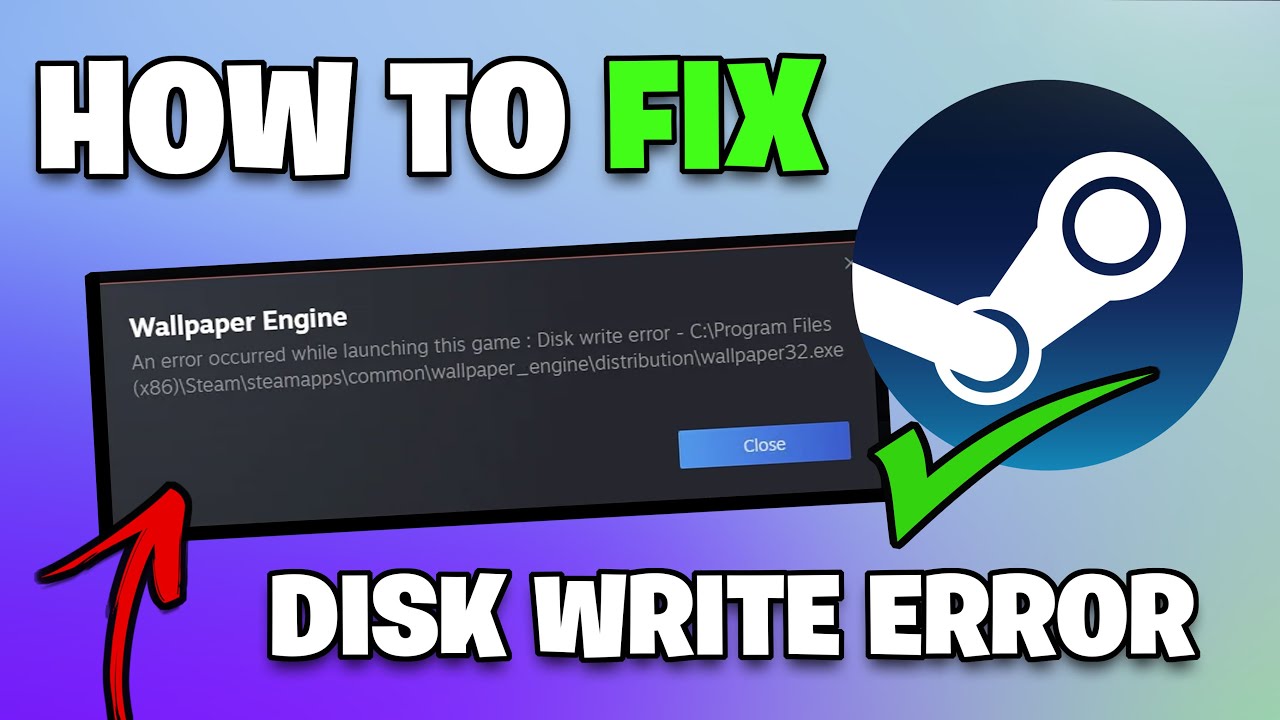
Understanding the Culprit: Common Causes of the Error
Before diving into the fixes, it helps to understand what triggers this specific error. Broadly speaking, a disk write error occurs when Steam cannot complete the installation or updating process because it cannot write data to the disk. The root cause usually falls into one of these categories:
-
Permission Conflicts (Read-Only Folders): A Steam library folder has been set to “Read-Only,” or your specific user account does not have “Full Control” over the directory.
-
Antivirus or Firewall Interference: Your security software (including Windows Defender) is scanning downloads in real-time, locking the files, and preventing Steam from writing to them.
-
Corrupted Download Cache: Steam stores temporary installation data. If this cache gets corrupted, Steam gets confused and fails the write process.
-
Hardware or Disk Errors: Your drive has bad sectors, is failing, or simply does not have enough free contiguous space for patching.
-
Write Protection: The physical drive may have write protection enabled, or the partition is mounted as read-only by the OS.
Quick Starter Fixes: The First Steps
If you are in a hurry, these basic troubleshooting steps solve about 30% of disk write errors instantly.
-
Restart Everything: Do not just close the window. Right-click the Steam icon in your system tray (near the clock) and select Exit. Then, restart your PC. This releases any file locks Windows might have erroneously placed on your game folders.
-
Change Your Download Region: Sometimes, the server you are downloading from is the issue. Go to Steam > Settings > Downloads > Download Region. Switch it to a different location (e.g., if you are in “US – New York,” try “US – Chicago”).
-
Check Free Disk Space: This sounds obvious, but Steam often requires more space than the game file size indicates (for decompression and installation). Ensure you have at least 10-20GB free beyond the game’s requirements.
Step-by-Step Solutions: How to Fix Disk Write Error Steam Permanently
If the quick fixes didn’t work, it is time to roll up your sleeves. Follow these methods in order, as they move from safe software tweaks to deeper system repairs.
1. Run Steam as an Administrator (The “Fix it Fast” Method)
If Steam lacks the permissions to write files to your Program Files folder, running it as an Admin grants it the necessary access. This is a very common reason for the issue, and many users searching for how to fix disk write error Steam find this solves it immediately.
-
Right-click the Steam shortcut on your desktop.
-
Select Run as administrator.
-
If this works, set it permanently: Right-click Steam > Properties > Compatibility tab > Check Run this program as an administrator > Click OK.
2. Clear the Steam Download Cache (Resetting the Pipeline)
A corrupted cache is like a clogged pipe. Clearing it forces Steam to rebuild its temporary data.
-
Launch Steam.
-
Go to Settings (or Preferences on Mac) > Downloads.
-
Click the CLEAR DOWNLOAD CACHE button.
-
Note: You will need to log back into Steam afterward, but your installed games will remain untouched.
3. Repair the Steam Library Folder
Sometimes, the connection between Steam and your actual hard drive folder gets broken. Repairing it resets the permissions and structure.
-
In Steam, go to Settings > Downloads.
-
Click Steam Library Folders.
-
Click the three dots (…) next to the drive you are installing to and select Repair Library Folder.
4. Temporarily Disable or Configure Antivirus Software
Many modern antivirus programs (including Windows Defender) use “Controlled Folder Access” or “Real-Time Protection.” These features often mistakenly block Steam from writing .exe and .dll files. If you are wondering how to fix disk write error Steam caused by security software, this is your answer.
-
Temporarily disable your third-party antivirus (Right-click the system tray icon > Disable).
-
If it works: You need to add Steam as an exception.
-
Open your Antivirus > Settings > Exclusions.
-
Add the entire Steam folder (usually
C:\Program Files (x86)\Steam) and theSteamLibraryfolder to the whitelist. -
For Windows Defender: Go to Virus & threat protection > Manage settings > Exclusions > Add exclusion for the Steam folder.
-
5. Grant Full Control Permissions on the Steam Folder
If the security software isn’t the issue, it might be that Windows marked your game folder as “Read-Only.”
-
Navigate to your Steam installation folder (Default:
C:\Program Files (x86)\SteamorD:\SteamLibrary). -
Right-click the folder > Properties.
-
Uncheck the Read-Only box if it is filled.
-
Go to the Security tab.
-
Select your username. Under “Permissions for Users,” ensure Full Control is checked. If not, click Edit and grant it.
6. Verify the Integrity of Game Files (Only if the game is already installed)
If the error occurs while updating a game you already have installed, the local files might be corrupt.
-
Right-click the game in your Steam Library.
-
Select Properties > Installed Files.
-
Click Verify integrity of game files.
7. Check Disk for Errors (CHKDSK)
If the error is hardware-related (bad sectors), running the Windows Check Disk utility is the best way to diagnose it.
-
Open the Start menu, type cmd, right-click Command Prompt, and select Run as administrator.
-
Type the command:
chkdsk C: /f /r(Replace “C:” with the letter of the drive you are installing games to). -
Type Y to schedule the scan for the next reboot.
-
Restart your computer. Windows will scan and attempt to repair the bad sectors.
-
Note: This process can take a long time on large hard drives.
Platform-Specific Troubleshooting (Mac & Linux)
While Windows is the primary gaming OS, the how to fix disk write error Steam process varies slightly for Mac and Linux users.
-
macOS: The solution often involves ensuring the disk is formatted correctly (Mac OS Extended or APFS) and checking specific folder permissions via “Get Info” > “Sharing & Permissions.”
-
Linux (Ubuntu/Mint): This error frequently occurs when trying to write to an NTFS (Windows) drive. You need to ensure the drive is mounted correctly with the proper mount options (e.g.,
execanduid). Alternatively, reformatting the drive toext4is a more stable long-term solution for Steam on Linux.
Advanced Fixes for Stubborn Errors
If you have tried everything above and are still struggling with how to fix disk write error Steam, try these deeper fixes:
-
Delete the “Downloading” Folder: Navigate to your Steam directory (
steamappsfolder). Find the folder named downloading and delete its contents. This removes half-finished downloads that are stuck in limbo. -
Move the Installation Folder: Go to Steam > Settings > Storage. Select the game, click Move, and move it to a different drive entirely (e.g., from C: to D:). This often resets the file path and fixes the issue.
-
Reinstall Steam (Without Deleting Games): Download the Steam installer from the official website and run it. Install it to the same location where Steam is currently installed. This repairs the client files without touching your installed games. WARNING: Do not “Uninstall” Steam, as that will delete your games. Run the installer to overwrite it.
When Should You Replace Your Hard Drive?
If you have performed a CHKDSK scan and it returned errors, or if you hear clicking/grinding noises coming from your hard disk, you need a new drive immediately. A failing physical drive is the only cause of the disk write error that software cannot permanently fix. Back up your data and replace the drive as soon as possible.
Key Takeaways: Comparison of Solutions
| Cause | Best Fix | Difficulty |
|---|---|---|
| Temporary Glitch | Restart Steam / PC | Easy |
| Permissions Issue | Run as Administrator / Grant Full Control | Medium |
| Antivirus Blocking | Add Steam to Exception List | Medium |
| Corrupted Cache | Clear Download Cache / Repair Library | Easy |
| Bad Sectors / Drive Failure | Run CHKDSK / Replace Drive | Advanced / Hardware |
| Server Conflict | Change Download Region | Easy |
Frequently Asked Questions (FAQ)
Q: Will clearing the download cache delete my installed games?
A: No. It only removes temporary configuration and download data. You will have to log back into Steam, but your games remain intact.
Q: Why does my external USB drive keep giving a disk write error?
A: Often this is because the external drive is formatted as FAT32, which has file size limits. Ensure your drive is formatted as NTFS (Windows) or exFAT. Also, ensure the USB cable is secure and the drive isn’t going to sleep during installation.
Q: Why am I getting “Disk Write Error” when I have plenty of space?
A: This is usually a permissions or antivirus issue. Run Steam as an Administrator or temporarily disable your Real-Time Protection to test the download.
Conclusion: Master Your Game Library Today
Encountering a Steam Disk Write Error can feel like a roadblock, but as demonstrated, it is usually an easy fix involving permission settings or clearing a cache. The key to resolving this issue is systematically working through the checklist: start with the soft resets (Restart Steam), check your antivirus, and move on to folder permissions. In most cases, running Steam as an administrator or adding exceptions to your security software will immediately solve the how to fix disk write error Steam puzzle.
Your Actionable Takeaways:
-
Always start with a simple restart of both Steam and your PC.
-
Whitelist Steam in your antivirus to prevent file-locking conflicts.
-
Use “Repair Library Folder” before deleting anything drastic.
-
If a drive is physically failing (CHKDSK errors), replace it to avoid permanent data loss.
By following these methods, you will not only save money on potential “repair” software but also gain the confidence to manage your game library effectively. Do not let a write error keep you from playing—take control of your disk permissions and get back to gaming.
Related posts:
![facebook video downloader facebook video downloader]()
How to Change Name on Facebook: The Complete 2026 Guide
![Fix Orange Discoloration on MacBook Pro Screen]()
How to Fix Orange Discoloration on MacBook Pro Screen: Complete Guide to Causes & Solutions
![Google Gemini in 2026]()
What Is Everything You Need to Know About Google Gemini in 2026?
![fbi warns iphone android scams]()
Why the FBI Warns iPhone Android Scams Are Increasing
![What Should You Know About the iPhone 17 in 2026]()
What Should You Know About the iPhone 17 in 2026, Including Features, Specs, Price, Release Date, an...
![Best Free Password Managers ifixit]()
Best Free Password Managers: Secure Your Digital Life in 2026
![Snapchat Planets - ifixit]()
How Do Snapchat Planets Work and What Does Each Planet Mean in the Friend Solar System?
![What Causes Black Lines on Laptop Screen]()
What Causes Black Lines on Laptop Screen? A Complete Troubleshooting Guide







