Imagine opening your laptop bag only to find your coffee mug leaked all over your machine, or watching your device slip from your hands onto concrete. When hardware fails, your immediate concern turns from the physical machine to the years of irreplaceable family photos, critical financial documents, and unsubmitted projects trapped inside.
If you are wondering how do you recover data from a damaged MacBook?, the answer depends heavily on the model year of your laptop and the exact nature of the physical damage. Recovering files from a vintage unibody machine requires completely different techniques than extracting data from a modern Apple silicon machine with a soldered solid-state drive (SSD).
This in-depth guide covers everything you need to know about initiating a successful data recover damaged MacBook workflow. We will explore everything from built-in macOS utilities and file-sharing recovery modes to advanced hardware extraction techniques and professional board-level interventions.
1. Initial Assessment: Categorizing Your MacBook’s Damage
Before attempting any data extraction, you must determine what type of damage your machine has sustained. Operating a physically compromised computer can worsen its internal state, sometimes destroying files permanently.
Logical or Software Failure
The computer powers on, the screen illuminates, but you are greeted by a blinking question mark folder, a prohibitory symbol, or a continuous boot loop. The physical components are largely intact, but the operating system cannot read the startup drive partition.
Physical or Component Damage
The screen is shattered, the keyboard is unresponsive, or the trackpad is shattered, but the computer still shows signs of life (such as fan noise, system chimes, or a glowing caps lock light).
Liquid Damage
The device has been exposed to water, coffee, wine, or juice. Crucial Warning: If your laptop has liquid damage, do not attempt to turn it on or plug it into a charger. Doing so can cause immediate short circuits across the logic board, permanently frying the NAND flash storage chips where your files reside.
Complete Power Failure (“Dead” Mac)
The laptop does not respond to the power button, shows no status lights, produces no fan noise, and remains cold to the touch.
2. The Core Challenge: How Apple Hardware Evolution Affects Data Retrieval
To successfully execute a data recover damaged MacBook plan, you must understand what is inside your computer. Apple’s architectural design has shifted significantly over the past decade, heavily altering the data extraction pipeline.
Older MacBooks (Pre-2016)
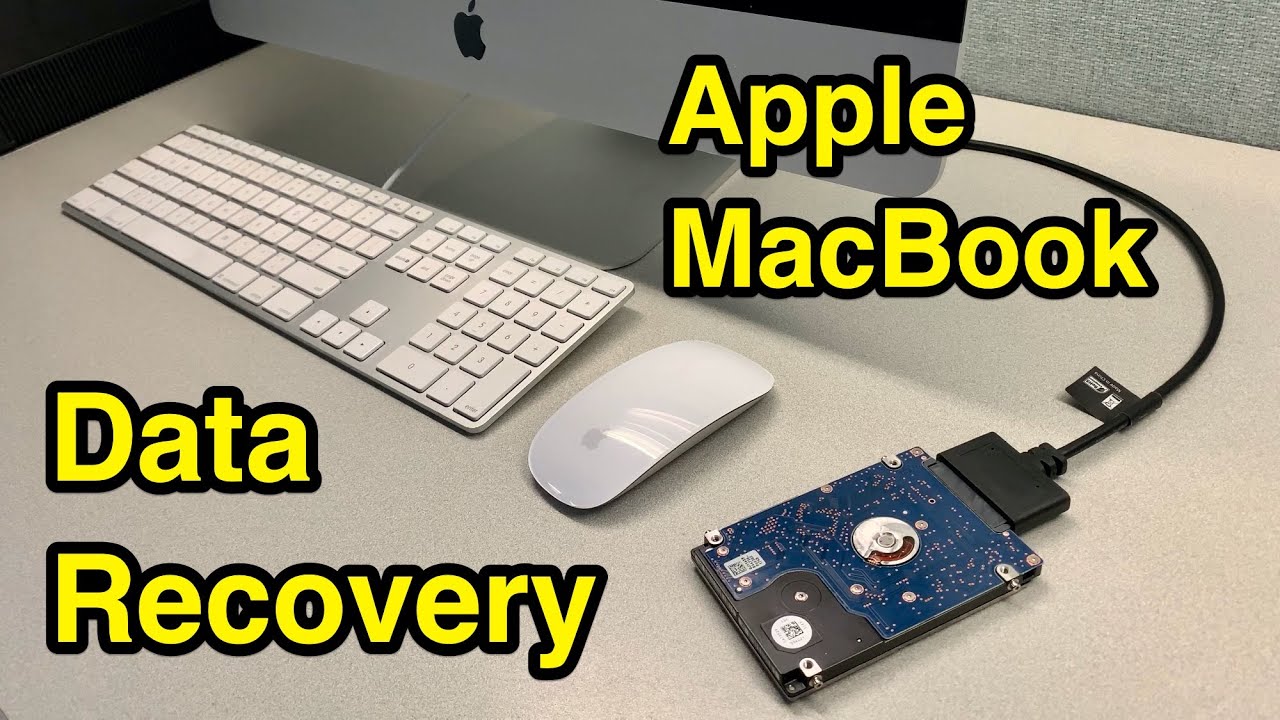
Models manufactured before 2016 (and non-Retina MacBook Pro models up to 2012) feature modular, removable storage drives. If the logic board dies, you can simply unscrew the bottom case panel, pull out the 2.5-inch SATA hard drive or proprietary blade SSD, place it into an external USB enclosure, and plug it into another functional computer to copy your files.
Intel Type-C MacBooks (2016–2020)
Starting with the 2016 MacBook Pro redesign, Apple began soldering the NAND flash storage chips directly onto the logic board. To aid data rescue, Apple initially included a proprietary “Lifeboat” connector on the 2016 and 2017 Touch Bar logic boards, allowing technicians to pull files using a specialized hardware box. However, in later Intel models (2018–2020), this connector was removed, relying instead on the Apple T2 Security Chip for hardware-accelerated encryption.
Modern Apple Silicon MacBooks (2020–Present)
On M1, M2, and M3 series machines, the storage chips and the Secure Enclave are integrated into the primary chip architecture. Because your files are cryptographically tied directly to your specific M-series processor, the chips cannot simply be desoldered and moved to a donor board to read files. The logic board must be brought to a minimal operational state (“boot to DFU mode”) for any data extraction to succeed.
3. Step-by-Step Data Recovery Methods for Partially Functioning MacBooks
If your computer still turns on but is unusable due to a broken display or a faulty keyboard, you can leverage built-in macOS firmware utilities to pull your files.
Method A: Utilizing Share Disk Mode (Apple Silicon)
For newer Apple silicon computers that can reach the startup options screen, Apple provides a built-in network and storage sharing protocol.
-
Shut down your damaged machine completely.
-
Connect the damaged device to a healthy host Mac using an official, high-speed Thunderbolt 3 or Thunderbolt 4 cable.
-
Press and hold the Power Button on the damaged computer until you see “Loading startup options” on the screen.
-
Click on Options, then click Continue to enter macOS Recovery.
-
If prompted, select a user account and enter the corresponding administrator password.
-
In the menu bar at the top, navigate to Utilities > Share Disk.
-
Select the internal volume you wish to access and click Start Sharing.
-
On your healthy host Mac, open Finder, look under the Locations sidebar, click on the shared network computer network icon, and select Connect As. Enter the user password of the damaged machine to mount the drive like an ordinary external hard disk.
Method B: Leveraging Target Disk Mode (Intel Macs)
If your broken device uses an Intel processor, Target Disk Mode turns your laptop into an external hard drive enclosure.
[Image diagram showing Target Disk Mode connection between a damaged MacBook and a host Mac using a Thunderbolt cable]
-
Turn off your damaged computer.
-
Link the two computers together via a certified Thunderbolt or FireWire cable.
-
Turn on the damaged laptop while immediately holding down the T key on its keyboard.
-
If successful, a floating Thunderbolt or FireWire icon will appear on the damaged machine’s display (if the screen works).
-
The storage volume of the damaged machine will automatically mount onto the desktop of the healthy host Mac, allowing you to drag and drop files directly.
4. Software Solutions for Logical and Startup Drive Corruption
If your computer functions physically but suffers from startup drive errors (such as a flashing question mark folder), software utilities can help rebuild directory paths or scrape raw file fragments.
Running Disk Utility First Aid
Before turning to third-party programs, try repairing your file system pathways using Apple’s built-in repair tools.
-
On Intel: Boot up and instantly hold Command (⌘) + R until the Apple logo appears.
-
On Apple Silicon: Hold the Power Button until options load, then choose Options > Continue.
Once inside macOS Recovery, open Disk Utility, select your primary volume (usually named Macintosh HD), and click First Aid. This tool scans structural catalogues, repairs corrupted partition mapping, and can sometimes restore normal boot capabilities. For an exhaustive breakdown of diagnosing complex system hitches, you can review the latest guidance on resolving common Mac errors.
Utilizing Advanced Data Recovery Software
When a partition becomes unreadable or files are accidentally deleted, specialized data recovery programs can scan the deep sectors of the drive. Popular options include Disk Drill, Data Rescue, and Stellar Data Recovery.
| Recovery Software | Best For | Key Feature |
| Disk Drill | Amateurs & General Users | High-quality visual file preview before extraction |
| Data Rescue 6 | Technical Environments | Deep raw hex sector scanning for old file systems |
| Stellar Recovery | Partition Corruptions | Reconstructs missing or dropped APFS/HFS+ volumes |
Crucial Execution Tip: Never download or install data recovery software directly onto the drive you are trying to recover. Running software on the source drive writes temporary cache files to the storage sectors, which can permanently overwrite the deleted or corrupted data you are trying to save. Instead, boot the damaged computer into Target Disk Mode or Share Disk Mode and run the scanning program from a separate, healthy host computer.
5. Advanced Hardware Recovery for Dead or Severely Broken MacBooks
When a laptop is completely dead—showing zero signs of physical life after liquid immersion or a major electrical surge—software and recovery modes are no longer options. You must look toward advanced physical hardware restoration.
The DFU Mode Data Salvage Pipeline (Apple Silicon & T2 Intel)
If your modern laptop has sustained localized power rails damage but the main processor and NAND chips remain intact, you can use DFU (Device Firmware Update) Mode alongside Apple Configurator to revive or revive-restore the device.
-
Install the latest version of Apple Configurator on a fully operational host Mac.
-
Connect the dead laptop to the host machine using a standard USB-C charging cable plugged into the specific DFU-supported port (typically the frontmost port on the left side).
-
Execute the model-specific physical key combination (e.g., holding Right Shift + Left Option + Left Control while holding the Power Button for exactly 10 seconds).
-
If successful, the dead laptop will appear as a large “DFU” icon within the Apple Configurator window on your host machine.
-
Right-click the DFU icon, navigate to Advanced, and select Revive Device. This process safely reflashes the firmware on the embedded security coprocessor without wiping your user files, often allowing the system to boot up enough to pull data.
Board-Level Ultrasonic Cleaning for Liquid Damage
When sticky or conductive liquids penetrate the inner casing, they create immediate corrosive bridges across fine-pitch logic board connections. If your machine has been exposed to moisture, check out detailed repair community teardowns regarding complex electronics restoration, such as the comprehensive instructions found in the iFixit ecosystem overview.
A professional data recovery technician will completely extract the motherboard and place it into an industrial ultrasonic cleaning tank filled with specialized chemical solvents and high-purity isopropyl alcohol. This process blasts away microscopic corrosion underneath microscopic surface-mount components, temporarily restoring power delivery lines so your files can be transferred safely.
6. Knowing Your Limits: When to Seek Professional Data Recovery Services
DIY attempts are excellent for software hitches or minor external part failures, but certain scenarios carry an exceptionally high risk of permanent data loss.
High-Risk Scenarios Demanding Expert Intervention
-
Burnt Logic Board Components: If you open the lower panel and notice a strong metallic burning smell or visible charcoal scoring across the electronics.
-
Corrosive Liquid Stains on Memory Layers: If aggressive fluids like salt water or acidic juice have sat inside an active machine for days.
-
Encryption Key Damage: If the security chip itself has suffered physical structural fracturing.
What Professional Labs Can Do That Consumers Cannot
Specialized component-level data recovery labs can perform complex micro-soldering tasks. If a critical power line inside the motherboard is vaporized, engineers can run microscopic jumper wires to route power manually around the damaged area directly to the CPU and NAND flash array.
Furthermore, if you need to tackle minor hardware swaps yourself—such as replacing an old battery or an external trackpad to get a damaged machine to pass its internal POST check—you can research the financial feasibility and step-by-step methodologies outlined in recent industry breakdowns covering MacBook battery replacement processes.
7. Proactive Strategies: Preventing Catastrophic Data Loss
The most reliable recovery strategy is a proactive backup routine that keeps your files safe before disaster strikes. Implement these three preventative layers to safeguard your digital life:
-
Automate Local Time Machine Backups: Connect an external USB-C portable drive or a dedicated desktop network storage unit to your workspace. Enable macOS Time Machine to automatically log hourly, daily, and weekly snapshots of your entire directory system.
-
Leverage Secure Cloud Mirroring: Turn on iCloud Drive synchronization, or use off-site file syncing programs like Google Drive, OneDrive, or Dropbox. Ensure your Documents and Desktop folders are set to mirror directly to cloud infrastructure in real-time.
-
Utilize Instant Google Indexing Tools: For professional creators, webmasters, and developers handling live application assets, utilizing Instant Google Indexing Tools ensures your published content portfolios, structural site maps, and web databases are indexed in search registries externally. This helps secure an immediate online record of your hard work, even if your local physical workstation is destroyed.
Summary of MacBook Recovery Strategies by Model Year
| MacBook Generation | Storage Architecture | Optimal Primary Recovery Choice | Backup Solution |
| Pre-2016 Models | Modular Removable Drive | Physical extraction of drive into external USB enclosure | Local Time Machine Drive |
| Intel Type-C (2016–2020) | Soldered Storage / T2 Security | Target Disk Mode or Apple Configurator DFU Revive | iCloud Storage Mirroring |
| Apple Silicon (2020–Present) | Fully Integrated SoC Architecture | macOS Share Disk Utility or Advanced Board-Level Micro-soldering | Hybrid Multi-Tier Cloud Backup |
Conclusion
Determining how do you recover data from a damaged MacBook? comes down to analyzing how your specific model handles its storage and security architecture. If your machine has a broken screen or a faulty keyboard but still shows signs of life, built-in utilities like Target Disk Mode or Share Disk Mode can quickly mount your drive onto a healthy host Mac. For non-responsive machines or liquid-damaged components, advanced techniques like DFU firmware revives or professional micro-soldering are necessary to safely retrieve your files.
Moving forward, the best defense against data loss is a multi-layered backup strategy. Combine automated local Time Machine backups with secure cloud mirroring to ensure your files remain safe, regardless of what happens to your physical hardware. Take a moment today to check your backup settings, configure an external drive, and establish a modern file safety routine to protect your digital life from unexpected accidents.
For a broader look at fixing general laptop hardware issues or mastering standard device configuration steps, check out helpful step-by-step tutorials such as the universal laptop maintenance guide or read about simple connectivity workflows like the macOS Wi-Fi troubleshooting guide. Keeping these resources handy will give you the tools and insights needed to navigate future tech emergencies with confidence.
Frequently Asked Questions
Can I remove the hard drive from a water-damaged M1 MacBook Pro to recover my files?
No. On all Apple silicon computers (M1, M2, M3 chips), the storage modules are permanently soldered onto the main motherboard architecture. They cannot be unscrewed or read using an external drive enclosure. The logic board must be repaired to a minimal operational state by a professional technician to extract your files.
Does Apple recover data from damaged logic boards at the Genius Bar?
Generally, no. Standard Apple Store retail locations do not offer specialized component-level data extraction services. If you bring a dead laptop with a damaged logic board to Apple, their standard protocol is to replace the board entirely, which wipes your original files. For deep recovery, you should contact a specialized, independent data recovery laboratory.
Is it safe to try turning on my MacBook after a liquid spill if it has been drying for 24 hours?
No, it is highly risky. Liquids can seep beneath small surface-mount components on the logic board and remain trapped for days. Turning on the computer while internal moisture is present can cause an immediate short circuit, potentially destroying the storage chips and making recovery impossible. The machine should be opened, inspected, and thoroughly cleaned with high-purity isopropyl alcohol before you attempt to power it on.