
Introduction
Every time you stream a movie, send an email, or browse a website, your device silently announces a digital return label: My IP address. Just as a postal address ensures a letter reaches the right house, your Internet Protocol (IP) address makes sure online data finds its way back to you. But what exactly is it? How can you locate it on your phone, laptop, or tablet? And should you be concerned if someone else sees it?
Whether you are a tech enthusiast or a beginner, knowing how to find my IP address is a practical skill that can help you troubleshoot network issues, secure your privacy, or simply satisfy your curiosity. This guide will walk you through everything you need to know, from IP address basics to step-by-step instructions for every major operating system.
What Exactly Is an IP Address? (A Simple Explanation)
An IP address is a unique numerical label assigned to each device connected to a computer network that uses the Internet Protocol for communication. Think of it as a digital fingerprint that identifies your device online.
Every time you connect to the internet—whether through a home Wi‑Fi network, your mobile carrier, or a public hotspot—your device is assigned an IP address. This address performs two essential functions:
-
Host/Network Interface Identification: It tells other devices who you are on the network.
-
Location Addressing: It provides a general indication of your device’s whereabouts so data can be routed correctly.
Without IP addresses, the internet would be like a postal system without street names or house numbers—chaotic and unusable.
Public vs. Private IP Address: Understanding the Difference
Many people assume their device has only one IP address. In reality, most devices have two: a public (external) IP address and a private (local) IP address.
| Type | Who Assigns It | Visibility | Example Use |
|---|---|---|---|
| Public IP | Your Internet Service Provider (ISP) | Visible to the entire internet | Used to communicate with websites, streaming services, and other online resources |
| Private IP | Your router’s DHCP server | Visible only within your home/office network | Used for communication between your phone and printer, laptop and smart TV, etc. |
My IP address that appears when you search “what is my IP” on Google is always your public IP. It is the address the world sees. Your private IP, on the other hand, typically starts with 192.168.x.x, 10.x.x.x, or 172.16.x.x – 172.31.x.x and only matters inside your local network.
Quick analogy
Your public IP is like the street address of your apartment building; your private IP is like your individual apartment number.
IPv4 vs. IPv6: Why Two Versions Exist
You may have noticed two types of IP addresses: short dotted‑decimal numbers (e.g., 192.168.1.1) and longer alphanumeric strings (e.g., 2001:db8::1). Those are IPv4 and IPv6 addresses, respectively.
IPv4 (Internet Protocol version 4)
-
Uses 32‑bit addresses, providing about 4.3 billion unique combinations.
-
Represented as four numbers separated by dots, each between 0 and 255.
-
Predominant since the dawn of the commercial internet but now nearly exhausted.
IPv6 (Internet Protocol version 6)
-
Uses 128‑bit addresses, offering roughly 340 undecillion (3.4 × 10³⁸) addresses.
-
Represented as eight groups of four hexadecimal digits.
-
Designed to solve IPv4 address scarcity and includes built‑in security and efficiency improvements.
Why does this matter to you?
Even if you do not actively use IPv6, many modern networks and devices support it automatically. When you check my IP address using an online tool, you may see both an IPv4 and an IPv6 address listed. The transition to IPv6 is happening gradually—most websites still work perfectly over IPv4, but IPv6 adoption is growing each year.
How to Check My IP Address (Public) Instantly
The quickest way to find your public IP address takes less than five seconds and works on any device:
Method 1: Use Google
Open any web browser, navigate to Google.com, and search “what is my IP address”. Google will display your public IP address right at the top of the search results page.
Method 2: Use an IP Checker Website
Visit a dedicated IP lookup service. Simply type “what is my IP address” into your browser’s address bar, and the first result will almost always be a website designed to show you that exact information.
Method 3: Check Your Router’s Admin Panel
Log into your router (usually by entering 192.168.1.1 or 192.168.0.1 in a browser). The public IP is often displayed on the main status page.
Pro tip: Your public IP address rarely changes if your ISP assigns a “static IP,” but most home connections use a “dynamic IP,” which can change after you restart your router or every few days.
How to Find My IP Address (Private/Local) on Every Device
Finding your private IP address varies slightly depending on the operating system. Below are clear, step‑by‑step instructions for the most common devices.
Windows 10 / 11
There are two easy ways:
-
Using Command Prompt: Press
Windows + R, typecmd, and press Enter. In the black window, typeipconfigand press Enter. Look for “IPv4 Address” under your active network adapter (Wi‑Fi or Ethernet). -
Using Settings: Open Settings → Network & Internet → Status → View hardware and connection properties. Your IPv4 address appears next to your active connection.
macOS
-
Through System Settings: Click the Apple menu → System Settings → Network. Select your active connection (Wi‑Fi or Ethernet) and click Details. Your IP address will be displayed there.
-
Via Terminal: Open Terminal (Applications → Utilities) and type
ifconfigorip a. Look for “inet” under your active interface (usually en0 for Wi‑Fi).
Linux
Almost all Linux distributions provide a straightforward terminal method:
-
Open a terminal window and type
ip a(orip addr show) and press Enter. Your private IP address is listed under the active network interface (for example, wlp2s0 for Wi‑Fi or eth0 for Ethernet).
iPhone (iOS)
-
Open Settings → Wi‑Fi.
-
Tap the blue “i” icon next to the Wi‑Fi network you are connected to.
-
Your IP address is shown under the “IPv4 Address” section.
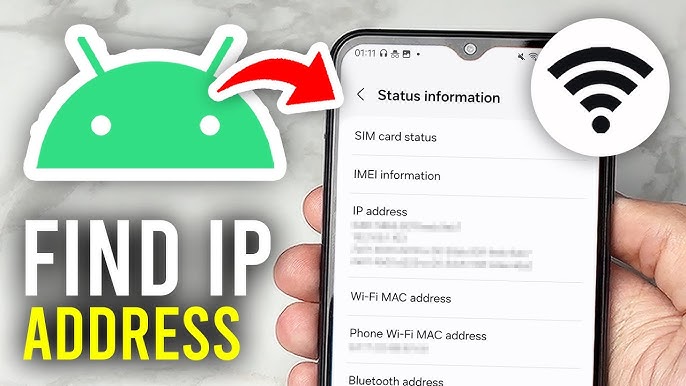
Android
-
Open Settings → Network & internet → Internet.
-
Tap the gear icon (⚙️) next to your connected Wi‑Fi network.
-
Scroll down; your IP address is listed at the bottom.
Chromebook
-
Click the system tray (bottom‑right corner) → Settings (gear icon).
-
Under Network, select your active Wi‑Fi connection.
-
Your IP address appears in the connection details panel.
Why Would You Need to Know My IP Address?
Knowing my IP address is not just a curiosity. Here are practical scenarios where this information becomes invaluable:
| Scenario | Why It Helps |
|---|---|
| Troubleshooting network issues | Diagnosing connection drops or slow speeds often requires knowing your local IP. |
| Setting up file or printer sharing | Your computer’s private IP is needed to allow other devices on the same network to connect to a shared folder or printer. |
| Port forwarding for gaming or hosting | Online gaming consoles (PlayStation, Xbox) and self‑hosted servers require your local IP to forward specific ports. |
| Remote access (SSH, VNC) | Connecting to your home computer from elsewhere relies on knowing its current IP address. |
| Understanding geolocation restrictions | If a website shows content in the wrong language or region, checking your public IP can confirm whether your ISP is routing you through an unexpected location. |
IP Address Privacy: What Can Someone Do With My IP Address?
It is natural to wonder whether sharing your IP address—even inadvertently—poses a risk. Here is what you should know.
What your IP address reveals
-
Approximate location (usually your city or region, rarely your exact street address)
-
Your Internet Service Provider (ISP), for example Comcast, BT, or Deutsche Telekom
-
Whether you are on home, work, or public Wi‑Fi (based on the assigned IP range)
What it does NOT reveal
-
Your name, email address, or precise physical address
-
Your browsing history or passwords
-
Your personal identity (unless combined with other data)
Potential risks
While a typical user has little to fear, an IP address in the wrong hands can be used to:
-
Track your online activity across multiple websites when combined with cookies or device fingerprints
-
Throttle your internet speed if your ISP monitors usage patterns
-
Show targeted ads or adjust pricing for flights, hotels, or services based on your location
-
Launch a DDoS (Distributed Denial of Service) attack primarily aimed at gamers or streamers
-
Conduct targeted phishing attempts by referencing your ISP or city to make scams more believable
How to protect your IP address
-
Use a VPN (Virtual Private Network): A VPN replaces your real IP address with one from a VPN server, hiding your actual location and ISP from websites you visit.
-
Connect through a proxy server for light‑duty privacy needs.
-
Use Tor Browser for maximum anonymity (though speeds will be slower).
-
Keep your router’s firmware updated to prevent malicious actors from exploiting known vulnerabilities.
-
Limit sharing in online games or forums where other users can directly see your IP (for example, in peer‑to‑peer game lobbies).
Expert note: Over 1.6 billion people worldwide now use a VPN to improve their online privacy. However, even with a VPN, you should practice common‑sense online safety—no tool is a silver bullet.
Dynamic vs. Static IP Address: Which One Do You Have?
Most home internet connections use dynamic IP addresses. Your ISP maintains a pool of addresses and assigns one to you when your router connects. This address may change after a router reboot or at certain intervals.
-
Dynamic IP (typical for home users) : No extra cost, lower security exposure (since the address rotates), and easier for ISPs to manage.
-
Static IP (common for businesses or advanced users): Your address never changes, making it ideal for hosting websites, running email servers, or supporting remote access systems. Static IPs often come with an additional monthly fee.
To check whether your public IP address is static or dynamic, simply note it down today, restart your router (or wait 24 hours), and check again. If it has changed, you are on a dynamic IP.
Common Misconceptions About My IP Address (Debunked)
| Myth | Fact |
|---|---|
| “Someone can find my exact home address using my IP.” | No—IP geolocation is generally accurate only to the city or regional level. |
| “A VPN completely hides my online activity from everyone.” | A VPN hides your IP from websites, but your VPN provider could still see your traffic if they keep logs. |
| “My IP address is permanent.” | For most home users, it is dynamic and can change. |
| “Having a public IP means I am exposed to hackers 24/7.” | Modern routers include firewalls that block most unsolicited inbound traffic. |
Benefits vs. Drawbacks of Knowing My IP Address
| Benefits | Drawbacks |
|---|---|
| Enables effective network troubleshooting | None—knowing your IP is purely informational |
| Simplifies file and printer sharing | (However, sharing your public IP carelessly can invite minor privacy risks) |
| Allows port forwarding for gaming or self‑hosting | |
| Helps you verify VPN or proxy is working correctly |
Expert Tips for Managing and Protecting Your IP Address
-
Check your IP before and after connecting to a VPN to confirm the VPN is actually masking your public address.
-
Set a static private IP for devices that need consistent access (printers, gaming consoles, home servers) through your router’s DHCP reservation feature.
-
Use a reputable IP lookup tool that does not log your data. Avoid unknown, sketchy websites that may collect your information.
-
Be cautious about posting your IP address on forums or support requests—it is unnecessary and can invite unwanted attention.
-
Restart your router regularly if you value having a fresh public IP address for privacy reasons (though a VPN is still the stronger solution).
Conclusion
Understanding my IP address is not just a technical curiosity—it is a foundational piece of digital literacy in the modern world. Your public IP acts as your device’s return label on the global internet, while your private IP helps your local network function smoothly. Knowing how to find both addresses on any device, from Windows and Mac to iPhone and Android, empowers you to troubleshoot network problems, configure file sharing, set up gaming ports, and protect your privacy.
Key takeaways:
-
Your public IP is visible to the internet; your private IP stays inside your home network.
-
The easiest way to find your public IP is to search “what is my IP address” on Google.
-
Each operating system has a simple method to reveal your private IP (Settings menus or terminal commands like
ipconfig/ip a). -
IPv6 is steadily replacing the older IPv4, bringing vastly more addresses and improved security.
-
While your IP alone does not expose your identity, using a VPN is a practical step to enhance privacy.
Now that you know exactly how to uncover my IP address on any device, take a moment to check yours. Understanding this small but powerful string of numbers is your first step toward smarter, more confident internet use—whether you are streaming, gaming, or simply browsing.
Related posts:
![facebook video downloader facebook video downloader]()
How to Change Name on Facebook: The Complete 2026 Guide
![Fix Orange Discoloration on MacBook Pro Screen]()
How to Fix Orange Discoloration on MacBook Pro Screen: Complete Guide to Causes & Solutions
![Google Gemini in 2026]()
What Is Everything You Need to Know About Google Gemini in 2026?
![fbi warns iphone android scams]()
Why the FBI Warns iPhone Android Scams Are Increasing
![What Should You Know About the iPhone 17 in 2026]()
What Should You Know About the iPhone 17 in 2026, Including Features, Specs, Price, Release Date, an...
![Best Free Password Managers ifixit]()
Best Free Password Managers: Secure Your Digital Life in 2026
![Snapchat Planets - ifixit]()
How Do Snapchat Planets Work and What Does Each Planet Mean in the Friend Solar System?
![What Causes Black Lines on Laptop Screen]()
What Causes Black Lines on Laptop Screen? A Complete Troubleshooting Guide







