
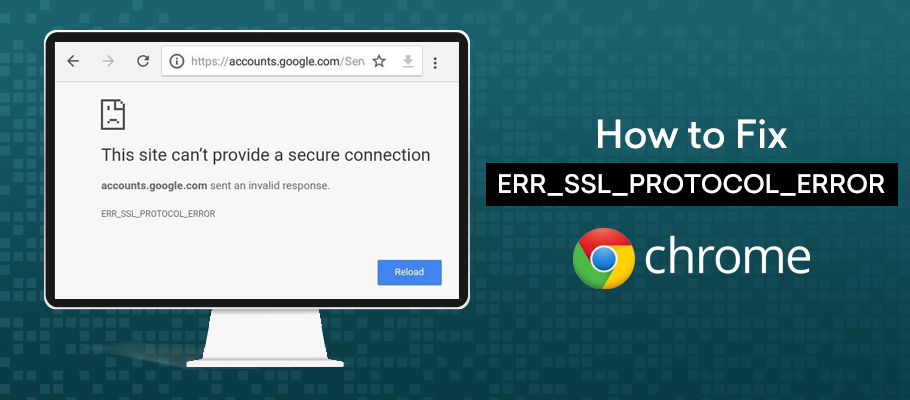
The ERR_SSL_PROTOCOL_ERROR is one of the most common yet annoying errors Chrome users face. It typically appears with the message “This site can’t provide a secure connection,” preventing you from loading websites that rely on HTTPS. This error disrupts your browsing experience, whether you’re checking email, shopping online, or researching important information.
In this detailed guide, we’ll explore what causes the err_ssl_protocol_error, why it happens, and most importantly, how to fix it effectively. Whether you’re a beginner or a seasoned tech user, you’ll find clear, actionable steps to resolve the issue and get back to safe, uninterrupted browsing.
What Is the ERR_SSL_PROTOCOL_ERROR?
The ERR_SSL_PROTOCOL_ERROR indicates a failure in the SSL/TLS handshake process between your Chrome browser and the website’s server. SSL (Secure Sockets Layer) and its successor TLS (Transport Layer Security) are cryptographic protocols that encrypt data exchanged between your device and the server, ensuring privacy and security.
When the handshake fails—due to mismatched protocols, certificate issues, or configuration problems—Chrome displays this error to protect you from potentially insecure connections. It’s not always a threat on the website’s end; often, the problem lies with your local setup, browser settings, or network.
Real-world scenario: Imagine trying to access your bank’s website for a quick transaction, only to be greeted by this red error screen. Understanding the root causes helps you troubleshoot efficiently.
Common Causes of ERR_SSL_PROTOCOL_ERROR
Several factors can trigger this error:
- Incorrect system date and time: SSL certificates are time-sensitive. If your device’s clock is wrong, validation fails.
- Corrupted browser cache or cookies: Outdated or damaged files interfere with secure connections.
- Antivirus or firewall interference: Security software may scan or block SSL traffic aggressively.
- Outdated Chrome version or conflicting extensions: Older browsers or add-ons can disrupt modern TLS protocols.
- Network issues: Problems with DNS, proxies, VPNs, or router settings.
- QUIC protocol conflicts: Chrome’s experimental QUIC (HTTP/3) can sometimes cause handshake failures.
- Server-side certificate problems: Though less common for users, expired or misconfigured certificates on the site can trigger it.
By identifying the likely cause, you can apply targeted fixes.
Step-by-Step Fixes for ERR_SSL_PROTOCOL_ERROR
Follow these solutions in order. Most users resolve the issue within the first few steps.
1. Check and Correct Your System Date and Time
This is one of the simplest and most effective fixes.
- On Windows: Right-click the clock on the taskbar > Adjust date/time. Enable “Set time automatically” and “Set time zone automatically.”
- On macOS: System Settings > General > Date & Time.
- Restart Chrome and try accessing the site again.
Expert tip: Sync with an internet time server for accuracy.
2. Clear Chrome’s Browsing Data and SSL State
Cached data often causes protocol mismatches.
- Open Chrome and press Ctrl + Shift + Delete (Windows) or Cmd + Shift + Delete (Mac).
- Select “All time” and check Cached images and files, Cookies, and other site data.
- Click Clear data.
For SSL state specifically:
- Type chrome://net-internals/#sockets or go to Internet Options (via Control Panel on Windows) > Content tab > Clear SSL state.
This refreshes connections and often resolves err_ssl_protocol_error instantly.
3. Disable the QUIC Protocol in Chrome
QUIC can conflict with certain servers.
- Type chrome://flags/ in the address bar.
- Search for “Experimental QUIC protocol.”
- Set it to Disabled.
- Relaunch Chrome.
Many users report immediate success with this tweak.
4. Update Google Chrome and Your Operating System
Outdated software lacks support for current security standards.
- In Chrome: Go to chrome://settings/help and check for updates.
- Update your OS through Windows Update or macOS Software Update.
Keeping everything current prevents compatibility issues with modern TLS versions like 1.2 and 1.3.
5. Temporarily Disable Antivirus, Firewall, or VPN
Security tools are common culprits.
- Pause real-time protection or SSL scanning in your antivirus (e.g., Avast, Norton).
- Disable your firewall temporarily.
- Turn off any VPN or proxy.
If the error disappears, add exceptions for Chrome or the specific websites. Re-enable protection afterward for safety.
6. Disable Problematic Chrome Extensions
Extensions can interfere with secure connections.
- Go to chrome://extensions/.
- Toggle off extensions one by one, starting with ad blockers or security-related ones.
- Test the site after each disable.
7. Reset Chrome Settings to Default
For persistent issues:
- Go to chrome://settings/reset.
- Choose “Restore settings to their original defaults.”
- Confirm and relaunch.
This clears custom configurations without deleting bookmarks or passwords.
8. Additional Network Troubleshooting
- Flush DNS: Open Command Prompt as admin and run ipconfig /flushdns.
- Change DNS servers: Use Google’s public DNS (8.8.8.8 and 8.8.4.4).
- Restart your router and modem.
- Update network adapter drivers via Device Manager.
Advanced Troubleshooting for Stubborn Cases
If basic fixes fail, try these:
- Check for certificate issues: Visit the site in Incognito mode or another browser to isolate if it’s Chrome-specific.
- Reset network settings: On Windows, search for “Network reset” in Settings.
- Reinstall Chrome: Uninstall via Control Panel, delete residual folders, and reinstall from the official site.
- Test on mobile data vs. Wi-Fi: This helps identify ISP or router problems.
Real-world example: A user with multiple Chromium-based browsers (Chrome, Edge, Brave) faced the error after a major update. Downgrading temporarily or disabling specific flags resolved it.
Preventing Future ERR_SSL_PROTOCOL_ERROR Issues
- Maintain accurate system time.
- Regularly clear cache (or use extensions that manage it automatically).
- Keep browser and security software updated.
- Use reputable antivirus that doesn’t over-interfere with HTTPS.
- Avoid excessive extensions.
- Monitor for Chrome updates, as protocol changes can introduce temporary bugs.
For tech enthusiasts setting up advanced rigs like a mobile triple screen setup simracing, ensuring stable network and browser configurations is key to avoiding interruptions during high-stakes sessions.
Comparing Quick Fixes vs. Thorough Troubleshooting
| Method | Time Required | Effectiveness | Best For |
|---|---|---|---|
| Date/Time Check | 1-2 min | High | Quick, common issues |
| Clear Cache/SSL State | 2-5 min | Very High | Most users |
| Disable QUIC | 1 min | Medium-High | Protocol conflicts |
| Full Chrome Reset | 5-10 min | High | Persistent problems |
| Network Reset | 5 min | Medium | Connection-related |
This table helps prioritize based on your situation.
Benefits and Potential Drawbacks of Fixes
Benefits:
- Restores secure access quickly.
- Improves overall browser performance.
- Enhances understanding of web security.
Drawbacks:
- Clearing data logs you out of sites (use password managers).
- Disabling security tools temporarily reduces protection (re-enable promptly).
- Advanced tweaks like flags require caution to avoid instability.
Always weigh convenience against security.
When to Seek Professional Help or Contact Support
If nothing works:
- Test on another device or network.
- Check the website’s status via tools like DownDetector.
- Contact your ISP or the site’s support.
- For work/school networks, reach out to IT administrators.
Expert Tips for Smooth Browsing
- Use Chrome’s built-in tools: chrome://net-internals/#events for diagnostics.
- Enable automatic updates.
- Consider alternative browsers like Firefox for comparison.
- Bookmark trusted sites and use HTTPS Everywhere where possible.
Additional informative sections for deeper insight:
Understanding SSL/TLS Handshake in Simple Terms
The handshake is like a secret negotiation: Your browser and the server agree on encryption methods, verify identities via certificates, and establish a secure channel. Failures here trigger err_ssl_protocol_error.
Impact on Different Devices and Browsers
The error appears across Windows, macOS, Android, and even iOS in some cases, but fixes are similar. Chromium-based browsers share many triggers.
Role of DNS and Network Configuration
DNS resolves domain names; misconfigurations lead to handshake failures. Switching to reliable DNS providers often helps.
Browser Flags and Experimental Features
Chrome’s chrome://flags offers powerful tweaks but use sparingly to maintain stability.
Security Best Practices After Fixing the Error
Once resolved, scan your system, update everything, and consider a password manager for safer habits.
Conclusion
The ERR_SSL_PROTOCOL_ERROR in Google Chrome is usually fixable with straightforward steps like checking your date and time, clearing cache and SSL state, disabling QUIC, updating software, and managing security tools. By following this guide, you can restore secure website access efficiently and prevent recurrence.
Key takeaways:
- Start with the basics (time, cache).
- Isolate the cause systematically.
- Maintain updated systems for long-term reliability.
- Prioritize security while troubleshooting.
Armed with these solutions, you’re ready to browse confidently. If issues persist, the problem might be site-specific—reach out to the website owners. For more tech troubleshooting, resources like ifixit.org.uk offer excellent repair and setup guidance, including for specialized configurations such as a mobile triple screen setup simracing.
Stay safe online and enjoy seamless, secure browsing!
Additional External Links for Further Reading:
- Google Chrome Help Community – Official troubleshooting discussions.
- The SSL Store Guide – In-depth SSL insights.
- Wikipedia on TLS for protocol background.
- Forbes tech articles on browser security.
- Reddit threads for user experiences.
Related posts:
![facebook video downloader facebook video downloader]()
How to Change Name on Facebook: The Complete 2026 Guide
![Fix Orange Discoloration on MacBook Pro Screen]()
How to Fix Orange Discoloration on MacBook Pro Screen: Complete Guide to Causes & Solutions
![Google Gemini in 2026]()
What Is Everything You Need to Know About Google Gemini in 2026?
![fbi warns iphone android scams]()
Why the FBI Warns iPhone Android Scams Are Increasing
![What Should You Know About the iPhone 17 in 2026]()
What Should You Know About the iPhone 17 in 2026, Including Features, Specs, Price, Release Date, an...
![Best Free Password Managers ifixit]()
Best Free Password Managers: Secure Your Digital Life in 2026
![Snapchat Planets - ifixit]()
How Do Snapchat Planets Work and What Does Each Planet Mean in the Friend Solar System?
![What Causes Black Lines on Laptop Screen]()
What Causes Black Lines on Laptop Screen? A Complete Troubleshooting Guide







