
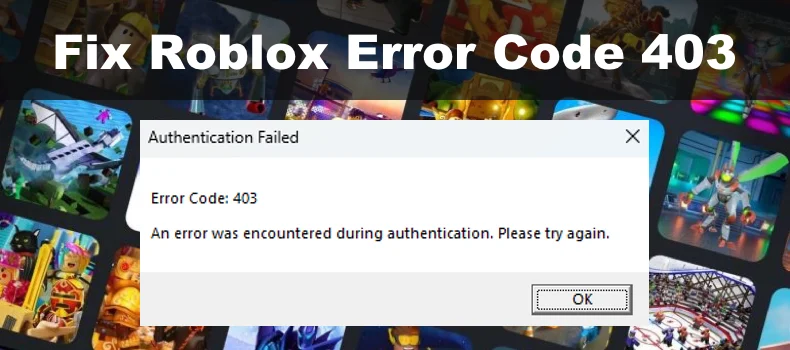
Roblox remains one of the most popular gaming platforms worldwide, with millions of players logging in daily to create, explore, and connect. However, technical glitches can disrupt this experience. One of the most frustrating issues is Roblox Error Code 403, often accompanied by the message “Authentication Failed” or “Access Denied.”
If you’re seeing this error, you’re not alone. Many players encounter it due to authentication problems, corrupted files, or network issues. The good news is that most cases are fixable with straightforward troubleshooting. This guide walks you through understanding the error and provides practical, step-by-step solutions to get you back into your favorite Roblox experiences.
What Is Roblox Error Code 403?
Error Code 403 is an HTTP status code that means “Forbidden.” In Roblox’s context, it typically indicates that the server is denying access to your request, often during the authentication process when launching a game or logging in.
The full message usually reads something like: “An error was encountered during authentication. Please try again.” (Error Code: 403)
This error prevents the Roblox client from connecting properly to the servers, blocking you from joining games even if your account credentials are correct.
Common Scenarios Where Error 403 Appears
- When clicking “Play” on a Roblox game from the website.
- Switching between multiple accounts.
- After a recent password change or session timeout.
- Following a device or network change.
Understanding the “why” behind the error makes fixing it much easier.
Common Causes of Roblox Error Code 403
Several factors can trigger this issue:
- Corrupted Cache or Temporary Files: Old data stored by the Roblox client conflicts with current server requirements.
- Network-Related Problems: Unstable connections, VPN interference, or DNS issues.
- Outdated or Corrupted Roblox Installation: Missing or damaged game files.
- Account Session Glitches: Especially common when using alternate accounts.
- Server-Side Issues: Temporary outages on Roblox’s end.
- Security Software Interference: Firewalls or antivirus programs flagging Roblox.
In rare cases, it can relate to account restrictions, but most player-reported fixes focus on client-side troubleshooting.
How to Fix Error Code 403 Roblox: Basic Troubleshooting Steps
Start with these simple fixes before moving to more advanced solutions.
1. Check Roblox Server Status
Before anything else, verify if the problem is on Roblox’s side.
- Visit the official Roblox Status page.
- Look for any ongoing incidents related to authentication or game access.
If servers are down, the best solution is patience—wait and try again later.
2. Restart Your Device and Router
A classic fix that resolves many temporary glitches:
- Close Roblox completely.
- Restart your computer or mobile device.
- Unplug your router/modem for 30 seconds, then plug it back in.
- Try launching Roblox again.
3. Log Out and Log Back In
- On the Roblox website, log out of your account.
- Clear your browser cookies for roblox.com.
- Log back in and attempt to play a game.
- For the desktop client, open Roblox Player directly, log out if possible, and log in again.
Advanced Solutions for How to Fix Error Code 403 Roblox
If basic steps don’t work, try these targeted methods.
Clear Roblox Cache and Temporary Files
Corrupted cache is one of the leading causes.
On Windows:
- Press Windows + R to open the Run dialog.
- Type %appdata% and press Enter.
- Delete the “Roblox” folder if present.
- Type %localappdata% and delete any Roblox-related folders.
- Restart your PC and reinstall Roblox if needed.
On Browser:
- Go to your browser settings > Privacy > Clear browsing data.
- Select “Cached images and files” and “Cookies.”
- Clear data for the past 24 hours or all time.
Reinstall Roblox Completely
This often resolves authentication issues caused by corrupted files:
- Uninstall Roblox via Windows Settings > Apps.
- Delete remaining folders in %appdata% and %localappdata%.
- Restart your computer.
- Download and install the latest version from the official Roblox website.
Many users report immediate success after a clean reinstall.
Disable VPN, Proxy, and Antivirus Temporarily
VPNs and security software frequently interfere with Roblox’s authentication:
- Turn off any active VPN or proxy.
- Temporarily disable real-time protection in your antivirus.
- Test Roblox without them.
- If it works, add Roblox as an exception in your security settings.
Change DNS Settings
Network configuration problems can trigger Error 403.
Switch to Public DNS (Recommended):
- Google DNS: 8.8.8.8 and 8.8.4.4
- Cloudflare DNS: 1.1.1.1 and 1.0.0.1
How to Change on Windows:
- Go to Network Settings > Properties > IPv4.
- Select “Use the following DNS server addresses.”
- Enter the new DNS values and save.
Flush DNS cache by opening Command Prompt as administrator and typing:
ipconfig /flushdnsAdditional Tips for Mobile Users
- Clear the Roblox app cache in device settings.
- Update the app via Google Play Store or Apple App Store.
- Try switching between Wi-Fi and mobile data.
- Reinstall the app if issues persist.
Preventing Roblox Error Code 403 in the Future
Prevention is better than cure. Follow these expert tips:
- Keep Roblox Updated: Always use the latest version.
- Maintain Stable Internet: Use wired connections when possible for desktop.
- Avoid Rapid Account Switching: Log out properly before switching accounts.
- Regular Cache Maintenance: Periodically clear temporary files.
- Use Official Sources: Download Roblox only from roblox.com.
- Monitor Account Health: Ensure your account isn’t facing any restrictions by reviewing your account settings regularly.
Comparing Different Fix Methods: Benefits vs Drawbacks
| Method | Ease of Use | Effectiveness | Time Required | Potential Drawbacks |
|---|---|---|---|---|
| Restart Device/Router | Very Easy | Medium | 2-5 mins | May not fix persistent issues |
| Clear Cache | Easy | High | 5-10 mins | None major |
| Reinstall Roblox | Medium | Very High | 10-15 mins | Requires re-download |
| Disable VPN/Antivirus | Easy | High | 3-5 mins | Temporary security trade-off |
| Change DNS | Medium | High | 5-8 mins | May affect other sites temporarily |
Reinstalling combined with cache clearing tends to offer the highest success rate for stubborn cases.
Real-World Scenarios and User Experiences
Many players face this error after using public Wi-Fi or switching devices. For example, one common scenario involves students trying to play during school breaks on restricted networks, triggering access denials.
Another frequent case occurs after Roblox updates, where older client files conflict with new server authentication protocols. In these situations, a clean reinstall usually resolves the issue quickly.
Community forums like the Roblox DevForum and Reddit’s r/RobloxHelp often share similar success stories with the steps outlined here.
When to Contact Roblox Support
If none of the above solutions work:
- Visit the official Roblox Support page.
- Submit a detailed ticket including:
- Error message screenshot
- Steps you’ve already tried
- Device and OS information
- Provide as much context as possible without sharing sensitive account details.
Support can investigate account-specific issues that client-side fixes cannot resolve.
Conclusion: Get Back to Gaming Smoothly
Dealing with how to fix error code 403 Roblox can be annoying, but it’s usually a temporary hurdle rather than a permanent problem. By starting with basic restarts and cache clearing, then progressing to reinstallation and network tweaks, most players successfully restore access to their accounts.
Key takeaways:
- Always check server status first.
- Cache and installation issues cause the majority of cases.
- Regular maintenance prevents future occurrences.
- Official support is available for complex problems.
Don’t let technical errors stop your Roblox adventures. Try these solutions one by one, and you’ll likely be back to building, battling, or exploring in no time. If you found this guide helpful, consider bookmarking it for future reference and sharing it with fellow Roblox players facing similar issues.
External Resources: For more on HTTP status codes like 403, check this Wikipedia explanation of HTTP 403. Community discussions on troubleshooting can also be found on Reddit’s RobloxHelp.
Related posts:
![facebook video downloader facebook video downloader]()
How to Change Name on Facebook: The Complete 2026 Guide
![Fix Orange Discoloration on MacBook Pro Screen]()
How to Fix Orange Discoloration on MacBook Pro Screen: Complete Guide to Causes & Solutions
![Google Gemini in 2026]()
What Is Everything You Need to Know About Google Gemini in 2026?
![fbi warns iphone android scams]()
Why the FBI Warns iPhone Android Scams Are Increasing
![What Should You Know About the iPhone 17 in 2026]()
What Should You Know About the iPhone 17 in 2026, Including Features, Specs, Price, Release Date, an...
![Best Free Password Managers ifixit]()
Best Free Password Managers: Secure Your Digital Life in 2026
![Snapchat Planets - ifixit]()
How Do Snapchat Planets Work and What Does Each Planet Mean in the Friend Solar System?
![What Causes Black Lines on Laptop Screen]()
What Causes Black Lines on Laptop Screen? A Complete Troubleshooting Guide







