
Few smartphone experiences are more frustrating than reaching for your iPhone only to find its screen completely unresponsive. Whether it’s a cracked display after an accidental drop, a black screen from software glitches, or a touchscreen that simply stopped responding after an iOS update, the problem immediately creates a practical deadlock: you cannot access the normal shut-down controls because those controls live behind a screen you can no longer use.
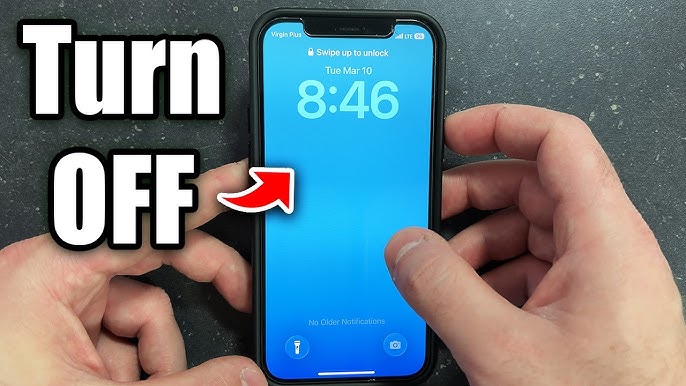
This guide solves that exact problem. You will learn how to turn off iPhone without screen using five reliable, non-screen-dependent methods. Each technique works for different iPhone models and scenarios, from full-blown hardware failures to temporary software freezes. By the end, you will have a clear plan to power down your device safely—and you will understand exactly which method works for your specific iPhone generation.
Why Your iPhone Screen May Not Be Responding
Before diving into the solutions, it helps to understand why your screen may have stopped working in the first place. This knowledge can influence which shut-down method is most appropriate and whether you need to consider repair options afterward.
Common Causes of Screen Unresponsiveness
-
Physical damage: Cracks, shattered glass, or internal display connector damage after a drop
-
Software freezes: iOS crashes that cause the touch interface to stop responding
-
Black screen (device still powered on): The device is running but the display is dark—often after a drained battery or system crash
-
Unresponsive touch after an iOS update: Temporary software bugs that may resolve with a restart
-
Water damage: Liquid ingress affecting the display or touch controller
Recognizing a Frozen Screen vs. a Dead Screen
A frozen screen means the display is still lit but does not respond to any touch input. A dead screen appears completely black, even though the iPhone may still be powered on (you might hear notification sounds or feel vibration when pressing buttons).
For frozen screens, a force restart is often the best solution because it does not require any screen interaction whatsoever. For dead screens, assistive methods or computer-powered shut-downs may work better.
💡 Expert tip: If your iPhone screen is cracked but still partially responsive, try using a Bluetooth mouse connected via Accessibility settings before your screen fails completely. Enable AssistiveTouch and Pointer Control while the screen still works to prepare for future emergencies.
Method 1: Model-Specific Hardware Force Restart (The Most Reliable Method)
The single most dependable way how to turn off iPhone without screen is to use a hardware force restart. Apple designed force restart sequences specifically for situations where the screen freezes or becomes unresponsive. The correct button combination varies depending on your iPhone model.
For iPhone 8, iPhone X, XS, XR, 11, 12, 13, 14, 15, 16, and SE (2nd and 3rd Generation)
This sequence works for all iPhones with Face ID and the latest models with a side button:
-
Press and quickly release the Volume Up button
-
Press and quickly release the Volume Down button
-
Press and hold the Side button (right side of the device)
-
Continue holding the Side button until the Apple logo appears on the screen, then release
The entire sequence must be performed in rapid succession—within a couple of seconds. When you see the Apple logo appear, you can release the Side button. The iPhone will restart and power back on automatically.
⚠️ Important note: A force restart does not perform a full shut-down. Instead, it forces the iPhone to reboot. This is ideal for frozen screens because the restart refreshes the operating system and often restores screen functionality. However, if you need a complete shut-down (not just a restart), you will need one of the alternative methods described later in this guide.
For iPhone 7 and iPhone 7 Plus
iPhone 7 models use a simpler two-button sequence:
-
Press and hold both the Volume Down button and the Side button simultaneously
-
Continue holding both buttons for approximately 10 seconds
-
Release both buttons when the Apple logo appears on the screen
Unlike newer models, the iPhone 7 does not require any button presses to be released before holding. Just press and hold both simultaneously until the device reboots.
For iPhone 6s, iPhone 6s Plus, iPhone SE (1st Generation), and Earlier
For older iPhones with a physical Home button:
-
Press and hold both the Home button and the Side button (or Top button on very old models) simultaneously
-
Continue holding both buttons until the Apple logo appears
-
Release both buttons and wait for the device to restart
This sequence is identical for iPhone 6s, iPhone 6s Plus, iPhone SE (1st generation), iPhone 6, iPhone 5s, and earlier models.
Real-World Scenario: The Frozen Screen After an Update
Suppose you updated your iPhone 14 to the latest iOS version overnight. You wake up to find the screen frozen on the Apple logo. Touch does nothing. You cannot slide to power off.
Solution: Follow the three-button sequence for iPhone 8 and later. Press Volume Up, then Volume Down, then hold the Side button for about 15 seconds. The Apple logo will reappear, and your iPhone will restart normally.
Method 2: Siri Voice Commands (The Hands-Free Approach)
If your iPhone’s screen is dead but Siri can still hear you, you can use voice commands to turn off the device without touching the screen at all. This method requires that Siri is already enabled and that the microphone is functioning.
Basic Siri Shut-Down Command
-
Activate Siri by saying “Hey Siri” or pressing and holding the Side button (if the button still works)
-
Say “Turn off my iPhone”
-
Siri will respond with a confirmation message, and your iPhone will begin the shut-down process
💡 Expert tip: If Siri responds but your screen is black, you can still complete the shut-down because the shut-down process does not require screen interaction after Siri confirms the command.
When Siri Works Best
-
The screen is black but the device is still powered on (you hear sounds)
-
The microphone is functional
-
Siri was already enabled before the screen failed
-
The device is not in a locked state that prevents Siri from responding
Limitations of Siri
Siri may not respond if:
-
The iPhone has been restarted since the screen failed and requires a passcode unlock first
-
The microphone is damaged
-
“Hey Siri” was disabled before the screen became unresponsive
-
The device is in Low Power Mode or Do Not Disturb with Siri restrictions
If Siri does not respond, move to one of the hardware-based methods described elsewhere in this guide.
Method 3: AssistiveTouch Virtual Button (Best for Cracked But Partially Working Screens)
AssistiveTouch is an accessibility feature that places a virtual on-screen button, allowing you to perform various functions without pressing physical buttons. If your screen has some partial touch functionality—perhaps only certain areas respond—you may still be able to enable and use AssistiveTouch to shut down.
How to Enable AssistiveTouch (If You Still Have Some Screen Function)
-
Open Settings on your iPhone
-
Tap Accessibility > Touch > AssistiveTouch
-
Turn on the AssistiveTouch toggle
-
A floating gray circular button will appear on your screen
Using AssistiveTouch to Turn Off Your iPhone
Once AssistiveTouch is enabled, follow these steps:
-
Tap the floating AssistiveTouch button on your screen
-
Tap Device (a hardware icon in the menu)
-
Tap and hold the Lock Screen icon until the “slide to power off” slider appears
-
If your screen is still partially responsive, slide the power-off slider to shut down
⚠️ Note: This method still requires some screen touch capability. If your screen is completely dead, this method will not work. For completely dead screens, use the force restart method or computer-powered shut-down instead.
The Triple-Click Shortcut
If AssistiveTouch is already enabled, you can triple-click the Side button (on iPhones with Face ID) or triple-click the Home button (on older models) to quickly access the AssistiveTouch menu. This shortcut is especially useful when the main screen is difficult to navigate.
Method 4: Computer-Powered Shut-Down via Finder or iTunes
When the screen is completely dead and none of the above methods work, you can use a computer to power down your iPhone. This method works regardless of screen condition because the computer sends the shut-down command directly through the Lightning or USB-C connection.
Using Finder (macOS Catalina or Later)
-
Connect your iPhone to your Mac using a compatible USB or USB-C cable
-
Open Finder on your Mac
-
Locate your iPhone in the Finder sidebar under “Locations”
-
Click on your iPhone to view its summary page
-
Click the “Shut Down” button in the summary panel
The shut-down command will be sent to your iPhone immediately, regardless of whether the screen is functioning.
Using iTunes (Windows or macOS Mojave and Earlier)
-
Connect your iPhone to your Windows PC or older Mac
-
Open iTunes (download from Apple’s website if not already installed)
-
Click the iPhone icon that appears near the top-left corner of the iTunes window
-
Navigate to the Summary tab
-
Click the “Shut Down” button
Important Notes for Computer-Powered Shut-Downs
-
Your iPhone must be unlocked (or previously trusted by the computer) for this method to work
-
If your iPhone is locked and the screen is dead, you may not be able to unlock it to establish trust
-
For locked devices with dead screens, try a force restart first, then connect to a computer after the restart (if the restart brings back screen functionality)
-
You can also use this method to back up your iPhone before sending it in for repair
Method 5: Recovery Mode and DFU Mode for Advanced Users
For users dealing with a completely unresponsive iPhone that will not restart normally, Recovery Mode or DFU (Device Firmware Update) Mode offers a more aggressive solution. These modes are typically used for restoring or updating iOS, but they can also help you regain control of a non-responsive device.
Recovery Mode Shut-Down Process
-
Connect your iPhone to a computer with Finder or iTunes
-
Force restart your iPhone using the appropriate button combination for your model
-
Continue holding the buttons even after the Apple logo appears
-
Release the buttons when you see the “Connect to Computer” screen (a screen displaying a cable icon)
-
Your computer will detect the iPhone in Recovery Mode
-
In Finder or iTunes, click “Restore” or “Update” to reinstall iOS (this will power cycle the device)
⚠️ Warning: Using Recovery Mode to restore your iPhone will erase all data unless you choose the “Update” option. Always back up your iPhone before attempting advanced recovery procedures.
DFU Mode for Extreme Cases
DFU Mode gives the deepest level of control over an iPhone’s firmware. Entering DFU Mode powers down the device’s operating system entirely, allowing for a full iOS reinstallation.
To enter DFU Mode on iPhone 8 and later:
-
Connect your iPhone to a computer
-
Press and release Volume Up
-
Press and release Volume Down
-
Press and hold the Side button for 10 seconds
-
Continue holding the Side button while also pressing and holding Volume Down for 5 seconds
-
Release the Side button but continue holding Volume Down for another 10 seconds
-
The screen will remain black (indicating DFU Mode)
-
Your computer will detect the iPhone and allow you to restore iOS
DFU Mode is complex; refer to Apple’s official documentation for complete instructions.
Step-by-Step Troubleshooting Table for Quick Reference
The table below summarizes which method to use based on your specific situation:
| Your iPhone Condition | Best Method to Try First |
|---|---|
| Screen frozen (lit but unresponsive) | Force restart (Method 1) |
| Screen completely black, iPhone off | Charge for 1 hour, then force restart |
| Screen black but sounds/vibrations work | Siri voice command (Method 2) or computer shut-down (Method 4) |
| Cracked screen with partial touch | AssistiveTouch virtual button (Method 3) |
| Screen dead, iPhone locked, no computer | Force restart, then connect to computer for shut-down |
| iPhone stuck on Apple logo loop | Recovery Mode (Method 5) |
| Screen damaged, cannot use at all | Computer-powered shut-down via Finder or iTunes (Method 4) |
Comparison of Methods: Benefits vs. Drawbacks
Choosing the right shutdown method depends on your specific situation. The following comparison helps you weigh your options:
| Method | Benefits | Drawbacks |
|---|---|---|
| Hardware Force Restart | No screen needed; works on all models; fastest option | Performs restart, not full shut-down; may not resolve severe software corruption |
| Siri Voice Command | Completely hands-free; no screen interaction at all | Requires Siri to be enabled and microphone functioning; may fail if device is locked |
| AssistiveTouch | Uses virtual button; good for partially responsive screens | Still requires some screen touch; must be enabled in advance |
| Computer-Powered | Shuts down device completely; works with completely dead screens; also allows data backup | Requires computer and cable; may need device to be unlocked and trusted |
| Recovery/DFU Mode | Deepest level of control; can fix major software issues while power cycling the device | Complex process; erases data if “Restore” is used; not recommended for casual users |
Expert Tips for Preventing Future Screen Lockouts
Prevention is always better than a cure. Use these tips to avoid finding yourself in a situation where you need how to turn off iPhone without screen in the first place:
-
Enable AssistiveTouch now while your screen works. Go to Settings > Accessibility > Touch > AssistiveTouch and turn it on. The floating button will be there when you need it.
-
Set up Siri with “Hey Siri” enabled. Test it occasionally to ensure the microphone is working.
-
Back up regularly to iCloud or your computer. A dead screen should never mean lost data.
-
Use a quality screen protector and case to minimize damage from drops.
-
Update iOS promptly to get fixes for known touch-response bugs.
-
Avoid charging with damaged cables that could cause electrical issues affecting the display.
External Resources for Further Help
For more detailed information about iPhone troubleshooting and repair, refer to these trusted external resources:
-
Apple Support – Restart Your iPhone: The official restart guide from Apple provides model-specific instructions. Available at Apple Support.
-
Reddit Community Discussions: Real-world solutions from iPhone users who faced similar problems. Search for r/iPhone or r/iPhoneHelp on Reddit.
These resources offer community-tested advice and official manufacturer guidance to complement the methods described in this article.
Frequently Asked Questions (FAQ)
Can I turn off my iPhone without touching the screen at all?
Yes. Use Siri voice command (“Hey Siri, turn off my iPhone”) or use the computer-powered shut-down method via Finder or iTunes. Both methods require zero screen interaction.
Does a force restart turn off my iPhone completely?
No. A force restart reboots the device rather than performing a full shut-down. For a complete shut-down (useful before a repair), use the computer-powered method or instruct Siri to shut down the device.
My screen is completely black and won’t show anything. How do I know if the iPhone is still on?
Listen for notification sounds, vibration, or ringtones. If you hear sounds, the iPhone is still powered on. You can also connect it to a computer—if the computer recognizes the device, it is powered on despite the black screen.
Will I lose data if I force restart my iPhone?
No. A force restart does not erase any data. It is simply a hardware-based reboot that refreshes the operating system without affecting your personal files, photos, or apps.
What should I do after successfully shutting down my iPhone with a broken screen?
Take your iPhone to an Apple Store or an Apple Authorized Service Provider for screen repair or replacement. Before sending it in for repair, back up your iPhone using a computer (Method 4) to protect your data.
Conclusion
Knowing how to turn off iPhone without screen is an essential skill for every iPhone owner. Whether you face a frozen display after a software glitch or a completely black screen after an accidental drop, the methods in this guide give you a clear path forward.
Key takeaways:
-
Hardware force restart works for all models and requires no screen interaction at all—press Volume Up, Volume Down, then hold the Side button
-
Siri voice command offers a hands-free shut-down when the microphone still works
-
AssistiveTouch provides a virtual button for partially responsive screens
-
Computer-powered shut-down through Finder or iTunes works with completely dead screens and also allows data backup
-
Recovery Mode and DFU Mode give advanced users deeper control for severe software issues
The next time your iPhone screen stops responding, you will not be trapped. You now have a complete toolkit of reliable solutions.
Related posts:
![facebook video downloader facebook video downloader]()
How to Change Name on Facebook: The Complete 2026 Guide
![Fix Orange Discoloration on MacBook Pro Screen]()
How to Fix Orange Discoloration on MacBook Pro Screen: Complete Guide to Causes & Solutions
![Google Gemini in 2026]()
What Is Everything You Need to Know About Google Gemini in 2026?
![fbi warns iphone android scams]()
Why the FBI Warns iPhone Android Scams Are Increasing
![What Should You Know About the iPhone 17 in 2026]()
What Should You Know About the iPhone 17 in 2026, Including Features, Specs, Price, Release Date, an...
![Best Free Password Managers ifixit]()
Best Free Password Managers: Secure Your Digital Life in 2026
![Snapchat Planets - ifixit]()
How Do Snapchat Planets Work and What Does Each Planet Mean in the Friend Solar System?
![What Causes Black Lines on Laptop Screen]()
What Causes Black Lines on Laptop Screen? A Complete Troubleshooting Guide







