Few things are as frustrating as opening your laptop to start a project, only to find the battery icon showing “plugged in, not charging.” This issue is common, often stemming from minor software glitches or simple physical connection problems, though it can occasionally indicate a failing component.
In this guide, we will walk you through systematic steps to diagnose and Fix Laptop Battery Not Charging effectively. Before you assume the worst, remember that many solutions are straightforward DIY fixes that you can perform at home.
1. The Basics: Physical Connection Check
Before diving into technical settings, ensure the foundation of your power supply is solid. A loose connection is the most common reason you may need to Fix Laptop Battery Not Charging.
-
Check the Wall Outlet: Ensure the outlet is functional by plugging in another device, like a lamp or phone charger.
-
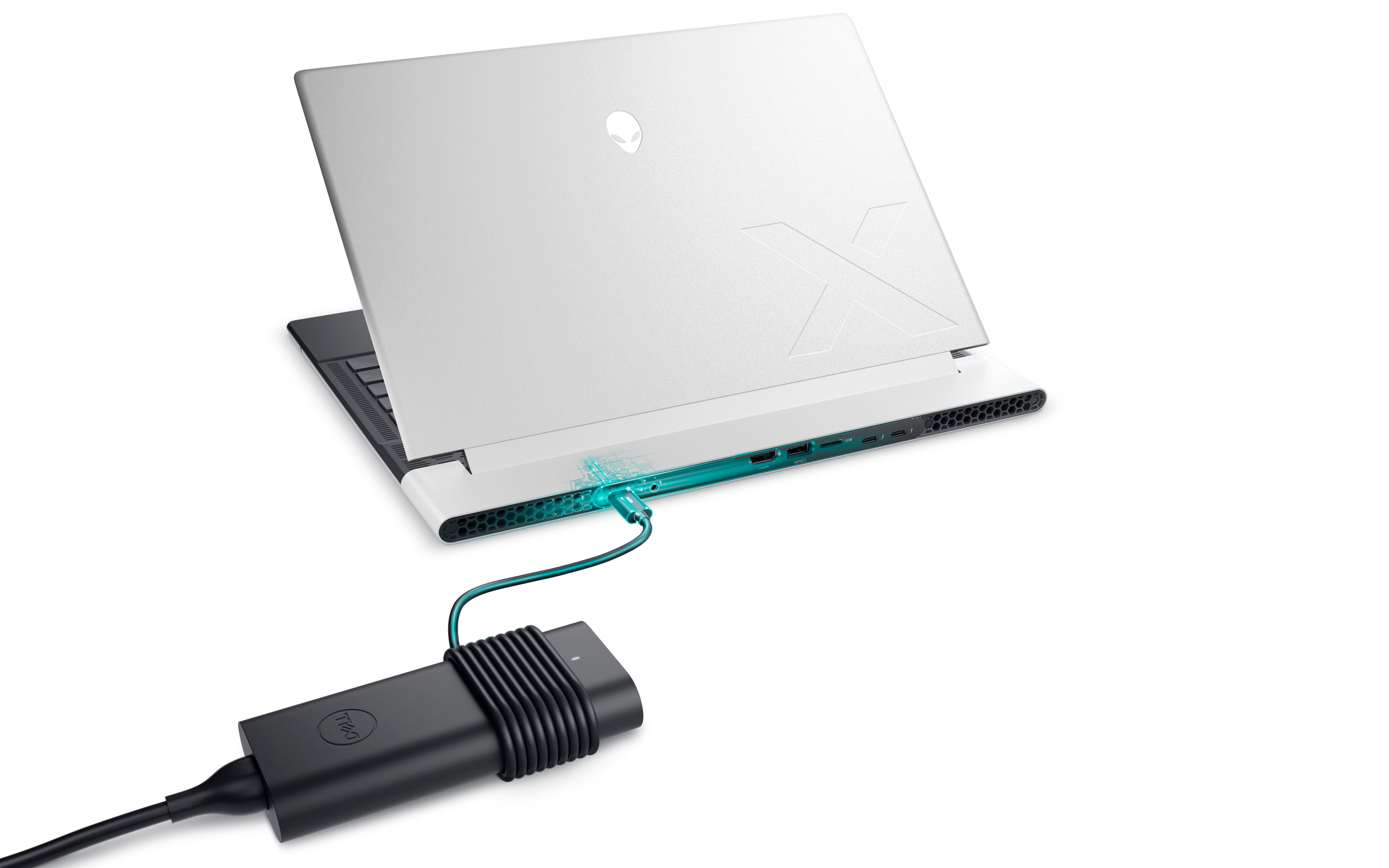
Inspect the Power Brick and Cables: Look for fraying, bends, or discolorations on the charging cord. If the brick feels excessively hot or smells like burnt plastic, it may be faulty.
-
Verify the Charging Port: Use a flashlight to inspect the laptop’s charging port for debris, lint, or bent pins. You can gently clean out dust using compressed air or a non-conductive toothpick.
2. Power Reset (The “Hard” Reset)
If physical connections are secure, performing a hard reset can often clear static electricity buildup that interferes with power management.
-
Shut down your laptop completely.
-
Unplug the charging cable.
-
If your laptop has a removable battery, remove it carefully. (If it is internal, skip this step).
-
Press and hold the laptop’s power button for 15–30 seconds to drain residual energy.
-
Reconnect the charger (and battery, if applicable) and power on your system.
3. Update or Reinstall Battery Drivers
Software-related issues are frequent culprits. Your operating system uses drivers to communicate with the hardware; if these become corrupted, you will need to Fix Laptop Battery Not Charging by refreshing the software link.
-
Step 1: Right-click the Start button and select Device Manager.
-
Step 2: Expand the Batteries section.
-
Step 3: Right-click “Microsoft ACPI-Compliant Control Method Battery” and choose Uninstall device.
-
Step 4: Restart your computer. Windows will automatically detect the hardware and reinstall the correct driver upon startup.
4. Check Power Management Settings
Sometimes, specific power plans or battery health features (designed to extend battery lifespan) may prevent your laptop from charging to 100%.
-
Go to Settings > System > Power & Sleep > Additional Power Settings.
-
Check if your current plan has custom settings that limit charging.
-
Ensure that “Critical battery action” is not set to hibernate or shut down prematurely.
5. Identifying Hardware Failure
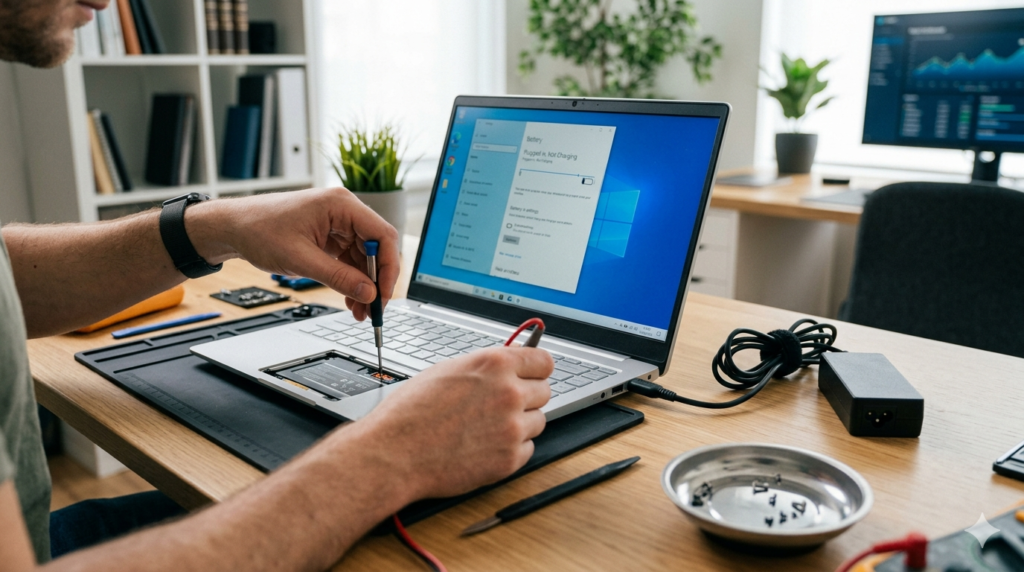
If the above steps do not yield results, you may be dealing with a hardware issue. To determine if your battery is dead, you can use built-in diagnostics or check for physical symptoms.
For many, this is the stage where they decide whether to seek professional repair or source replacement parts. You can find high-quality replacement batteries and detailed guides at iFixit, which provides the necessary resources to perform repairs safely. Understanding your mobile triple screen setup simracing gear or other high-power peripherals might also reveal if your current power adapter is struggling to handle the combined load of your hardware.
Benefits vs. Drawbacks of DIY Battery Replacement
| Feature | Pros | Cons |
| DIY Replacement | Cost-effective, immediate results | Risk of voiding warranty, requires precision |
| Professional Repair | Guaranteed work, safe handling | Higher cost, longer wait times |
6. When to Seek Expert Help
If you have tried the software fixes, tested a different compatible charger, and inspected the port, the issue likely lies within the internal power circuitry or the motherboard. At this point, it is recommended to consult a professional or check if your device is still under manufacturer warranty.
Conclusion
Experiencing charging issues is undoubtedly inconvenient, but it is rarely the end of your laptop’s life. By following these steps—starting from the simplest physical connection checks, moving through software driver resets, and finally assessing battery health—you can successfully Fix Laptop Battery Not Charging.
Laptop Battery Not Charging ifixit.org.uk
Remember to prioritize safety. If you decide to perform a physical battery replacement, always consult manufacturer-specific guides. For those managing multiple devices, implementing smart power usage and keeping your drivers updated is a great way to prevent future issues. If you find your hardware is simply aging, resources like iFixit are invaluable for extending the lifespan of your machine.