
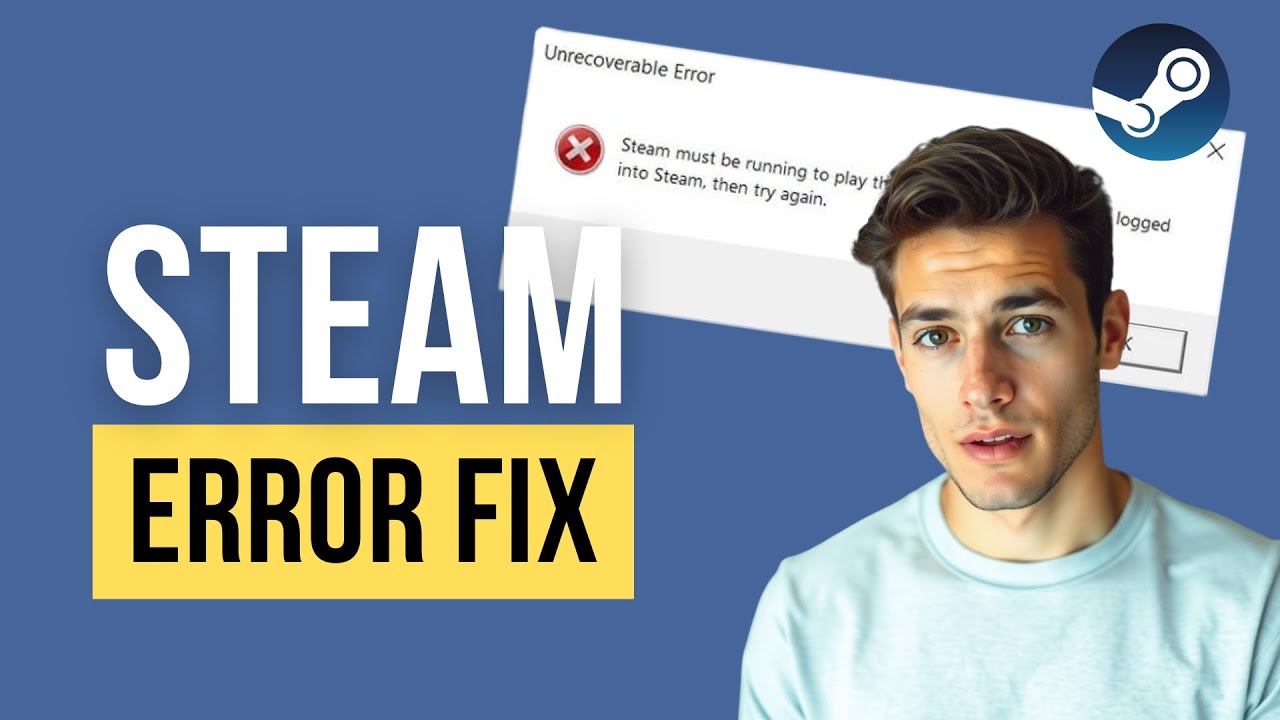
Steam is the go-to platform for millions of PC gamers worldwide, offering a vast library of titles and seamless multiplayer experiences. However, like any complex software, it occasionally throws up errors that can halt your gaming session. One such frustrating issue is Steam Error 30, which often appears during game launches, updates, or downloads. If you’re seeing this error, you’re not alone—many users report similar connection or verification problems that prevent games from starting.
In this detailed guide, we’ll explore what causes Steam Error 30, provide an error 30 Steam fix that works for most users, and share practical advice to prevent it from recurring. Whether you’re a casual player or a dedicated enthusiast, these steps will help you troubleshoot effectively and get back to gaming with minimal downtime.
What Is Steam Error 30?
Steam Error 30 typically indicates a problem with the client connecting to Steam servers, verifying files, or handling downloads and launches. It might manifest as a connection failure, download interruption, or a message preventing a game from starting properly. Unlike more specific codes, Error 30 can stem from network glitches, corrupted cache, or conflicts with system settings.
Real-world scenario: Imagine you’ve just installed a highly anticipated title like a new AAA release. You click “Play,” but instead of launching, Steam displays Error 30. This disrupts your plans, especially during limited-time events or multiplayer sessions with friends. Understanding the root causes is the first step toward a reliable error 30 Steam fix.
Common Causes of Steam Error 30
Several factors can trigger this error:
- Network-related issues: Unstable internet, overloaded regional servers, or interference from VPNs/proxies.
- Corrupted download cache: Old or damaged temporary files in Steam’s cache.
- Permissions or file integrity problems: Missing or corrupted game files.
- Background processes: Conflicting software, outdated drivers, or firewall restrictions.
- Regional server problems: Temporary overloads in your default download region.
By identifying these, you can apply targeted fixes efficiently.
Basic Error 30 Steam Fix Steps for Quick Resolution
Most users can resolve Steam Error 30 with simple, beginner-friendly steps. Let’s walk through them one by one.
1. Fully Close and Restart Steam
A partial close often leaves background processes running, causing conflicts.
- Press Ctrl + Shift + Esc to open Task Manager.
- End all Steam-related tasks (Steam.exe, Steam Client Service, etc.).
- Restart your PC, then launch Steam as administrator.
This simple restart resolves many transient errors.
2. Clear Steam Download Cache
Corrupted cache is a frequent culprit.
- Open Steam → Go to Steam > Settings > Downloads.
- Click Clear Cache.
- Restart Steam.
Clearing the cache forces Steam to fetch fresh data, often fixing download and connection errors.
3. Change Your Download Region
Server overload in your area can trigger Error 30.
- In Steam Settings → Downloads → Download Region.
- Select a nearby region (e.g., switch from “US – New York” to “US – Chicago”).
- Restart Steam and test.
This is one of the most effective error 30 Steam fix methods for network-related issues.
4. Verify Integrity of Game Files
Corrupted files prevent proper launches.
- Right-click the game in your Library → Properties → Installed Files → Verify Integrity of Game Files.
- Wait for the process to complete and repair any issues.
This rebuilds missing or damaged components without redownloading everything.
Advanced Troubleshooting for Persistent Steam Error 30
If basic steps don’t work, try these deeper solutions.
Run Steam as Administrator and Check Compatibility
Right-click Steam.exe → Properties → Compatibility tab → Run as administrator. This grants necessary permissions, especially on Windows.
Update Graphics Drivers and Windows
Outdated drivers often cause launch failures. Visit your GPU manufacturer’s site (NVIDIA, AMD, Intel) for the latest versions, or use Windows Update.
Disable VPN, Proxy, and Interfering Software
Temporarily disable any VPN or proxy. Check Steam’s official list of programs that may interfere and add exceptions to your firewall/antivirus.
Flush DNS and Reset Network Settings
Open Command Prompt as administrator and run:
ipconfig /flushdns
ipconfig /release
ipconfig /renew
netsh winsock reset
Restart your PC afterward. This clears network configuration glitches.
Repair Steam Library Folder
In Steam Settings → Storage, select your library folder and choose Repair Folder. This fixes permission issues.
Expert Tips and Real-World Scenarios
Consider a gamer trying to launch a large open-world title after a major update. Error 30 appears due to incomplete downloads. Following the cache clear and file verification sequence resolves it in minutes.
Pro Tip: Create multiple Steam library folders on different drives. This helps isolate issues and improves performance.
Comparison of Fixes:
| Fix Method | Ease of Use | Effectiveness | Time Required |
|---|---|---|---|
| Restart Steam/PC | Very Easy | High for transient issues | 2-5 mins |
| Clear Cache | Easy | High | 1-2 mins |
| Verify Game Files | Easy | Very High | 5-15 mins |
| Change Download Region | Easy | Medium-High | 2 mins |
| Full Reinstall | Moderate | Highest | 30+ mins |
For hardware enthusiasts exploring setups like a mobile triple screen setup simracing, ensuring stable network and power can prevent related Steam glitches during intensive sessions.
Preventing Steam Error 30 in the Future
- Keep Steam and your OS updated.
- Use a wired connection when possible for downloads.
- Regularly clear cache and verify files for frequently played games.
- Monitor Steam server status during peak times.
- Avoid running multiple bandwidth-heavy apps simultaneously.
Additional Insights: Steam Performance Optimization
Beyond fixing errors, optimizing your setup enhances overall experience. For example, adjusting launch options or managing overlays can reduce conflicts. Community forums like Reddit often share user-tested solutions for specific games experiencing Error 30.
When dealing with broader hardware concerns, resources like iFixit provide excellent repair guides that complement software troubleshooting.
For more on Steam’s official troubleshooting, check their support pages on update and installation issues.
Other trusted discussions can be found on gaming communities where users share similar experiences.
When to Seek Further Help
If none of the above resolves the error 30 Steam fix, consider:
- Checking Steam server status.
- Reinstalling Steam (preserves games if installed in the same location).
- Contacting Steam Support with error logs.
Conclusion
Steam Error 30 can be annoying, but it’s usually fixable with the right approach. By starting with simple restarts and cache clears, then moving to verification and network tweaks, most users can quickly implement an effective error 30 Steam fix and resume gaming. Remember the key takeaways: maintain clean caches, verify files regularly, and optimize your network settings.
Taking proactive steps not only resolves current issues but prevents future disruptions. Whether you’re diving into a single-player campaign or competing online, a stable Steam client makes all the difference. If you’ve tried these methods, share your experience in the comments—your tip might help another gamer!
With these strategies, you’re well-equipped to handle Steam Error 30 confidently. Happy gaming!
- What Is Steam Error 30?
- Common Causes of Steam Error 30
- Basic Error 30 Steam Fix Steps for Quick Resolution
- Advanced Troubleshooting for Persistent Steam Error 30
- Expert Tips and Real-World Scenarios
- Preventing Steam Error 30 in the Future
- Additional Insights: Steam Performance Optimization
- When to Seek Further Help
Related posts:
![facebook video downloader facebook video downloader]()
How to Change Name on Facebook: The Complete 2026 Guide
![Fix Orange Discoloration on MacBook Pro Screen]()
How to Fix Orange Discoloration on MacBook Pro Screen: Complete Guide to Causes & Solutions
![Google Gemini in 2026]()
What Is Everything You Need to Know About Google Gemini in 2026?
![fbi warns iphone android scams]()
Why the FBI Warns iPhone Android Scams Are Increasing
![What Should You Know About the iPhone 17 in 2026]()
What Should You Know About the iPhone 17 in 2026, Including Features, Specs, Price, Release Date, an...
![Best Free Password Managers ifixit]()
Best Free Password Managers: Secure Your Digital Life in 2026
![Snapchat Planets - ifixit]()
How Do Snapchat Planets Work and What Does Each Planet Mean in the Friend Solar System?
![What Causes Black Lines on Laptop Screen]()
What Causes Black Lines on Laptop Screen? A Complete Troubleshooting Guide







