Face ID has revolutionized how we unlock our iPhones, authenticate payments, and access secure apps. It’s fast, convenient, and more secure than most alternatives for the vast majority of users. But when Face ID not working suddenly appears, it can be incredibly frustrating—especially if you’re in a hurry or rely on it for Apple Pay and banking apps.
Whether you’re dealing with a persistent “Face ID unavailable” message, inconsistent recognition, or complete failure after an iOS update, you’re not alone. Many iPhone users encounter iPhone Face ID issues due to software glitches, hardware obstructions, or environmental factors. The good news? Most problems can be resolved quickly at home without data loss or costly repairs.
In this in-depth guide, we’ll walk you through the top 10 ways to fix Face ID not working, backed by official Apple recommendations and real-world user experiences. We’ll also explore common causes, prevention tips, and expert advice to help you maintain reliable facial recognition on your iPhone. By the end, you’ll have multiple actionable strategies to restore functionality safely.
Understanding Face ID: How It Works and Why It Fails
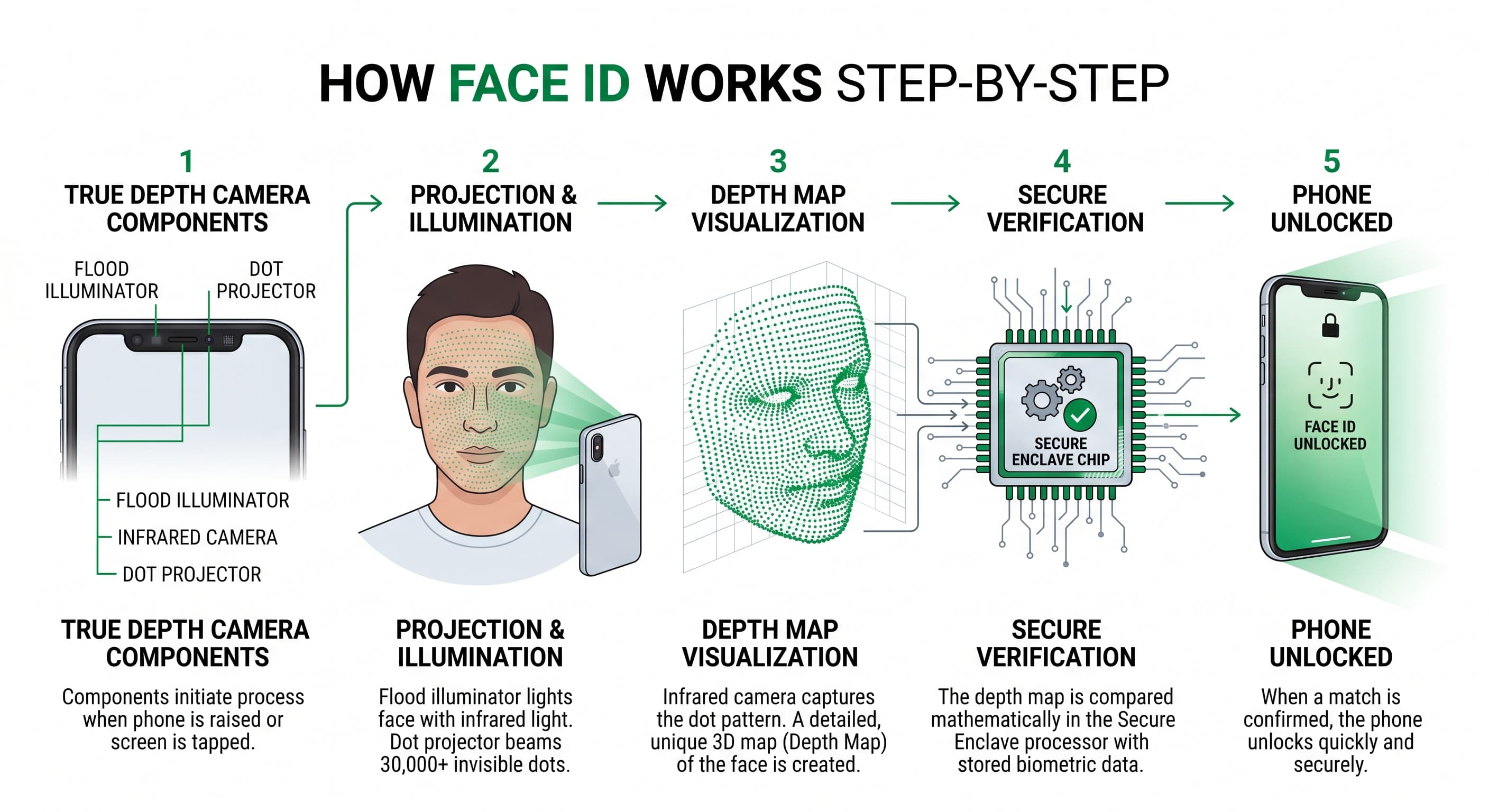
Before diving into fixes, it’s helpful to understand the technology. Face ID uses Apple’s TrueDepth camera system, which includes an infrared camera, flood illuminator, dot projector, and more. It projects over 30,000 invisible dots to create a detailed 3D map of your face, ensuring high security while adapting to changes like hairstyles or lighting.
Common causes of iPhone Face ID issues include:
- Obstructions on the TrueDepth sensors (dirt, cases, screen protectors).
- Software bugs or outdated iOS versions.
- Lighting conditions or facial obstructions (masks, sunglasses).
- Hardware damage from drops or liquid exposure.
- Settings restrictions or corrupted Face ID data.
These issues affect various models, from iPhone X to the latest iPhone 16 series. Recognizing the root cause is the first step toward an effective iPhone Face ID fix.
1. Clean the TrueDepth Camera System

One of the simplest and most effective first steps for fix Face ID not working is a thorough cleaning. Dust, fingerprints, smudges, or residue can block the infrared sensors.
How to do it safely:
- Power off your iPhone.
- Use a soft, lint-free microfiber cloth (like the one for eyeglasses) to gently wipe the notch or Dynamic Island area.
- Avoid household cleaners, alcohol wipes on the sensors, or abrasive materials.
- Remove any case or screen protector temporarily to test.
Real-world scenario: Sarah, a busy professional, noticed Face ID failing after a beach trip. Sand particles had settled in the notch. A quick clean restored full functionality in under a minute.
Pro Tip: Clean weekly as part of your maintenance routine. This prevents buildup and maintains optimal sensor performance.
2. Restart Your iPhone
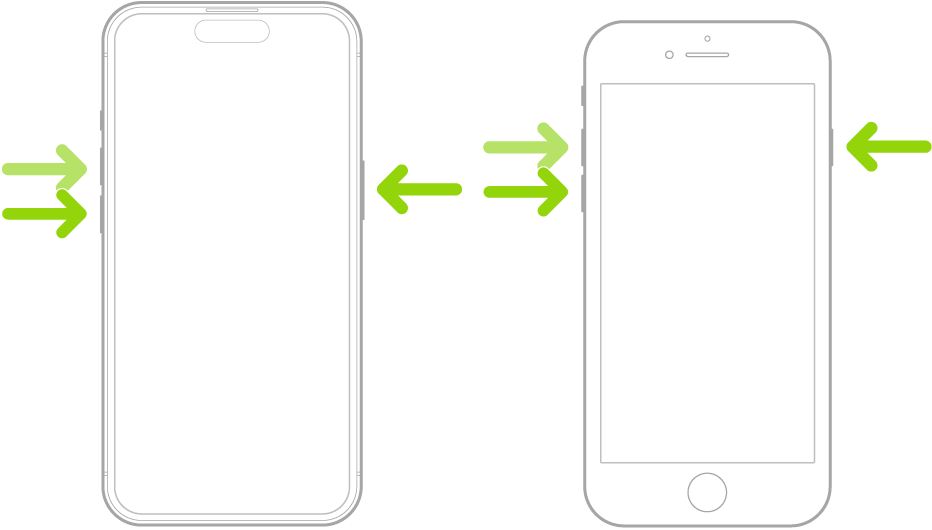
A simple reboot often resolves temporary software glitches causing Face ID not working.
Steps for iPhones with Face ID:
- Press and quickly release the volume up button.
- Press and quickly release the volume down button.
- Press and hold the side button until the Apple logo appears.
After restarting, enter your passcode and test Face ID. This fix works surprisingly well for minor issues after app crashes or background processes.
3. Check for iOS Updates
Outdated software is a frequent culprit for iPhone Face ID issue. Apple regularly releases updates that fix bugs and improve Face ID performance.

Go to Settings > General > Software Update. Download and install any available updates while connected to Wi-Fi and charging.
Expert Advice: Always back up your iPhone via iCloud or a computer before major updates. Many users report Face ID stabilization after updating to the latest iOS version.
4. Verify Face ID Settings and Features

Sometimes the issue is as simple as disabled options. Navigate to Settings > Face ID & Passcode and ensure:
- Face ID is enabled for unlocking, Apple Pay, iTunes & App Store, and other apps.
- “Require Attention for Face ID” is toggled appropriately (disabling it can help in low-light or with certain accessories).
- Attention Aware Features are configured to your preference.
If restrictions are enabled under Screen Time > Content & Privacy Restrictions, they might block Face ID changes. Adjust as needed.
5. Reset Face ID and Set It Up Again
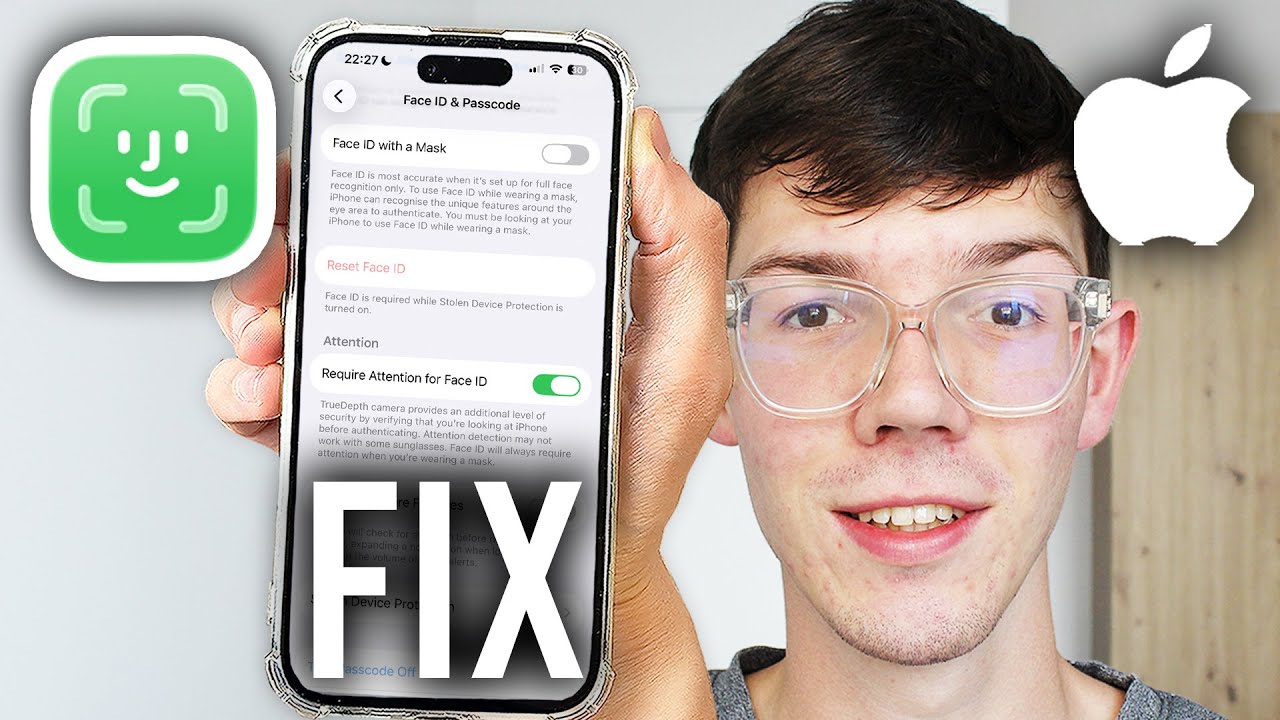
Resetting creates a fresh facial scan, often fixing recognition problems from appearance changes or corrupted data.
Steps:
- Go to Settings > Face ID & Passcode.
- Enter your passcode.
- Tap Reset Face ID.
- Tap Set Up Face ID and follow the on-screen instructions (move your head in a circle as prompted).
Add an Alternate Appearance: For users with varying looks (glasses, makeup, beards), set up a second profile for better reliability.
6. Check Lighting Conditions and Holding Position
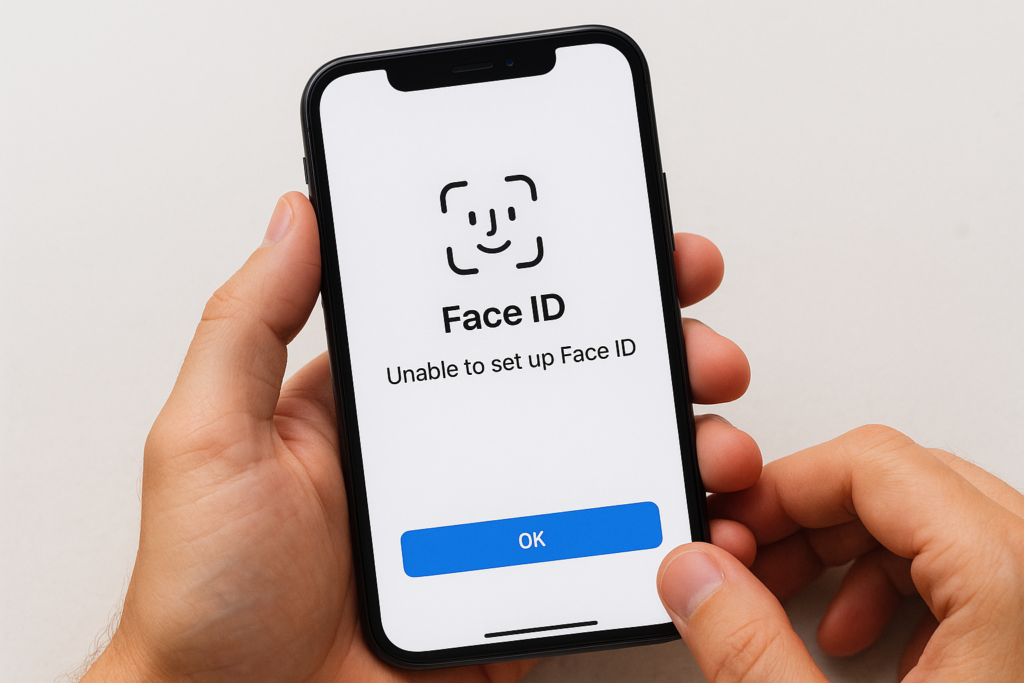
Face ID performs best in varied lighting but can struggle in extreme conditions. Hold your iPhone 10-20 inches from your face in portrait orientation (or landscape on newer models), ensuring your eyes, nose, and mouth are visible.
Tips:
- Avoid direct bright sunlight or complete darkness initially.
- Remove sunglasses or adjust masks if using Face ID with a mask feature.
- For glasses wearers, test with and without them during setup.
7. Remove Interfering Cases and Screen Protectors

Bulky cases or incompatible screen protectors are common offenders in Face ID not working scenarios.
Test by removing them entirely. Look for protectors specifically labeled as Face ID compatible with proper notch cutouts. High-quality tempered glass options from reputable brands generally work well if installed correctly.
8. Force Restart and Reset All Settings

For persistent issues, a force restart or resetting settings (without erasing data) can help.
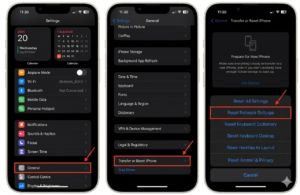
Reset All Settings: Go to Settings > General > Transfer or Reset iPhone > Reset > Reset All Settings. This clears preferences but keeps your data intact.
9. Manage Storage and Background Apps

Low storage or conflicting apps can indirectly affect system performance, including Face ID. Free up space by deleting unused apps and clearing cache. Restart after making changes.
10. Seek Professional Service for Hardware Issues

If software fixes fail, it may be a hardware problem with the TrueDepth system. Contact Apple Support or visit an Apple Store. Authorized repairs can often fix Face ID without full device replacement on supported models.
Check your warranty status and service history in Settings > General > About. For out-of-warranty repairs, costs vary but are often more affordable than a new phone.
Additional Tips for Maintaining Reliable Face ID


Face ID with Masks and Accessories
Apple’s Face ID with a mask feature (iPhone 12 and later) improves usability but requires proper setup. Hold the phone higher if needed.
Security Considerations
Face ID is highly secure, using encrypted facial data stored only on-device. It’s generally more convenient than Touch ID for most daily tasks, though preferences vary.
Troubleshooting Specific Models
Issues can differ slightly across iPhone X, 11, 12, 13, 14, 15, and 16 series. Newer models benefit from improved sensors and iOS optimizations.
Comparing Face ID to Alternatives
While Face ID excels in hands-free use, some users prefer Touch ID for deliberate authentication. Each has strengths depending on your lifestyle.
Prevention Strategies to Avoid Future Face ID Problems
- Regularly clean sensors.
- Keep iOS updated.
- Use compatible accessories.
- Set up alternate appearances proactively.
- Avoid extreme temperatures or moisture exposure.
When to Contact Apple Support
If basic troubleshooting doesn’t resolve Face ID unavailable, schedule a Genius Bar appointment. Provide details of steps tried for faster diagnosis.
External Resource: Learn more about Apple’s official troubleshooting from their support page.
For community insights, check discussions on trusted forums.
Conclusion
Dealing with Face ID not working doesn’t have to be a major headache. By starting with simple steps like cleaning the TrueDepth camera, restarting your device, and updating iOS, most users can quickly restore functionality. For recurring or hardware-related iPhone Face ID issues, professional service ensures a safe, long-term iPhone Face ID fix.
Remember the key takeaways: maintain your device, understand environmental factors, and don’t hesitate to reset or reconfigure Face ID. These actionable steps empower you to handle issues confidently and keep your iPhone secure and efficient.
If you’ve tried these solutions and still need help, Apple’s support network is there. Stay proactive with updates and care, and enjoy the seamless experience Face ID is designed to provide. Your iPhone will thank you!
Additional Informative Subheadings Integrated:
- Why Face ID Is More Secure Than You Think
- Real User Stories: Overcoming Persistent Face ID Failures
- Choosing the Right Accessories for Optimal Face ID Performance
- Future of Biometrics: What’s Next After Face ID?
Related posts:
![Apple iPhone 17e Unlocked by RedPocket Mobile]()
Apple iPhone 17e Unlocked by RedPocket Mobile: Best Budget Deal in 2026?
![How to Reset Network Settings on iPhone: Ifixit]()
How to Reset Network Settings on iPhone: The Complete 2025 Troubleshooting Guide
![How Can You Find a Reliable Phone Repair Service Near You]()
How Can You Find a Reliable Phone Repair Service Near You?
![How to Fix Android Phone Not Charging Properly ifixit.org.uk]()
How to Fix Android Phone Not Charging Properly: 2026 Troubleshooting Guide
![How to Fix iPhone Stuck on Apple Logo Screen?]()
How to Fix iPhone Stuck on Apple Logo Screen?
![Can You Fix a Broken Screen Without Replacing the Entire Device?]()
How Can You Fix a Broken Screen Without Replacing the Entire Device?
![ifixit.org.uk]()
How to Fix Horizontal Lines on Android Phone: Ultimate Troubleshooting and Repair Guide
![how to unhide apps on iphone]()
How to Unhide Apps on iPhone: A Complete, Step-by-Step Guide