You tap an app and nothing happens. Or the bottom half of the screen ignores your finger while the top works fine. Or the phone starts “touching itself”, opening apps you never pressed. A touch screen problem makes the phone almost useless, and the instant reaction is to book a repair.
Before you do, work through the checks below. A large share of phone touch screen not responding problems come from software glitches, moisture, screen protectors or charging accessories, all of which you can fix at home for free. If your screen is visibly cracked, our guide on whether to repair or replace a cracked phone screen is the better starting point.
1. Force Restart the Phone
If the screen is frozen, a normal restart may be impossible because you can’t tap “Restart”. Use a forced restart with the buttons instead:
- iPhone 8 and later: press and release Volume Up, press and release Volume Down, then hold the Side button until the Apple logo appears.
- Most Android phones: hold Power and Volume Down together for 10 to 20 seconds until the phone restarts.
A forced restart clears a frozen display process and fixes many unresponsive screens on its own.
2. Clean the Screen and Dry Your Hands
Touch screens work by sensing the electrical charge of your finger. Water droplets, grease, sun cream or lotion can confuse the sensor and cause missed taps or “ghost touches”. Wipe the screen with a dry microfibre cloth. Make sure your fingers are dry, too, and remove any gloves unless they are touchscreen-compatible.
3. Remove the Screen Protector
A thick, cheap or poorly fitted screen protector is one of the most common causes of dead zones near the edges. Bubbles, dust trapped underneath, or a cracked protector can all block touches. Peel it off and test the bare screen. If touch returns, buy a thinner, good-quality protector.
4. Unplug the Charger and Test Again
Cheap or faulty chargers can introduce electrical noise that makes the touch screen jumpy or unresponsive while charging. If the problem only happens on charge, try a different cable and an original or certified charger. If the issue disappears, replace the accessory rather than the phone.
5. Check for Water Exposure
Moisture inside the phone, even from a steamy bathroom, can cause temporary touch problems. If the phone recently got wet, power it off and let it dry fully. Our first-hour guide for a wet phone explains what to do (and why rice isn’t the answer).
6. Update the Software
Touch screen firmware and drivers are part of your phone’s software. Manufacturers fix touch bugs in updates, so install any pending system updates. Apple’s iPhone support pages and your Android maker’s support site list known display issues for recent versions.
7. Boot Into Safe Mode (Android)
A badly behaved app can make the screen lag or misread touches. Safe mode starts the phone with only built-in apps.
- Hold the Power button, then press and hold Power off on screen until “Safe mode” appears, and tap OK.
- On some Samsung phones, restart and hold Volume Down as the phone boots.
If the touch screen works normally in safe mode, a recently installed app is the culprit. Restart normally and uninstall recent apps one at a time, starting with screen recorders, gesture tools, launchers and screen dimmer apps.
8. Adjust Touch Sensitivity Settings
Some phones have settings that change how the screen responds:
- Samsung: Settings > Display > Touch sensitivity (turn on if you use a protector).
- iPhone: Settings > Accessibility > Touch > Touch Accommodations (make sure it isn’t turned on by accident).
- Other Android phones: look for “Glove mode” or “Touch sensitivity” under Display.
9. Test for Dead Zones
To see if part of the screen has failed, open a drawing app and slowly draw lines across the entire screen. Gaps or breaks in the line show dead areas. Some Android phones also have built-in diagnostics: try dialling *#0*# on Samsung, or use the diagnostics in your phone’s support app.
A consistent dead strip that never responds is almost always a hardware problem with the digitiser.
10. Back Up, Then Factory Reset
If the screen still misbehaves and you’ve ruled out apps, a factory reset rules out deeper software corruption. Back up first, because it wipes everything. If you can’t use the screen well enough to back up, connect a USB mouse with a USB-C adapter on Android, or use a computer.
If the problem continues after a reset, the fault is hardware.
Use Your Phone While You Decide
If part of the screen still works, a few accessibility tricks can keep the phone usable until it’s fixed:
- Voice control: Voice Access on Android and Voice Control on iPhone let you open apps, tap buttons and type by speaking.
- A USB mouse or keyboard: most Android phones support a mouse through a USB-C adapter, which shows a pointer on screen. Newer iPhones support mice through AssistiveTouch.
- Screen mirroring: mirror the phone to a computer or TV to read messages and back up data.
- Rearranged home screen: move the apps you use most into the part of the screen that still responds.
These workarounds are also the safest way to make a full backup before any repair, so you don’t lose photos or chats if the screen fails completely.
When It’s a Hardware Fault
Signs that the screen or digitiser needs replacing:
- A dead zone in the same place every time, even after a reset
- Ghost touches after a drop
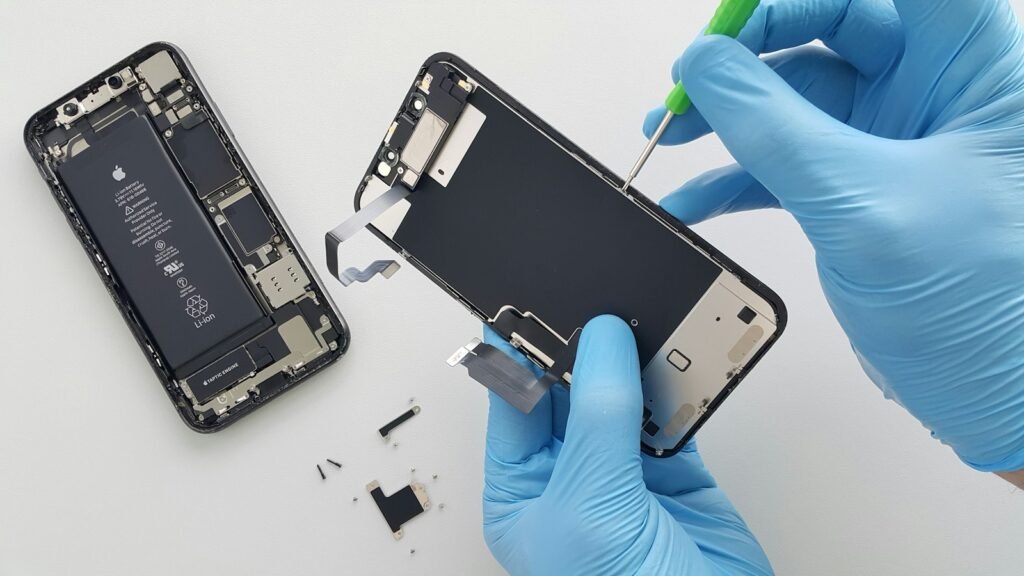
- Visible cracks, lifting glass or a swollen battery pushing the screen up
A swollen battery is a safety issue: stop charging the phone and get it repaired promptly. For replacement costs and whether a repair makes sense, our guide on repairing vs buying a new phone walks through the numbers.
How to Protect a Touch Screen From Future Problems
- Use a thin, good-quality tempered glass protector that’s cut for your exact model
- Keep the phone out of hot cars and steamy bathrooms
- Use certified chargers and replace frayed cables
- Choose a case with a raised lip so the screen doesn’t hit flat surfaces when dropped
- Clean the screen weekly with a dry microfibre cloth rather than household sprays
None of these are expensive, and together they prevent most of the touch problems repair shops see every week.
Frequently Asked Questions
Why does my phone screen touch by itself?
Ghost touches are often caused by a faulty charger, moisture, a damaged screen protector or a failing digitiser after a drop.
Can a screen protector stop touch from working?
Yes. Thick or badly fitted protectors can block touches, particularly near edges.
How much does a touch screen repair cost in the UK?
It depends on the model. Budget Android screens may cost under £100, while recent flagship screens can cost several hundred pounds.
Key Takeaways
- Always back up your phone before a factory reset or repair.
The Bottom Line
Most unresponsive touch screens can be fixed with a forced restart, a clean screen, removing the protector, a better charger or a software update. If a dead zone survives a factory reset, it’s time for a screen repair. For more step-by-step help, browse our Phone Repair Guides.