A laptop fan that suddenly sounds like a hair dryer, rattles, clicks or grinds is one of the most common reasons people book a repair. Sometimes it’s a simple fix you can do in ten minutes. Sometimes it’s a worn-out fan that needs replacing. And occasionally the noise is a warning that the laptop is overheating and needs attention before something more expensive fails.
This guide walks you through how to tell the difference, what you can safely fix at home, and when it’s worth paying a technician. If you haven’t cleaned your laptop in a while, start with our step-by-step guide to cleaning dust out of a laptop safely — dust is the cause in a large share of cases.
First, Listen: What Kind of Noise Is It?
The sound itself tells you a lot. Match what you hear to the list below.
| Sound | Most likely cause | Urgency |
|---|---|---|
| Loud, steady whoosh | Fan spinning fast because the laptop is hot or busy | Low — find out why it’s working hard |
| Whoosh that rises and falls constantly | Background process or dust blocking airflow | Medium |
| Rattling or buzzing | Loose fan, debris touching the blades or a loose screw | Medium |
| Clicking or ticking | A cable, sticker or bit of debris hitting the blades | Medium — fix before blades break |
| Grinding or scraping | Worn fan bearing | High — the fan will fail soon |
| No sound at all, laptop very hot | Fan has stopped | High — stop heavy use until fixed |
Step 1: Rule Out Software Before Opening Anything
A fan that runs loudly all the time is often just doing its job. Something is making the processor work hard, and the fan is removing the heat.
On Windows
- Press Ctrl + Shift + Esc to open Task Manager.
- Click the CPU column to sort by usage.
- Look for anything using a lot of CPU while you’re not doing much — browser tabs, updates, antivirus scans, or unknown programs.
- Close or uninstall what you don’t need, and let Windows Update finish if it’s running.
On a Mac
- Open Activity Monitor (Applications → Utilities).
- Click the % CPU column.
- Quit anything unexpectedly high. Spotlight indexing after an update can also keep fans busy for a few hours.
Quick test: restart the laptop and leave it idle on the desktop for five minutes. If the fan stays loud with nothing open, the cause is probably physical (dust or a failing fan), not software.
Step 2: Check the Temperature
Knowing the actual temperature tells you whether the fan is coping. A free monitoring tool such as HWiNFO on Windows shows CPU temperature and fan speed. On a Mac, apps from the App Store can show the same information.
As a rough guide:
- Idle: roughly 35–55°C is typical for most laptops
- Heavy use: 70–90°C can be normal, depending on the model
- Warning sign: high temperatures while idle, or the laptop shutting down on its own
If temperatures are high and the fan is loud, airflow is the problem. If temperatures are high and the fan is quiet or silent, the fan may have failed.
Step 3: Fix Airflow from the Outside
Before opening the case, try the easy wins:
- Use a hard, flat surface. Beds, sofas and laps block the intake vents on the bottom of most laptops.
- Raise the back slightly. A stand or even a book under the rear edge improves airflow.
- Blow out the vents. With the laptop off and unplugged, use short bursts of compressed air into the exhaust vents. Hold the fan still through the vent with a toothpick so it doesn’t over-spin.
- Check the power mode. On Windows, a “Best performance” power mode keeps the fan working harder. Switching to “Balanced” often makes a laptop quieter.
Step 4: Open It and Clean It (If You’re Comfortable)
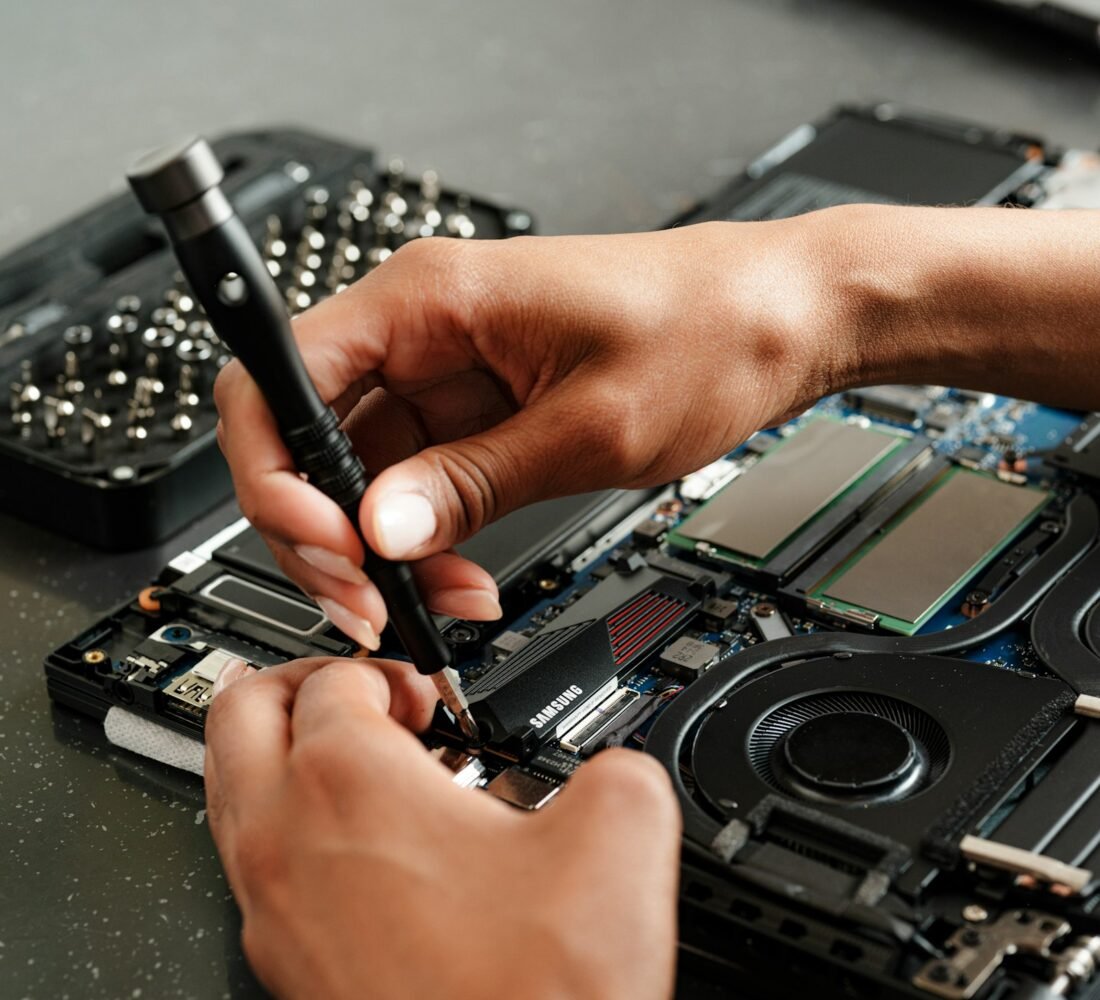
If the noise continues, the next step is opening the bottom cover. On many laptops this only needs a small Phillips screwdriver. Some models use special screws or are glued shut — check before you start.
- Shut down fully and unplug the charger.
- Remove the bottom panel and keep screws in order — they’re often different lengths.
- Disconnect the battery if your model allows it.
- Clean the fan and heatsink fins with a soft brush and short bursts of compressed air. The fins behind the fan are where dust mats build up.
- Look for anything touching the blades: loose cables, tape or bits of debris are a common cause of clicking.
- Check the fan screws. A loose fan rattles against the case.
- Reassemble and test.
Avoid vacuum cleaners (static electricity) and never spray liquids inside. For more preventive habits, our PC maintenance checklist covers how often to clean.
Step 5: Decide Whether the Fan Needs Replacing
Cleaning fixes most “loud fan” problems, but not a worn bearing. The fan likely needs replacing if:
- It still grinds or scrapes after cleaning
- The blades wobble when you spin them gently with a finger
- It sometimes stops and starts on its own
- The laptop shows a fan error at startup
- A blade is cracked or missing
Replacement fans for popular models are usually inexpensive and widely available. Search using your laptop’s exact model number or the part number printed on the old fan.
Should you replace it yourself?
On many laptops, the fan is held by two or three screws and one small connector, so replacement is very manageable. On thin laptops where the fan is part of the heatsink, or where the motherboard must be removed, a technician is the safer choice. While the laptop is open, a shop can also replace dried-out thermal paste, which often brings temperatures down noticeably.

Repair or Replace the Laptop?
A noisy fan on its own is almost never a reason to replace a laptop. A fan replacement or professional clean is typically a small fraction of the price of a new machine. It only makes sense to replace the whole laptop if the fan problem has already caused damage — for example, repeated overheating that led to random shutdowns or a failing motherboard — or if the laptop is old enough that it struggles with everyday tasks anyway. Our guide on laptop repair cost vs buying new explains how to weigh the numbers.
Mistakes That Make Fan Problems Worse
- Ignoring a grinding fan. Once it stops completely, the laptop will overheat under load.
- Letting compressed air spin the fan. Over-spinning can damage the bearing. Always hold the blades still.
- Oiling the fan with household oil. It attracts more dust and can make things worse.
- Removing the fan to make the laptop “quiet.” Never run a laptop without working cooling.
- Using third-party fan-control software carelessly. Setting fan speeds too low to reduce noise can cause overheating.
Quick Diagnosis Checklist
- Identify the sound: whoosh, rattle, click, grind or silence
- Check Task Manager or Activity Monitor for heavy background tasks
- Check temperatures with a monitoring tool
- Use a hard surface and clean the vents
- Open and clean the fan and heatsink if comfortable
- Replace the fan if grinding, wobbling or stopping continues
FAQ
Is it bad if my laptop fan is always loud?
Not always. A fan running hard is protecting your laptop from heat. But if it’s loud even when the laptop is idle, it’s a sign of dust build-up, a busy background process or a worn fan.
How long does a laptop fan last?
Many fans last for years, but heavy use, dust and heat shorten their life. Grinding or uneven noise is the usual sign the bearing is wearing out.
Can a loud fan damage my laptop?
The noise itself doesn’t, but the cause can. Blocked airflow or a failing fan leads to overheating, which can shorten the life of the battery, processor and motherboard.
How much does it cost to fix a laptop fan?
A clean or fan replacement is usually one of the cheaper laptop repairs. Costs depend on the model and whether the motherboard has to be removed to reach the fan, so ask for a quote that includes thermal paste replacement.