When a handful of keys on a laptop stop responding — often a cluster like W, A, S, D, or a single stubborn letter — it’s rarely the whole keyboard failing at once. In most cases, the cause is isolated and fixable without replacing the entire keyboard assembly. Here’s how to work through it methodically.
Step 1: Confirm It’s Not a Software Issue First
Before opening anything, rule out software. Test the affected keys using your operating system’s on-screen keyboard test or a website-based key tester in a browser. If the same keys fail there too, the problem is physical, not software — skip to Step 2. If they work fine in the on-screen tester, a driver conflict or a stuck sticky-keys setting is more likely.
- 100% free
- Call direct
- Voice search
- Urdu & English
Quick software fixes to try:
- Restart the laptop (clears many temporary driver glitches)
- Update or reinstall the keyboard driver via Device Manager (Windows) or check for a macOS software update
- Check Accessibility settings for Sticky Keys or Filter Keys being accidentally enabled, which can make keys behave unpredictably
Step 2: Check for Debris Under the Keys
Crumbs, dust, and hair are the single most common cause of a handful of unresponsive keys, especially on laptops used at a desk with food or drink nearby.
How to clean safely:
- Power off the laptop and unplug the charger
- Turn the laptop upside down and gently tap the base to dislodge loose debris
- Use compressed air at a low angle between the keys, not straight down, to avoid pushing debris deeper
- For a stuck key, gently pry off the keycap (most laptop keys clip off with a flat tool) to clean underneath, then snap it back into place
If you’re not confident removing keycaps, our guide on best phone repair tool kits for beginners covers plastic pry tools that work well for this too, minimizing scratch risk.
Step 3: Check for Liquid Damage
If the affected keys stopped working suddenly, especially after a spill, liquid residue under the keys is the likely cause — even a small amount of sugary drink residue can create a sticky film that prevents proper contact.
What to do:
- Power off immediately if you haven’t already
- Turn the laptop upside down (keyboard facing down) to help any liquid drain away from internal components rather than deeper in
- Allow to fully dry for 24-48 hours before powering on
- If certain keys remain unresponsive after drying, isolated cleaning under those specific keycaps is usually needed
Avoid the water-damage mistakes covered in our phone water damage guide — the same principles (no rice, no heat, no premature power-on) apply to laptops too.
Step 4: Check for a Loose Keyboard Ribbon Cable
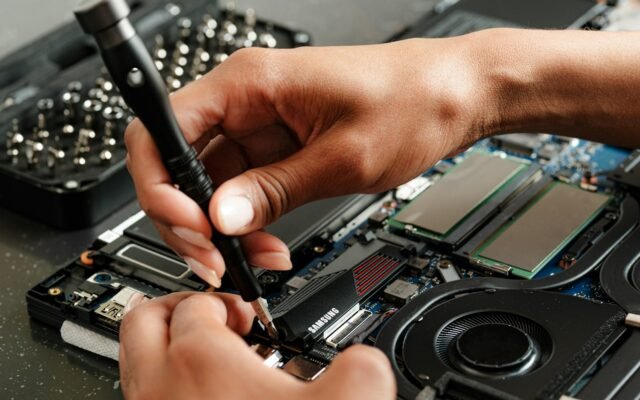
If an entire row or a large cluster of keys stops working simultaneously (not just one or two), the keyboard’s internal ribbon cable connecting it to the motherboard may have loosened — common after a RAM/SSD upgrade that required removing the keyboard, or after a drop.
This requires opening the laptop: Remove the back panel or keyboard bezel (varies by model), locate the ribbon cable connector, and check that it’s fully seated and the locking flap (if present) is closed. A partially seated ribbon connector is a very common and easily fixed cause of a whole section of keys failing at once.
Step 5: Test with an External Keyboard
Plugging in a USB or Bluetooth keyboard is a fast way to confirm the problem is isolated to the built-in keyboard rather than a deeper system fault. If the external keyboard works perfectly, you’ve confirmed the issue is mechanical or connection-related, not a motherboard-level fault.
When to Replace the Keyboard
If cleaning, drying, and reseating the ribbon cable don’t resolve it, and the affected keys are physically damaged (cracked, loose, or the underlying membrane is torn), a keyboard replacement is the remaining option. This is a moderately involved repair — full keyboard assemblies typically cost £25-70 depending on laptop model, with professional installation running £50-120 total.
Before committing to a keyboard replacement on an older laptop, it’s worth checking our laptop repair cost vs new laptop guide to make sure the repair still makes financial sense relative to the laptop’s age and overall condition.
Preventing This in the Future
A thin, laptop-specific keyboard cover significantly reduces crumb and liquid exposure without noticeably affecting typing feel. Regularly turning the laptop upside down and gently tapping the base every few weeks also helps dislodge debris before it accumulates enough to cause problems.
A Note on Laptop-Specific Keyboard Covers
If crumbs or spills are a recurring issue in your household, a thin silicone keyboard cover designed for your exact laptop model is a cheap, low-effort way to prevent most future incidents without meaningfully affecting typing feel once you get used to the slight texture change. These covers are inexpensive, widely available for most popular laptop models, and easy to remove for cleaning — worth considering as a permanent fix once you’ve resolved your current unresponsive-key issue.
Testing Your Fix Before Returning to Normal Use
Once you’ve cleaned, dried, or reseated a keyboard connection, test every single key methodically using an online key tester rather than just typing normally for a few minutes, since intermittent issues can easily be missed in casual use. Confirming all keys register correctly before considering the job done saves you from discovering a missed problem key days later during important work.
Frequently Asked Questions
Why did multiple random keys stop working at once, not just one? This pattern (non-adjacent keys failing together) often points to a software or driver issue rather than physical damage, since physically affected keys are usually clustered together (adjacent keys sharing a spill area).
Can compressed air damage a laptop keyboard? Used correctly (short bursts, low angle, from a safe distance), compressed air is safe and one of the most effective cleaning tools. Avoid tilting the can, which can release propellant liquid onto the keyboard.
Is it worth replacing a keyboard on a 5+ year old laptop? Usually yes, if the rest of the laptop still performs well — a keyboard replacement is one of the more affordable repairs and can meaningfully extend a laptop’s useful life.
Will a stuck key wear out the whole keyboard faster? Not directly, but continuing to type around a stuck key without addressing the cause (usually debris or minor liquid residue) can allow the underlying issue to spread to adjacent keys over time.
Should I replace all the keycaps at once if one is damaged? Not necessarily — most laptop keycaps can be sourced and replaced individually, so unless several are damaged, a single keycap replacement is usually more cost-effective than replacing the whole keyboard.
For more laptop hardware troubleshooting, browse our Laptop & PC Repair category.
External reference: for spill-related incidents, RoSPA’s electrical safety guidance{:target=”_blank” rel=”nofollow noopener”} covers safe handling of any device exposed to liquid before power is restored.