
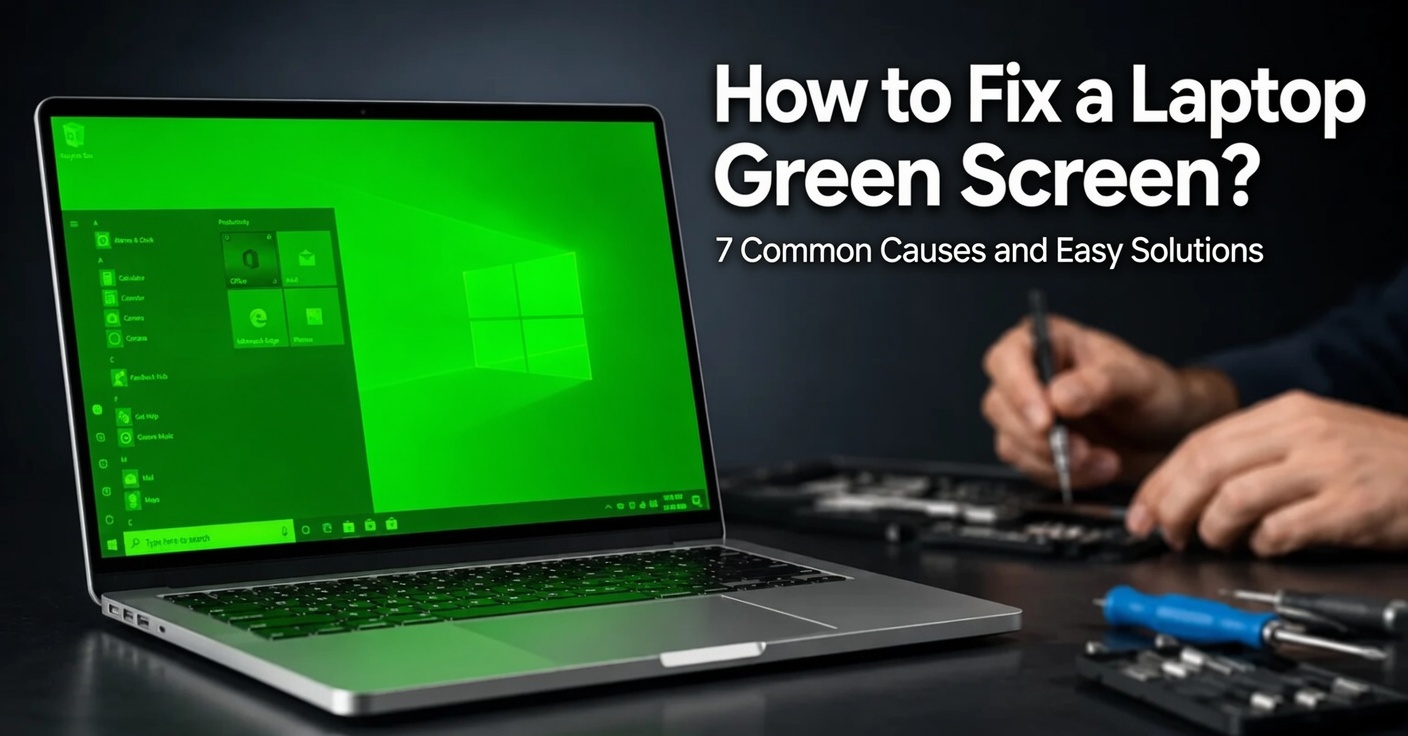
A sudden wash of green spreading across your laptop display can be alarming. Whether it’s a faint tint, flickering green lines, or a full, solid green screen that makes everything unreadable, this problem usually signals an issue that can be resolved without instantly replacing your machine. In this guide, you’ll learn exactly how to fix a laptop green screen by understanding the most frequent triggers and applying straightforward, beginner‑friendly troubleshooting steps. We’ll cover everything from loose cables and driver glitches to overheating and deeper hardware faults, giving you a clear roadmap to restore your screen’s natural colors.
What Is a Laptop Green Screen?
A “laptop green screen” is exactly what it sounds like: instead of showing your usual desktop, apps, or login screen, the display appears predominantly green. It can take several forms:
-
A uniform green overlay covering the entire screen
-
Green horizontal or vertical lines
-
Green artifacts scattered over images and text
-
A solid green screen that appears right after power‑on (sometimes called the “green screen of death”)
The root cause may be software‑related, such as a corrupted graphics driver, or hardware‑related, like a failing display cable or a damaged LCD panel. The good news is that most green screen occurrences can be fixed with the right approach. When you’re searching for how to fix a laptop green screen, it’s critical to first identify which category your issue falls into, because a software tweak won’t mend a broken ribbon cable – and replacing a screen won’t help if the real problem is a faulty graphics driver.
7 Common Causes of a Laptop Green Screen
Before jumping into solutions, let’s break down the typical reasons your laptop screen might turn green. Understanding the “why” makes the fix far less intimidating.
| Cause | Type | How It Manifests |
|---|---|---|
| 1. Loose or damaged display cable | Hardware | Screen turns green when you move the lid; flickering or partial discoloration |
| 2. Outdated or corrupt graphics driver | Software | Green tint appears after a system update or driver crash |
| 3. Overheating GPU | Hardware/System | Green screen occurs during gaming or heavy tasks; may include freezing |
| 4. Faulty LCD panel | Hardware | Persistent green tint or dead pixels; visible cracks or pressure marks |
| 5. Incorrect color or display settings | Software | Screen has a green cast but images are still visible; settings may have changed |
| 6. Electromagnetic interference | Hardware | Green stripes or waves near speakers, motors, or unshielded cables |
| 7. Malware or system file corruption | Software | Green screen appears randomly, often accompanied by other strange behaviors |
Each cause has a matching solution, and many of them you can try yourself without any technical background.
How to Fix a Laptop Green Screen: Step‑by‑Step Solutions
The following fixes are ordered from the simplest and safest to more involved procedures. Work through them one by one; in most cases, the green screen will vanish long before you reach the bottom of the list.
1. Restart Your Laptop and Check the Lid Position
A quick restart clears temporary glitches in the graphics subsystem and resets the display output. Before you do anything else:
-
Save any open work (use an external monitor if the laptop screen is unreadable).
-
Shut down the laptop completely, wait 30 seconds, and power it back on.
-
While it boots, gently move the lid back and forth. If the green screen flickers or changes when you adjust the angle, you likely have a loose or damaged display cable – a hardware issue we’ll address shortly.
If the green tint disappears after the restart, the problem was just a transient software hiccup. You’ve already learned one easy how to fix a laptop green screen technique.
2. Connect an External Monitor
Plugging your laptop into an external display (TV, monitor, or projector) is a fast way to determine whether the issue lies with the laptop screen itself or with the internal graphics hardware.
-
Connect via HDMI, VGA, DisplayPort, or USB‑C (with video support).
-
Press
Windows + Pand choose “Duplicate” or “Extend.” -
If the external monitor shows a perfect picture, the fault is almost certainly in the laptop’s LCD panel, its cable, or the lid sensor. If the external monitor also turns green, the GPU, graphics driver, or motherboard is the likely culprit.
This simple test instantly narrows down your how to fix a laptop green screen investigation by 50%.
3. Update or Reinstall Your Graphics Driver
A corrupted, outdated, or incompatible graphics driver is one of the most common software causes of a green screen. Both integrated Intel/AMD graphics and dedicated NVIDIA or AMD GPUs can be affected.
How to update the driver:
-
Right‑click the Start button and select Device Manager.
-
Expand Display adapters and double‑click your graphics card.
-
Go to the Driver tab and click Update driver.
-
Select Search automatically for drivers. Let Windows find and install the latest version.
-
Restart your laptop.
If the automatic update doesn’t work or the green screen persists:
-
Visit your laptop manufacturer’s support website (Dell, HP, Lenovo, etc.) and download the latest video driver specifically for your model and operating system.
-
Alternatively, download the driver directly from Intel, NVIDIA, or AMD’s official website.
-
For a completely fresh start, use Display Driver Uninstaller (DDU) in Safe Mode to wipe the old driver, then install the new one.
Expert tip: After installing a new driver, check the Display settings – right‑click the desktop, choose Display settings > Advanced display, and confirm that the refresh rate and color depth are correct. A mismatched color profile can also cause a green hue.
4. Roll Back or Restore Your System
If the green screen began right after a Windows update, driver update, or new software installation, rolling back the change often resolves the problem.
-
Driver rollback: In Device Manager, open the graphics card properties, Driver tab, and click Roll Back Driver if available.
-
System Restore: Type Create a restore point in the Start search, open System Properties, click System Restore, and choose a restore point dated before the green screen appeared.
-
Uninstall recent updates: Go to Settings > Windows Update > Update history > Uninstall updates, and remove the most recent quality or driver update.
These actions can teach you another how to fix a laptop green screen approach without ever opening the device’s case.
5. Reseat the Display Cable (Advanced DIY)
The display cable (LVDS or eDP ribbon) carries the video signal from the motherboard to the screen. Over time, opening and closing the lid can loosen it, or the cable can become pinched. If the external monitor test pointed to the screen or you noticed flickering when moving the lid, this step is critical.
Before you begin: Power off the laptop, unplug the charger, and remove the battery if possible. Wear an anti‑static wrist strap or touch a grounded metal object regularly.
-
Carefully remove the bezel around the screen. Most bezels are held by plastic clips and a few screws hidden under rubber pads.
-
Locate the display cable where it connects to the back of the LCD panel. It’s usually a flat, wide ribbon secured with a small latch or tape.
-
Gently unplug the cable, inspect it for kinks, tears, or corrosion, then firmly re‑seat it. Ensure the latch clicks into place.
-
Follow the cable down to the motherboard end (often under the keyboard or through the hinge area) and reseat it there as well.
-
Reassemble the laptop partially and test the screen before sealing everything.
6. Adjust Color Settings and Disable Night Light
Sometimes the green overlay is nothing more than a misconfigured color profile or an accessibility feature turned on accidentally.
-
Night light: Go to Settings > System > Display > Night light, and make sure it’s turned off or the color temperature isn’t set to an extreme green.
-
Color calibration: Search for Calibrate display color in the Start menu, follow the wizard, and reset the gamma and color balance to default.
-
Graphics control panel: If you have Intel Graphics Command Center, NVIDIA Control Panel, or AMD Software, open it and check the Display or Color settings. Reset any custom color adjustments.
-
High contrast themes: Navigate to Settings > Ease of Access > High contrast, and turn it off.
These quick checks are often overlooked when people hunt for how to fix a laptop green screen, yet they’ve resolved countless cases in seconds.
7. Address Overheating and Clean the Cooling System
A GPU that constantly runs too hot can distort colors, crash the driver, and eventually trigger a green screen. If the green screen appears mainly during gaming, video editing, or after the laptop has been on for a while, heat is a prime suspect.
-
Monitor temperatures: Use a free tool like HWMonitor or Core Temp to check GPU and CPU temperatures. Anything consistently above 85–90°C under load is worrying.
-
Improve airflow: Use the laptop on a hard, flat surface. Never place it on a bed or cushion.
-
Clean the fans and vents: Compressed air can blow dust out of the exhaust and intake vents. For a thorough clean, open the back cover and carefully remove dust buildup from the fan blades and heat sink.
-
Replace thermal paste: If your laptop is several years old, the thermal paste between the GPU/CPU and the heat sink may have dried out. Reapplying a quality paste (like Arctic MX‑6) can dramatically lower temperatures.
-
Undervolt or limit frame rates: Tools like MSI Afterburner can cap frame rates, reducing GPU workload. Undervolting (for advanced users) cuts heat without sacrificing much performance.
Lower temperatures often permanently fix an intermittent green screen, proving that thermals are a central part of how to fix a laptop green screen for gaming and high‑performance laptops.
DIY vs. Professional Repair: Pros and Cons
Deciding whether to tackle the repair yourself or hand it to a technician is a common dilemma. The table below weighs the benefits and drawbacks of each route.
| Aspect | DIY Repair | Professional Repair |
|---|---|---|
| Cost | Only parts + minimal tools | Labour fee + parts, often $100–$300 |
| Time | Can be done immediately if you have parts | May take several days in a shop |
| Skill required | Basic to intermediate; risk of damaging fragile components | None; expert handles everything |
| Warranty | No warranty on your own work | Repair shops usually offer a warranty |
| Diagnosis certainty | You may misdiagnose the fault | Technicians have advanced diagnostic tools |
| Parts availability | You source them yourself (Amazon, ifixit) | Shop often has supplier networks |
| Best for | Software fixes, cable reseating, simple driver updates | Screen panel replacement, motherboard repair, GPU reballing |
How to Prevent Future Green Screen Issues
Prevention is always better than a frantic search for how to fix a laptop green screen. Adopt these habits to keep your display problem‑free:
-
Update drivers regularly, but create a system restore point before installing major updates.
-
Handle the lid gently – open and close it from the center, never from one corner, to avoid stressing the hinge and display cable.
-
Keep the laptop cool: clean the vents every 3–6 months, and avoid blocking air intake with soft surfaces.
-
Use a surge protector: power spikes can damage the graphics card or screen inverter.
-
Avoid placing magnetic objects (large speakers, magnetic phone mounts) near the screen bezel, as magnetism can interfere with LCD operation.
-
Run a full malware scan periodically. Some adware can manipulate display settings and cause odd color tints.
-
Check your display settings after Windows updates, which occasionally reset color profiles or enable night light automatically.
When to Seek Professional Help
While many green screen fixes are DIY‑friendly, certain symptoms demand a technician’s touch:
-
The green screen appears immediately when the laptop powers on, even in the BIOS, and an external monitor works fine. This strongly suggests a faulty LCD panel or cable that likely requires replacement.
-
You see physical cracks, black “ink” spots, or pressure marks on the screen.
-
The green tint is accompanied by a burning smell, loud fan noise, or the laptop shuts down randomly – possible motherboard or GPU failure.
-
You’ve tried all software fixes, reseated the cable, and tested with an external display, but the green screen persists.
In these scenarios, continuing to operate the laptop can cause further damage. A qualified repair center will run a full diagnostic and give you a clear cost estimate.
Expert Tips and Additional Considerations
-
Try Safe Mode: If the green screen appears only in normal Windows, boot into Safe Mode (hold Shift while clicking Restart, then choose Troubleshoot > Advanced options > Startup Settings > Enable Safe Mode). If the display is normal there, a third‑party app or driver is the culprit. Uninstall anything suspicious.
-
Check for Windows Insider builds: Pre‑release versions of Windows can contain bugs that mess with display output. Reverting to the stable public build may fix a stubborn green screen.
-
Reset the BIOS/UEFI: Incorrect BIOS settings (such as an erroneous video output configuration) can occasionally cause a solid green screen. Enter the BIOS (usually by pressing F2, Del, or Esc at startup) and load the default settings.
-
Don’t ignore simple fixes: I’ve seen cases where the “green screen” was actually a reflection from a green wall or a stuck keyboard backlight diffusing through the screen bezel. Check the environment first!
-
Use system file checker: Open Command Prompt as administrator and run
sfc /scannow. Corrupt system files can produce bizarre visual glitches, and this tool repairs them automatically.
Conclusion
A laptop green screen might look catastrophic, but in most cases it’s a solvable problem. By systematically working through the seven causes – from loose cables and outdated drivers to overheating and incorrect color settings – you’ll be able to pinpoint the source and apply the right fix. Start with the no‑cost, no‑risk solutions like restarting, testing an external monitor, and updating drivers. If the issue persists, move to slightly more advanced steps like reseating the display cable or cleaning the cooling system.
Remember, every successful fix teaches you a little more about how your laptop works, empowering you to handle future glitches with confidence. Just as you would regularly check your laptop’s health, taking a moment to consider smart printer subscription management can also save you from unexpected ink shortages and expenses, keeping your entire home office running smoothly.
Whether you choose a DIY path or hand the device to a professional, the key is not to panic. With the information in this guide, you now have a clear, actionable answer to how to fix a laptop green screen – and the knowledge to bring your display back to life.
Related posts:
![facebook video downloader facebook video downloader]()
How to Change Name on Facebook: The Complete 2026 Guide
![Fix Orange Discoloration on MacBook Pro Screen]()
How to Fix Orange Discoloration on MacBook Pro Screen: Complete Guide to Causes & Solutions
![Google Gemini in 2026]()
What Is Everything You Need to Know About Google Gemini in 2026?
![fbi warns iphone android scams]()
Why the FBI Warns iPhone Android Scams Are Increasing
![What Should You Know About the iPhone 17 in 2026]()
What Should You Know About the iPhone 17 in 2026, Including Features, Specs, Price, Release Date, an...
![Best Free Password Managers ifixit]()
Best Free Password Managers: Secure Your Digital Life in 2026
![Snapchat Planets - ifixit]()
How Do Snapchat Planets Work and What Does Each Planet Mean in the Friend Solar System?
![What Causes Black Lines on Laptop Screen]()
What Causes Black Lines on Laptop Screen? A Complete Troubleshooting Guide







