If your laptop takes over a minute to boot, freezes when you open multiple browser tabs, or grinds audibly when saving files, there’s a good chance the culprit isn’t the processor or RAM — it’s a slow mechanical hard drive. Swapping it for a solid-state drive (SSD) is consistently the single most noticeable upgrade you can make to an older laptop, often making a 6-8 year old machine feel genuinely usable again.
Why an SSD Makes Such a Big Difference
A traditional hard drive (HDD) relies on a spinning platter and a physical read/write head, which limits how fast data can be accessed — typically 80-160MB/s. A basic SATA SSD reads and writes at 400-550MB/s, while a newer NVMe SSD can exceed 3,000MB/s{:target=”_blank” rel=”nofollow noopener”}. In practical terms, this means boot times drop from 60-90 seconds to under 15 seconds, and programs open almost instantly instead of showing a spinning cursor.
Step 1: Check What Type of Drive Your Laptop Supports
Before buying anything, confirm which drive interface your laptop uses:
- 2.5″ SATA — the most common upgrade path for laptops from roughly 2010-2018
- M.2 SATA — a smaller form factor using the same SATA speeds
- M.2 NVMe — much faster, found in most laptops from 2017 onward
Check your laptop manufacturer’s specification page or open the case to check the existing drive and slot type directly. Installing the wrong type won’t damage anything, but it also won’t work — M.2 slots are keyed differently for SATA vs NVMe.
Step 2: Choose the Right SSD
For most everyday users, a 500GB-1TB SSD from a reputable brand (Samsung{:target=”_blank” rel=”nofollow noopener”}, Crucial, WD, Kingston) offers the best balance of price and reliability. Avoid unusually cheap, unbranded SSDs — inconsistent controller quality in budget drives can lead to data corruption or premature failure.
Step 3: Back Up Your Data First
This step is non-negotiable. Before opening the laptop, back up everything important to an external drive or cloud storage. If you plan to clone your existing drive rather than doing a fresh install, this backup also serves as insurance if the cloning process fails partway through.
Step 4: Clone or Fresh Install
You have two options:
Cloning — Using free software (many SSD manufacturers include cloning tools with their drives), you copy your entire existing drive, including the operating system and all files, directly onto the new SSD. This means you boot up exactly as you left off, with zero reinstalling required.
Fresh install — You install the operating system from scratch on the new SSD. This takes longer to set back up but avoids carrying over any accumulated software clutter or fragmentation from the old drive.
For most people upgrading an otherwise-working laptop, cloning is the faster and less disruptive option. If your old system has been running slow due to bloat rather than just hardware, a fresh install is worth the extra time.
Step 5: Physical Installation
- Power off the laptop completely and disconnect the charger
- Remove the battery if removable
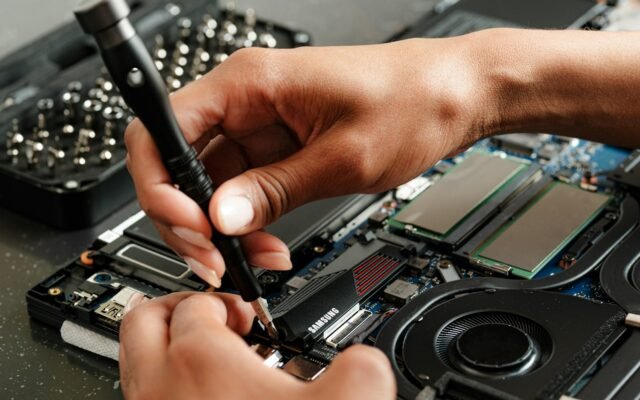
- Locate the drive bay (usually accessible via a small panel on the underside, though some laptops require full bottom case removal)
- Remove the old drive’s mounting screws and connector
- Install the new SSD in the same mounting position
- Reassemble and power on
If you’re also planning other internal work while the case is open, our laptop won’t turn on troubleshooting guide covers how to safely reseat components like RAM at the same time.
Realistic Cost and Time Investment
A 500GB SATA SSD typically costs £30-50, while a 1TB NVMe drive runs £50-90 depending on read/write speed tier. The upgrade itself, including cloning, generally takes 1-2 hours for a first-timer, or 20-30 minutes once you’ve done it before.
When an SSD Upgrade Won’t Help
If your laptop is limited by RAM (4GB or less) rather than storage speed, an SSD upgrade will still help, but you’ll likely hit a different bottleneck quickly. Similarly, if the processor itself is many generations old, an SSD makes the system feel faster for everyday tasks but won’t meaningfully improve demanding workloads like video editing.
If you’re weighing whether an upgrade is worth it versus buying a new machine entirely, see our comparison in laptop repair cost vs new laptop.
Frequently Asked Questions
Do I need to reinstall Windows after an SSD upgrade? Not if you clone your existing drive — cloning preserves your operating system, settings, and files exactly as they were.
Is NVMe always better than SATA SSD? For everyday tasks, the difference is often barely noticeable. NVMe matters more for large file transfers, video editing, or gaming.
Can I keep my old hard drive as extra storage? Yes, if your laptop has a second drive bay or you can use a USB enclosure to turn the old drive into an external storage device.
Will an SSD upgrade void my warranty? On laptops with user-accessible drive bays, no. On laptops requiring full disassembly, check your manufacturer’s policy first, as some void warranty coverage on internal component changes.
For more upgrade and performance guides, browse our full Laptop & PC Repair category.