Your iPhone used to easily last a full day. Now it hits 20% by mid-afternoon, and the anxiety of hunting for a charger has become part of your routine. Before you start pricing a new device or booking a battery replacement, pause. In most cases you can fix iPhone battery problems without replacing the phone.
The majority of sudden or gradual battery drain stems from software settings, background processes, display habits, or temporary post-update indexing—not a dying battery cell. With the right adjustments, many users recover hours of daily use on the same hardware.
This guide walks you through practical, up-to-date steps that work on current iOS versions. Follow them in order and you will likely see meaningful improvement within a day or two.
Understanding Why Your iPhone Battery Drains Fast
Lithium-ion batteries degrade slowly over hundreds of charge cycles. That is normal. What feels like a sudden crisis is often something else entirely.
Common software and usage causes include:
- High screen brightness or Always-On Display running constantly
- Apps refreshing or tracking location in the background
- Weak cellular signal forcing the radio to work harder
- Recent iOS update still indexing photos, files, and system data
- Features such as continuous 5G, Raise to Wake, or excessive notifications
Hardware degradation only becomes the main issue once Maximum Capacity drops well below 80%. Until then, settings changes deliver the biggest gains.
Step 1: Check Battery Health Before Anything Else
pen Settings > Battery > Battery Health & Charging (or Battery Health on older versions).
Look at Maximum Capacity.
- 85–100%: Battery is in good shape. Focus on software fixes.
- 80–84%: Some wear is normal. Settings optimizations still help a lot.
- Below 80%: Apple marks it as significantly degraded. Software tweaks will improve daily experience, but capacity is permanently reduced.
Also note Peak Performance Capability. If you see a message about performance management or “Service,” the battery is struggling under load. Even then, the steps below often restore usable all-day life without immediate hardware work.
[Insert Internal Link: How to Check and Understand iPhone Battery Health]
Step 2: Update iOS and Apps Immediately
Apple frequently ships point updates that fix battery-related bugs. Major version upgrades can cause temporary drain while the system reindexes everything.
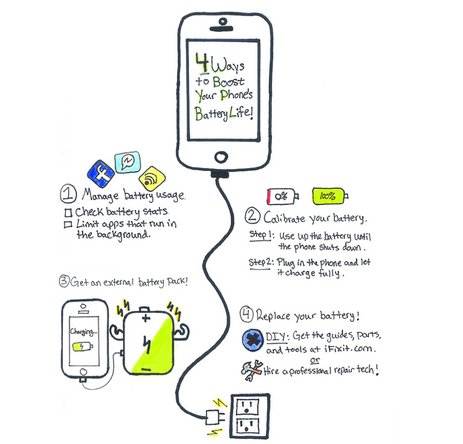
Go to Settings > General > Software Update and install anything available. Then open the App Store, tap your profile, and update all apps.
After a major update, expect higher drain for 24–48 hours (sometimes up to 72). Keep the phone plugged in overnight and connected to Wi-Fi so background tasks finish faster. Do not panic and start resetting settings during this window.
Step 3: Identify the Real Battery Hogs
Settings > Battery shows usage for the last 24 hours or 10 days. Switch between the two views.
Look for:
- Apps with high background activity you rarely open
- System processes consuming unexpected percentages
- “Home & Lock Screen” or “Display & Brightness” higher than normal
In recent iOS versions the Battery screen highlights unusual drain with visual cues. Tap any high consumer to see more detail. Force-quit or delete the worst offenders, or restrict their background privileges in the next steps.
Step 4: Master Core Power-Saving Settings
Low Power Mode Settings > Battery > turn on Low Power Mode (or use Control Center). It reduces background activity, dims the display slightly, limits mail fetch, and slows some animations. The battery icon turns yellow. Turn it on when you need extra hours; it switches off automatically after charging past 80% on many models.
Adaptive Power (iOS 26 and compatible hardware) Available on iPhone 15 Pro and later. Settings > Battery > Power Mode > Adaptive Power. This feature learns your habits over about a week and makes small, intelligent adjustments—slightly lower brightness, limited background work, automatic Low Power Mode at low battery—without the heavy restrictions of full Low Power Mode. Many users report it as one of the most effective new tools for extending battery life.
5G Auto Settings > Cellular > Cellular Data Options > Voice & Data > 5G Auto. The phone switches to LTE when 5G offers no real benefit, saving noticeable power in areas with weak or unnecessary 5G coverage.
Step 5: Fine-Tune Display and Always-On Features
The display is usually the single largest power consumer.
- Lower brightness manually via Control Center or enable Auto-Brightness (Settings > Accessibility > Display & Text Size > Auto-Brightness).
- Set Auto-Lock to 30 seconds (Settings > Display & Brightness > Auto-Lock).
- Turn off Always-On Display if your model supports it (Settings > Display & Brightness > Always On). It can consume roughly 1% per hour when active.
- Enable Dark Mode (Settings > Display & Brightness). On OLED screens this reduces power for dark interfaces.
- Disable Raise to Wake if you do not need it (Settings > Display & Brightness).
- Consider Reduce Motion (Settings > Accessibility > Motion) for a small additional saving.
These changes alone often add one to two hours of real-world use.
Step 6: Control Background Activity and Location
Background App Refresh Settings > General > Background App Refresh. Turn it Off entirely, or leave it on Wi-Fi only and disable it for social media, news, and other non-essential apps. Most apps refresh instantly when you open them.
Location Services Settings > Privacy & Security > Location Services. Change most apps from “Always” to “While Using the App” or “Never.” Pay special attention to weather, maps, social, and shopping apps. Significant Location and System Services can also be reviewed for further savings.
Other quick toggles
- Bluetooth: turn off when not using accessories.
- AirDrop: set to Receiving Off when not needed.
- Fetch New Data for Mail: set to Manually or less frequent intervals (Settings > Apps > Mail or Accounts).
[Insert Internal Link: Best Privacy Settings to Improve iPhone Performance]
Step 7: Optimize Charging Habits for Longevity
How you charge affects both daily performance and long-term health.
- Enable Optimized Battery Charging (Settings > Battery > Battery Health & Charging). It learns your routine and holds at 80% until you typically unplug.
- On supported models, set a charge limit if available.
- Avoid extreme temperatures. Apple recommends keeping the device between roughly 0°C and 35°C (32°F–95°F). Leaving it in a hot car or direct sun accelerates degradation.
- Prefer MagSafe or quality wired chargers. Avoid cheap, uncertified cables that can cause inefficient charging.
- Try not to leave the phone at 100% or 0% for long periods when possible.
These habits slow future capacity loss even if they do not instantly restore lost capacity.
Step 8: Handle Post-Update Drain and Special Cases
Temporary indexing after iOS updates is normal. Give it 48 hours while the phone stays on Wi-Fi and power when possible.
If the phone dies completely and struggles to power back on (reported on some recent models), place it on a MagSafe charger for 10–15 minutes rather than relying solely on a wired connection. The higher consistent voltage often revives it faster.
Weak cellular signal is another silent killer. When bars are low, switch to Wi-Fi or enable Airplane Mode until coverage improves.
Advanced Tweaks and Recalibration
If basic steps help but results are incomplete:
- Force restart: Volume Up, Volume Down, then hold Side button until the Apple logo appears.
- Reset Network Settings (Settings > General > Transfer or Reset iPhone > Reset > Reset Network Settings). This clears flaky Wi-Fi or cellular handoff issues that keep the radio busy.
- Recalibrate battery reporting: Let the phone drain completely until it shuts off, leave it off for a few hours, then charge uninterrupted to 100%. This can correct inaccurate percentage readings.
- Review Screen Time limits if heavy usage of specific apps is the real culprit.
When Software Fixes Are Not Enough
If Maximum Capacity is below 80% and you still cannot get through a normal day after thorough optimization, a battery service is the practical next step. Replacing only the battery (not the entire phone) is far more economical and environmentally sensible. Apple and authorized providers handle this while preserving water resistance and true Battery Health reporting on supported models.
Third-party repairs exist but carry risks around quality and future software features. Official service is usually worth the difference for long-term reliability.
Comparison Table: Quick Fixes Ranked by Impact
| Fix | Typical Time Required | Expected Benefit | Best For |
|---|---|---|---|
| Check Battery Health | 30 seconds | Diagnosis | Everyone |
| Lower brightness + Auto-Brightness | 10 seconds | High | All users |
| Background App Refresh off/selective | 1–2 minutes | High | Heavy app users |
| Location Services restricted | 2–3 minutes | High | Location-heavy apps |
| Low Power Mode / Adaptive Power | 10 seconds | Medium–High | Daily extension |
| Always-On Display off | 10 seconds | Medium | Pro models |
| Update iOS & apps | 10–30 minutes | Medium | Post-update drain |
| Optimized Battery Charging | 10 seconds | Long-term | Longevity |
| Network Settings reset | 2 minutes + re-setup | Medium | Signal issues |
External authoritative sources for further reading:
- Apple’s official Maximizing Battery Performance page (apple.com/batteries)
- Apple Support article on Battery Health and Performance
- Apple Support guide to charging and monitoring the battery
- CNET and ZDNet recent guides on iOS battery optimization for independent testing and real-user results
Frequently Asked Questions (FAQs)
Does Low Power Mode damage the battery or slow the phone permanently? No. It temporarily reduces performance and background activity. Everything returns to normal when you turn it off or charge past the threshold.
Why does my battery drain faster right after an iOS update? The system is reindexing Spotlight, Photos, machine learning models, and apps. This is temporary and usually settles within 24–72 hours.
Can I fix battery problems without replacing the phone if health is below 80%? You can improve daily usability significantly with the settings above, but maximum capacity will not return. Battery service restores the original capacity without buying a new device.
Is Adaptive Power better than Low Power Mode? Adaptive Power is subtler and more intelligent for everyday use on supported hardware. Low Power Mode is more aggressive when you need maximum remaining life.
Does Dark Mode really save battery? On OLED displays (most recent iPhones) yes, because black pixels are essentially off. The savings are modest but free.
Should I turn off 5G completely? Usually not necessary. 5G Auto is the smarter choice for most people.
How often should I recalibrate the battery? Only when percentage readings jump around or the phone shuts down unexpectedly at higher percentages. Routine recalibration is unnecessary.
Will these fixes work on older iPhones still receiving updates? Yes. Most core settings apply across recent iOS versions. Adaptive Power requires newer hardware.
Conclusion
Learning how to fix iPhone battery problems without replacing the phone starts with diagnosis and moves quickly into high-impact settings changes. Check Battery Health, update software, tame background activity and location access, optimize the display, and enable Adaptive Power or Low Power Mode as needed. Combined with smarter charging habits, these steps restore hours of usable life for the vast majority of users.
Most battery frustration is fixable with free software adjustments rather than new hardware. Apply the steps systematically, give temporary post-update drain time to settle, and you will likely regain the all-day confidence your iPhone once delivered.
Key Takeaways
- Always start with Battery Health to separate software issues from true degradation.
- Display brightness, Background App Refresh, and Location Services deliver the fastest, largest gains.
- Adaptive Power and Low Power Mode are powerful tools—use the right one for the situation.
- Temporary drain after iOS updates is normal; wait 48 hours before deeper troubleshooting.
- Proper charging habits and temperature awareness protect long-term capacity even after you restore daily performance.