
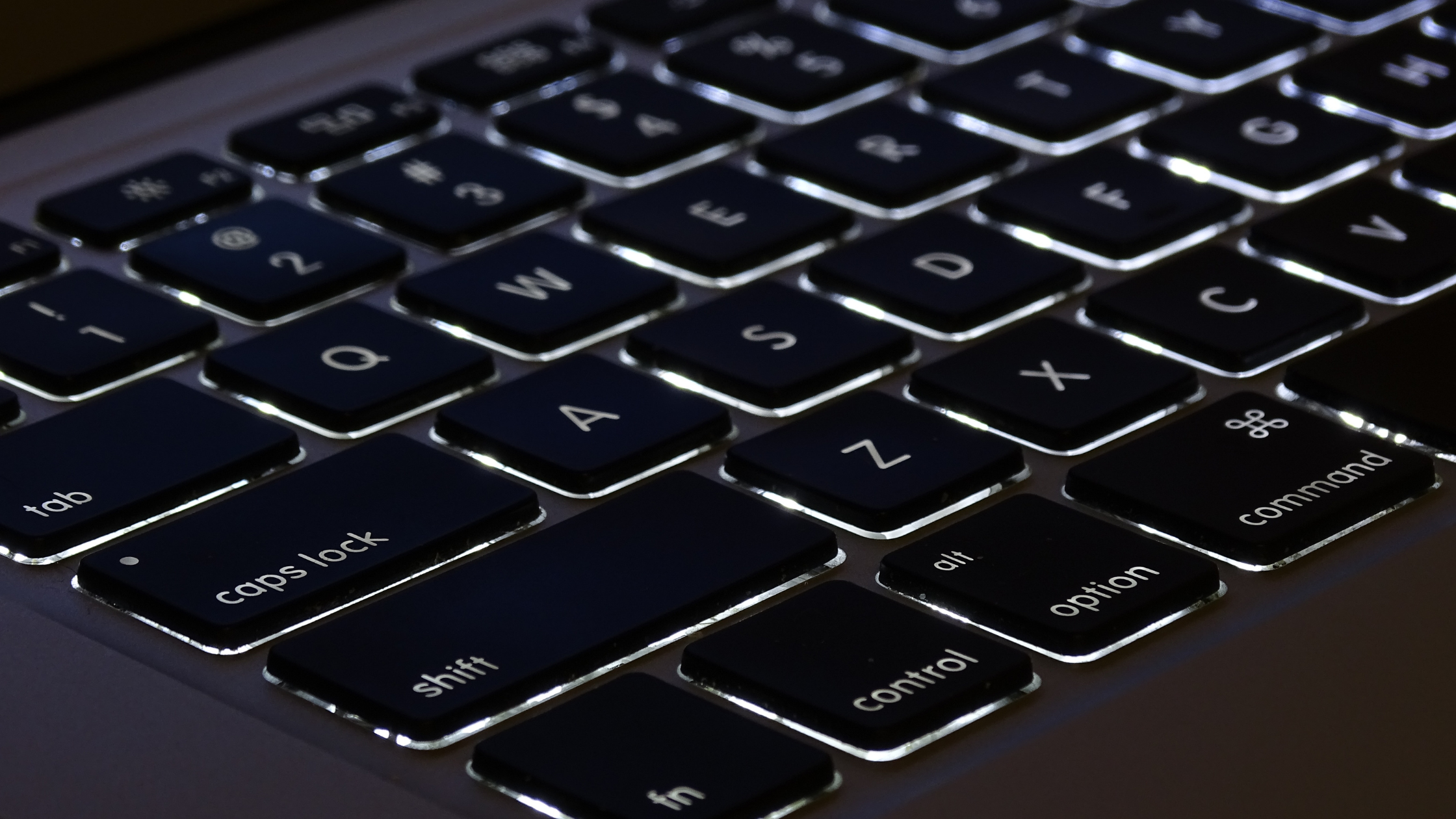
The glow of a Backlit MacBook keyboard is one of those small luxuries you don’t fully appreciate until it’s gone. That soft, even illumination transforms late-night work sessions, early-morning typing marathons, and dimly lit coffee shops from frustrating guesswork into effortless productivity. But when the lights suddenly go out, it can feel like you’re typing blindfolded backlight on macbook not working.
The good news? In most cases, the problem isn’t a disaster. It’s often a simple setting, a temporary glitch, or an environmental factor that can be corrected in minutes—without any tools, expensive repairs, or technical expertise.
This comprehensive guide walks you through every possible cause and solution, from the obvious first checks to more advanced troubleshooting. Whether you own a recent MacBook Pro, a trusty older MacBook Air, or anything in between, you’ll find clear, actionable steps to get your keyboard glowing again. Let’s dive in.
Table of Contents
-
Why Is My Backlit MacBook Keyboard Not Working and How Can I Fix It Quickly?
-
Understanding Your Backlit MacBook Keyboard System
-
Quick First Checks: The Obvious (and Often Overlooked) Fixes
-
Software & Settings Fixes for Your Backlit MacBook
-
Advanced Resets: SMC and NVRAM/PRAM
-
Hardware Problems: When the Issue Isn’t Software
-
Prevention Tips to Keep Your Backlit MacBook Keyboard Working Longer
-
When to Seek Professional Repair
-
-
Conclusion
-
Frequently Asked Questions (FAQ)
Understanding Your Backlit MacBook Keyboard System
Before jumping into fixes, it helps to understand how the system actually works. A Backlit MacBook keyboard relies on two key components working together:
-
Ambient Light Sensor (ALS) – Typically located near the front-facing camera, this sensor measures the light in your environment. In low-light conditions, it automatically triggers the keyboard backlight so you can see the keys. In bright light, it dims or turns off the backlight to conserve battery power.
-
Keyboard Backlight LEDs – Small light-emitting diodes sit beneath the keys. When the ALS detects low light or when you manually adjust brightness, these LEDs illuminate the keyboard from underneath. Different MacBook models use different configurations, but the principle remains the same.
Because the system depends on the ambient light sensor, something as simple as a desk lamp positioned near the camera or direct sunlight hitting the display can trick the sensor into thinking the room is bright, causing the backlight to stay off. This is one of the most common and easily fixable causes of the problem.
Quick First Checks: The Obvious (and Often Overlooked) Fixes
Start here. These steps take less than two minutes and solve the majority of backlight issues.
1. Verify the Keyboard Brightness Isn’t Turned All the Way Down
It sounds almost too simple, but accidentally pressing the brightness keys is extremely common. On MacBooks with a physical function row (F5 and F6), press the keyboard brightness increase key (the icon that looks like a sun with keyboard rays) several times to raise the light level. On Touch Bar models, locate the keyboard brightness control on the Touch Bar itself.
💡 Expert Tip: If you’re in a dark room and the backlight isn’t turning on automatically, try pressing F6 (or the Touch Bar equivalent) several times. If it illuminates, you’ve found the issue—your Mac simply needed a manual nudge.
2. Check the “Adjust Keyboard Brightness in Low Light” Setting
Open System Settings (or System Preferences on older macOS versions) and click Keyboard. Look for the option labeled “Adjust keyboard brightness in low light.” If this is enabled and your backlight isn’t working, try disabling it temporarily to see if manual control works. Once you confirm manual control works, you can re-enable automatic adjustment if you prefer.
This setting relies on the ambient light sensor. If the sensor is dirty, partially covered, or tricked by directional light, it may incorrectly keep the backlight off. Disabling automatic adjustment allows you to rule out sensor issues immediately.
3. Rule Out Low Power Mode
Low Power Mode is designed to extend battery life by limiting certain features—including the keyboard backlight on some MacBook models. Check your battery settings:
-
Go to System Settings > Battery (or Energy Saver on older versions).
-
Look for Low Power Mode and ensure it’s turned Off.
If you depend on Low Power Mode frequently and want the backlight to remain available, you’ll need to manually adjust brightness when the feature is active, as automatic backlight behavior may be restricted.
4. Restart Your MacBook
A simple restart resolves countless temporary software glitches, including those affecting the keyboard backlight. Save your work, click the Apple menu in the top-left corner, and select Restart. Once your Mac boots back up, test the backlight.
5. Clean the Ambient Light Sensor Area
The ambient light sensor is a small component typically located near the camera notch or speaker grilles. Dust, smudges, or sticker residue can block or confuse the sensor, leading to incorrect brightness readings. Gently clean the area around the front-facing camera with a soft, dry microfiber cloth. Also ensure your speaker grilles are not covered, as sensors may be located there on some models.
6. Test in a Truly Dark Environment
The keyboard backlight only activates when the ambient light sensor detects a genuinely low-light environment (with automatic adjustment enabled). If you’re testing in a room with moderate lighting, the backlight may not turn on—because the system correctly assumes you don’t need it. Try moving to a darker room or covering the sensor area with your finger to simulate darkness. If the lights turn on, your Mac is working exactly as designed.
Software & Settings Fixes for Your Backlit MacBook
If the quick checks above didn’t resolve the issue, it’s time to dig deeper into software-related causes.
Check for macOS Updates
Software updates frequently include bug fixes for hardware features like keyboard backlighting. Apple’s engineers continuously refine how macOS interacts with system components, and an outdated operating system can sometimes cause unexpected behavior.
-
Go to System Settings > General > Software Update.
-
If an update is available, install it and restart your Mac.
If you recently installed a macOS update and the backlight stopped working afterward, the update itself may have introduced a temporary compatibility issue. In many cases, the next minor update will resolve it.
Disable “Turn keyboard backlight off after inactivity”
By default, macOS can automatically turn off the keyboard backlight when you haven’t typed for a certain period. This energy-saving feature can sometimes appear as a malfunction if you’re reading or watching content without typing. Adjust or disable this setting:
-
Go to System Settings > Keyboard.
-
Look for “Turn keyboard backlight off after…” and set it to Never or a longer duration.
This is particularly useful if you frequently watch videos or read long documents—the backlight will stay on regardless of typing activity.
Reset Keyboard Settings to Default
Misconfigured keyboard preferences can interfere with backlight behavior. Resetting them is straightforward:
-
Go to System Settings > Keyboard.
-
Note your current custom settings if you want to restore them later.
-
Turn off any non-default settings, particularly those related to backlight automation.
-
Test the backlight again.
Boot into Safe Mode
Safe Mode starts macOS with only essential system components, bypassing third-party software and drivers that might interfere with hardware functions. Booting into Safe Mode can help determine whether a background app or extension is causing the problem:
For Apple Silicon Macs (M1, M2, M3, M4):
-
Shut down your Mac.
-
Press and hold the power button until “Loading startup options” appears.
-
Select your startup disk, press and hold the Shift key, then click Continue in Safe Mode.
For Intel-based Macs:
-
Restart your Mac and immediately press and hold the Shift key.
-
Release the Shift key when the login window appears.
Once in Safe Mode, test the keyboard backlight. If it works properly, the issue is likely caused by third-party software. Restart normally and identify recently installed apps or login items that may be responsible.
Advanced Resets: SMC and NVRAM/PRAM
When software settings and basic restarts don’t work, more advanced resets can resolve deeper system conflicts. These procedures are safe and do not delete your personal data, but they require following specific steps based on your Mac model.
Resetting the SMC (System Management Controller)
The SMC is a dedicated chip on Intel-based Macs that manages low-level hardware functions including keyboard backlighting, power management, fans, and battery charging. When the SMC becomes confused, hardware features may stop working correctly.
⚠️ Important: Macs with Apple Silicon (M1, M2, M3, or M4 chips) do not have a traditional SMC. On these models, simply shutting down and restarting accomplishes the same result automatically. No further action is needed.
For Intel-based Macs without the Apple T2 Security Chip (older models):
-
Shut down your Mac.
-
On the built-in keyboard, press and hold all of the following keys simultaneously: Control (left) + Option (left) + Shift (right).
-
While holding those three keys, press and hold the power button as well.
-
Keep holding all four keys for 10 seconds.
-
Release all keys, then press the power button to turn on your Mac normally.
For Intel-based Macs with the Apple T2 Security Chip (most models from 2018 onward):
-
Shut down your Mac.
-
On the built-in keyboard, press and hold all of the following keys: Control (left) + Option (left) + Shift (right).
-
Keep holding all three keys for 7 seconds, then press and hold the power button as well.
-
Keep holding all four keys for another 7 seconds, then release them.
-
Wait a few seconds, then press the power button to turn on your Mac.
After resetting the SMC, test your keyboard backlight again. In many cases, this single step resolves persistent backlight issues.
Resetting NVRAM or PRAM
NVRAM (or PRAM on older Macs) stores certain system settings including display resolution, speaker volume, time zone information—and keyboard backlight behavior. Resetting it can clear corrupted preferences.
For Intel-based Macs:
-
Shut down your Mac.
-
Press the power button, then immediately press and hold Option + Command + P + R.
-
Keep holding these four keys for approximately 20 seconds.
-
Release the keys and allow your Mac to start normally.
On Apple Silicon Macs, NVRAM resets automatically during startup; no manual action is needed.
After resetting NVRAM, you may need to re-adjust some system preferences like display resolution and volume levels. This is normal.
Hardware Problems: When the Issue Isn’t Software
If you’ve worked through all the software fixes and resets and your Backlit MacBook keyboard still refuses to illuminate, a hardware issue may be the culprit. Hardware failures are less common than software issues, but they do occur—especially after physical damage, liquid spills, or previous repairs.
Loose or Disconnected Backlight Cable
Inside your MacBook, a thin ribbon cable connects the keyboard backlight to the logic board. This cable can become loose due to:
-
A drop or impact that jarred internal components.
-
Previous repair work where the cable was not fully reseated.
-
Manufacturing defects on rare occasions.
For users comfortable with electronics repair, the connection point is often accessible by removing the bottom case. On many MacBook models, the backlight cable connector is immediately visible once the bottom cover is removed. However, opening your MacBook may void your warranty, and improper handling can cause additional damage. If you’re unsure, professional repair is strongly recommended.
Failed Keyboard Backlight LEDs
The LEDs themselves can fail over time, particularly after years of heavy use or exposure to extreme temperatures. Unlike a loose cable, LED failure usually requires replacing the entire keyboard assembly or the backlight components, as individual LEDs are not user-serviceable.
Logic Board Component Failure
On rare occasions, a damaged resistor or capacitor on the logic board can disrupt power delivery to the keyboard backlight system. iFixit community discussions have noted that a missing or damaged resistor for the keyboard backlight PWM (pulse-width modulation) can cause complete backlight failure. This type of repair requires micro-soldering expertise and is best left to professional technicians.
Liquid Damage
If your MacBook has ever been exposed to liquid—even a small spill—corrosion may have damaged the keyboard backlight circuitry. In such cases, professional cleaning and component-level repair may be necessary. The sooner liquid damage is addressed, the better the chance of recovery.
Prevention Tips to Keep Your Backlit MacBook Keyboard Working Longer
An ounce of prevention is worth a pound of cure. Here’s how to protect your backlight system for the long haul:
-
Keep the ambient light sensor area clean. Dust and debris around the camera notch or speaker grilles can interfere with accurate light readings. A quick wipe with a microfiber cloth every few weeks goes a long way.
-
Avoid placing desk lamps or bright directional lights near the camera. The sensor interprets intense light as a bright environment and may keep the backlight off. Position lighting behind or beside the display rather than directly above or in front.
-
Use a keyboard cover with caution. While keyboard covers protect against dust and spills, thick or opaque covers can block the backlight and reduce visibility. Choose thin, transparent covers if you need protection.
-
Keep your MacBook away from extreme temperatures. Excessive heat can degrade LED performance over time, and cold can affect battery behavior, which indirectly impacts the backlight system.
-
Update macOS regularly. Apple frequently releases patches for hardware-related bugs. Keeping your system up to date ensures you have the latest fixes.
-
Shut down your MacBook fully once a week. A full shutdown (not just closing the lid) clears temporary system states and gives the SMC and other controllers a fresh start. This simple habit prevents many gradual glitches from accumulating.
When to Seek Professional Repair
If you’ve methodically worked through this entire guide and your Backlit MacBook keyboard still won’t light up, it’s time to consult a professional. Here are reliable options:
-
Apple Store or Apple Authorized Service Provider – This is the safest choice, especially if your Mac is under warranty or covered by AppleCare+. Technicians use genuine Apple parts and follow standardized repair procedures.
-
Trusted Third-Party Repair Shops – For out-of-warranty MacBooks, independent repair providers often offer more affordable rates. Look for shops with good reviews and experience specifically with Mac hardware.
-
Self-Repair with Caution – If you have electronics repair experience, resources like iFixit provide step-by-step guides for checking backlight cable connections or replacing keyboard assemblies. However, self-repair carries inherent risks and may void any remaining warranty.
🔧 Helpful Resource: For detailed repair guides and community troubleshooting, iFixit offers an extensive library of MacBook repair documentation. Their step-by-step visual guides cover everything from basic cable checks to full keyboard replacements. Check out their latest posts for model-specific instructions and real-world repair experiences.
What to Expect in Terms of Repair Costs
Repair costs vary significantly depending on your MacBook model and the nature of the problem:
-
Cable reseating or sensor cleaning – Often minimal or even free at smaller repair shops.
-
Keyboard backlight LED repair – Typically $50–$150 for models where individual components are accessible.
-
Full keyboard assembly replacement – $200–$500 depending on the model, as the keyboard is often integrated with the top case on many modern MacBooks.
-
Logic board component repair – $150–$400, requiring micro-soldering expertise.
Always request a diagnostic estimate before authorizing any repair. A reputable shop will diagnose the issue first and provide a clear cost breakdown.
Conclusion
A non-functional keyboard backlight on a Backlit MacBook is rarely a disaster. In the vast majority of cases, the solution is surprisingly simple: adjusting brightness keys, checking system settings, disabling Low Power Mode, or restarting the computer. When basic steps don’t work, resetting the SMC or NVRAM often resolves deeper conflicts. Only a small percentage of cases involve actual hardware failure requiring professional repair.
Here are the key takeaways to remember:
-
Start simple. Check brightness keys, automatic adjustment settings, and Low Power Mode before doing anything else.
-
Understand the ambient light sensor. It’s the brain behind automatic backlight behavior. Clean it, test it, and consider disabling automatic control if it consistently misbehaves.
-
Use Safe Mode to isolate software conflicts. If the backlight works in Safe Mode, a third-party app or extension is the likely culprit.
-
Reset SMC on Intel-based Macs when software fixes fail. This single step resolves a surprising range of hardware control issues.
-
Don’t ignore hardware possibilities. If you’ve tried everything software-related, a loose cable, failed LEDs, or liquid damage may be responsible. Professional diagnosis is worth the cost.
-
Prevent problems before they start. Clean the sensor area, position lighting carefully, and shut down your Mac fully once a week to clear temporary system states.
Your backlight is a tool designed to make your work easier and more comfortable. When it stops working, methodical troubleshooting will almost always restore it—without panic, without expensive repairs, and without needing to be a technical expert. Follow the steps in this guide in order, and you’ll be typing in the glow of a fully illuminated keyboard again before you know it.
Frequently Asked Questions (FAQ)
Q: Why does my keyboard backlight work sometimes but not others?
A: This typically points to the ambient light sensor. If you’re in a room with varying light levels (like near a window on a partly cloudy day), the sensor may toggle the backlight on and off. Try disabling “Adjust keyboard brightness in low light” in Keyboard settings and using manual brightness control instead.
Q: Will resetting SMC delete my files or settings?
A: No. Resetting SMC clears low-level hardware states but does not affect your personal files, apps, or most system preferences. You may need to reconfigure some settings like display brightness or volume after resetting NVRAM, but your data remains safe.
Q: My keyboard backlight stopped working after a liquid spill. What should I do?
A: Shut down your Mac immediately and disconnect the power adapter. Do not attempt to turn it back on until it has been professionally inspected. Liquid damage can worsen quickly if the device is powered on. Take it to a repair technician as soon as possible.
Q: Do all MacBooks have backlit keyboards?
A: Not all. Most MacBook Pro and MacBook Air models from 2010 onward include backlit keyboards, but some very early models and certain budget configurations do not. Check Apple’s specifications for your specific model.
Q: Can a macOS update cause keyboard backlight problems?
A: Yes, occasionally. Updates can introduce temporary bugs. If you notice the issue immediately after an update, check for a subsequent patch release or visit Apple’s support forums to see if other users are reporting similar problems.
Q: Why does my backlight flicker or pulse unevenly?
A: Flickering often indicates a hardware issue—either a failing LED, a loose cable connection, or a logic board power delivery problem. If flickering persists after software troubleshooting, seek professional diagnosis.
Q: Is it safe to use compressed air to clean around the keyboard and sensors?
A: Yes, when used correctly. Follow Apple’s recommended method: tilt your Mac at a 75-degree angle and use short bursts from a compressed air can with a straw attachment. Never blow directly into speaker grilles or sensor areas at close range, as excessive pressure can damage delicate components.
Related posts:
![facebook video downloader facebook video downloader]()
How to Change Name on Facebook: The Complete 2026 Guide
![Fix Orange Discoloration on MacBook Pro Screen]()
How to Fix Orange Discoloration on MacBook Pro Screen: Complete Guide to Causes & Solutions
![Google Gemini in 2026]()
What Is Everything You Need to Know About Google Gemini in 2026?
![fbi warns iphone android scams]()
Why the FBI Warns iPhone Android Scams Are Increasing
![What Should You Know About the iPhone 17 in 2026]()
What Should You Know About the iPhone 17 in 2026, Including Features, Specs, Price, Release Date, an...
![Best Free Password Managers ifixit]()
Best Free Password Managers: Secure Your Digital Life in 2026
![Snapchat Planets - ifixit]()
How Do Snapchat Planets Work and What Does Each Planet Mean in the Friend Solar System?
![What Causes Black Lines on Laptop Screen]()
What Causes Black Lines on Laptop Screen? A Complete Troubleshooting Guide







